Delete an app
Delete an app you no longer need, with everything it is made of, while the records it used stay in your data model.
When an app is no longer needed, such as a test app or one made twice by mistake, you can delete it. Only Administrators delete apps. It cannot be undone.
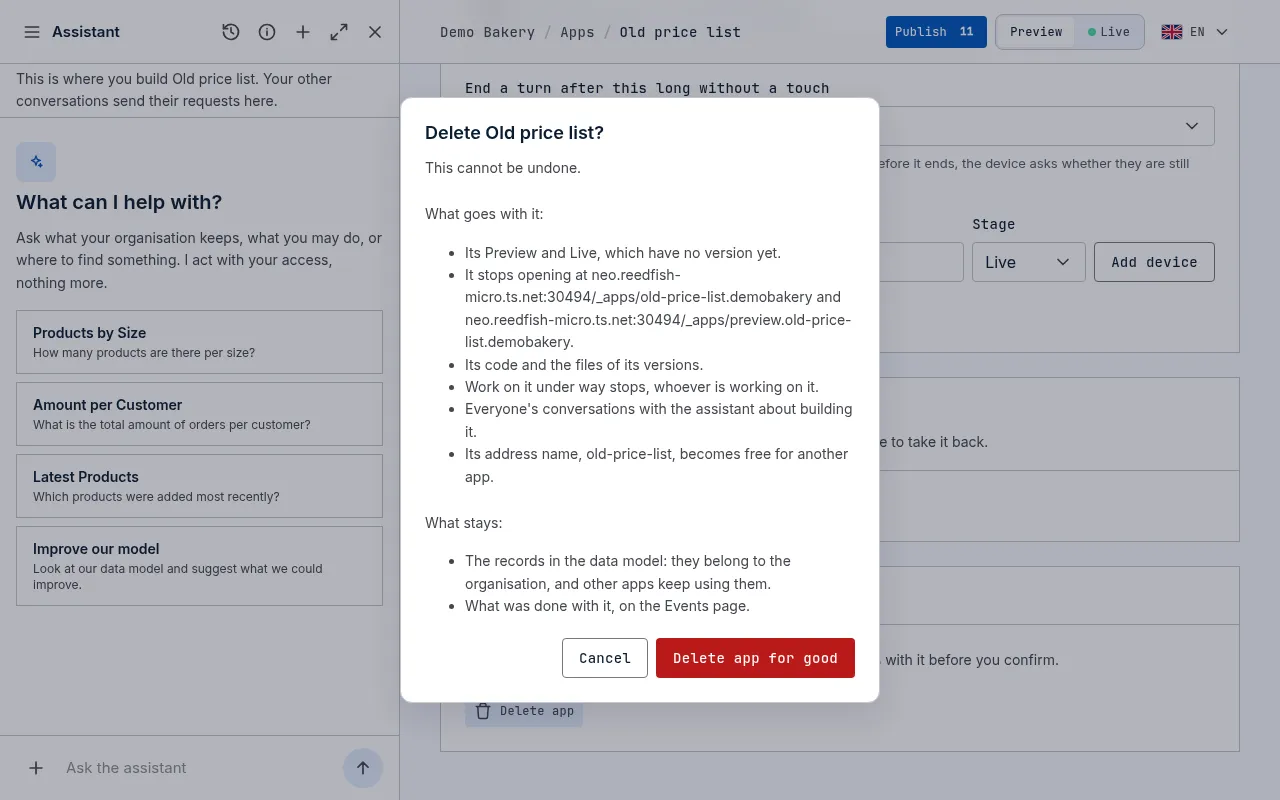
Delete it
Section titled “Delete it”- Open the app’s page from Apps in the sidebar.
- At the bottom of the page, under Delete app, choose Delete app.
- Read what goes with it and what stays (see below).
- If the app is on Live, type its name to confirm.
- Choose Delete app for good, or Cancel.
You are back on Apps, and a message says the app was deleted. The deletion shows in the event log as App deleted, with who did it.
What goes with it
Section titled “What goes with it”- All its versions, with its Preview and its Live.
- Its addresses: it stops opening at its own address, its Preview address and any of your own domains it had, within a few seconds. If people use it on Live, they lose access to it at once; that is why you type its name first.
- Its code and the files of its versions.
- Any work on it under way, whoever is working on it.
- Everyone’s conversations with the assistant about building it. Your other conversations stay.
- If it was your organisation’s landing page, your organisation’s own address shows the list of public apps again.
Its address name becomes free, so a new app can have it.
What stays
Section titled “What stays”- Your records. The entities, fields and records in your data model belong to your organisation, not to the app, so other apps and the dashboard keep using them.
- The event log, with what was done with the app.
With the assistant
Section titled “With the assistant”You can also ask the assistant to delete an app, if you are an Administrator. It shows you a card with the same lists and does nothing until you confirm on it; for an app on Live, you type its name on the card. When several apps have the same name, it asks which one you mean, by their addresses.