Roles and access
Management roles say what someone may set up; data roles, given to members and customers alike, say which records they may read, add, change and delete.
Two kinds of role decide what someone may do in an organisation.
- A management role says what they may set up: people, the data model, settings.
- Data roles say what they may do with records: which ones they may read, add, change or delete.
Management roles
Section titled “Management roles”Every member has exactly one:
| Role | May |
|---|---|
| Administrator | Everything: members, departments, settings, the data model, data roles and all records. |
| Builder | Change the data model and the data roles, build apps and choose who can open them, and publish. Works with records within their data roles. |
| Member | Work with records, within their data roles. Sets nothing up. |
Administrators always have full access to every record. An organisation always has at least one Administrator.
Data roles
Section titled “Data roles”A data role says, for each entity, how far each of these rights reaches:
| Right | Means |
|---|---|
| Read | See the records. |
| Add | Add records, and for whom. |
| Change | Change records. |
| Delete | Delete records. |
| Share | Share a record with one person. See Owners and sharing. |
| Assign | Give a record to another owner. |
Each right reaches one of these levels. Each level holds the ones inside it:
Or None: no records at all. For Add the same levels read for themselves, for their department and so on: whom they may add records for.
“Their department” means the records owned by people in the person’s own department.
Field access
Section titled “Field access”A data role can also limit single fields of an entity: Editable, Read-only or Hidden. A field you leave as it is follows the role’s fields it does not name. A hidden field does not appear anywhere for people with only that role, not in lists, exports or the assistant’s answers. A calculated field is never changed by anyone, so Editable and Read-only both show it.
Link access
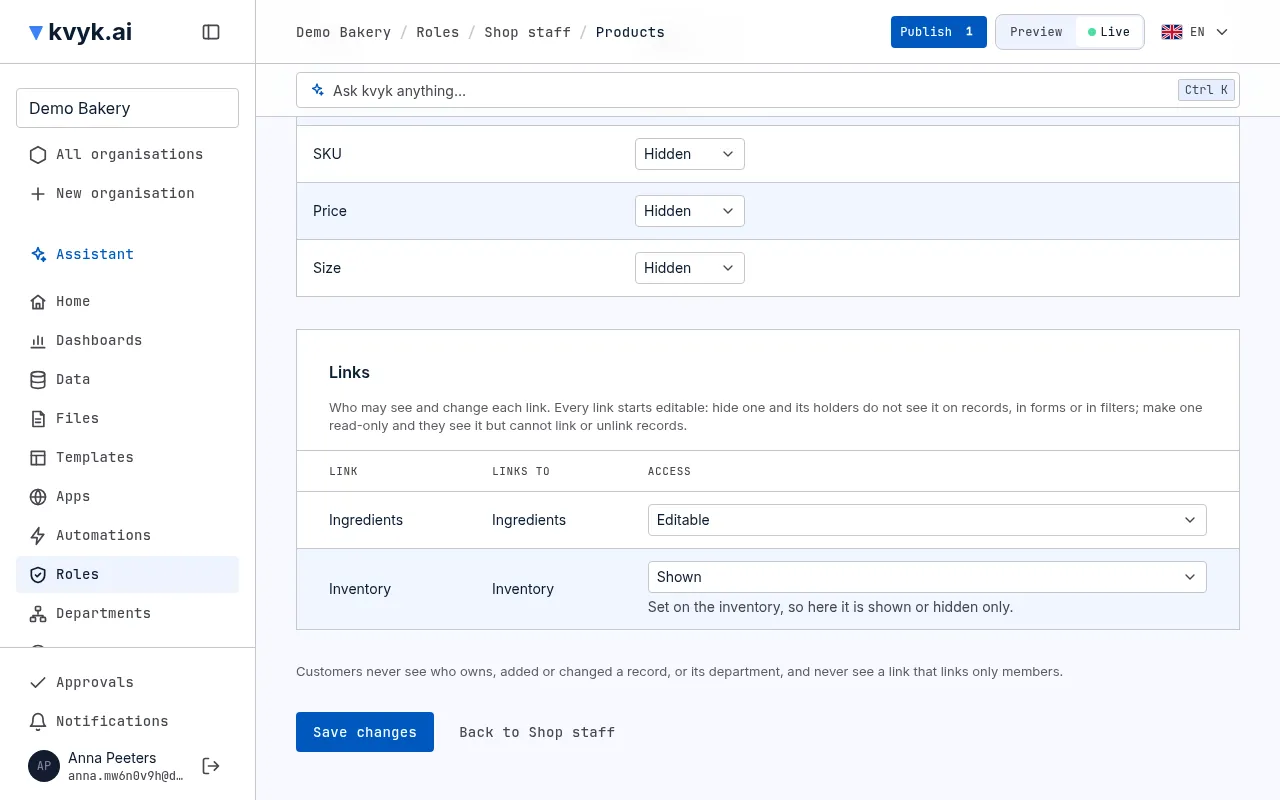
Section titled “Link access”Links can be limited the same way, on each side: open an entity on the role’s page and set each link under Links to Editable (the default), Read-only or Hidden.
- A hidden link does not appear for people with only that role: not on the record’s page, in forms, lists or filters, nor in their apps.
- A read-only link shows the linked records, but they cannot link or unlink records through it.
- A link from another entity that points at this one, such as Inventory on a product, is set on the records it starts from. Here it can only be Shown or Hidden.
- A link to people, such as a shift’s Volunteers, is set the same way: Links to says People.
Members’ records
Section titled “Members’ records”The built-in Members entity, with one record per member, works differently, because staff data is private by default (see Members’ records):
- every member reads their own record, whatever their roles;
- its built-in fields, such as Name and Department, are read-only for everyone;
- the fields you add to it are Hidden unless the role sets them otherwise;
- no role can add, delete or give away a member’s record, and Not signed in and customers get no access to it.
Several roles
Section titled “Several roles”Someone with several data roles gets the widest of them: if one role lets them read all records and another only their own, they read all records.
Not signed in
Section titled “Not signed in”Not signed in is a built-in data role for visitors of a public app who have not signed in. It gives no access at all until you change it, and then only to read: all records of an entity or none, with fields shown or hidden. Nobody holds it, and you cannot rename or delete it. See Choose who can open an app.
Members and customers
Section titled “Members and customers”Members and customers hold the same data roles. Nobody holds a role until you give it to them: see Give people their data roles.
A customer never gets more from a role than a customer may have:
- a department level gives them only their own records;
- they add records only for themselves;
- they never share or assign records, and get nothing on the Members entity;
- Full access and Not signed in are never given to a customer.
Own records are the records someone added, and for a customer also their own customer record. Linked to them adds the records that lead to the person: for a customer, to their customer record, such as their orders or bookings; for a member, to their member record or through a link to people that names them, such as the shifts they work.
Which links make a record linked to them
Section titled “Which links make a record linked to them”Open the entity on the role’s page to see which links it follows:
- If the entity has one link to Customers or Members, that link is used.
- If it has several, such as Ordered by and Gift for on Orders, tick the ones that count under Linked to them through. Only people reached through a ticked link see the record. Until you tick one, the role cannot be saved.
- A record can also reach a person through other records, up to three links away. An order line is linked to the customer of its order: Order › Ordered by.
- Many to many links count too, from either side. A course linked many to many with its Students is linked to every customer who is one of them.
- A link to people can be ticked too: a shift is then linked to everyone among its Volunteers. It counts only when you tick it.
The role’s table shows the links in the Linked through column, or Choose on its page while a choice is missing.
Fields a role does not name
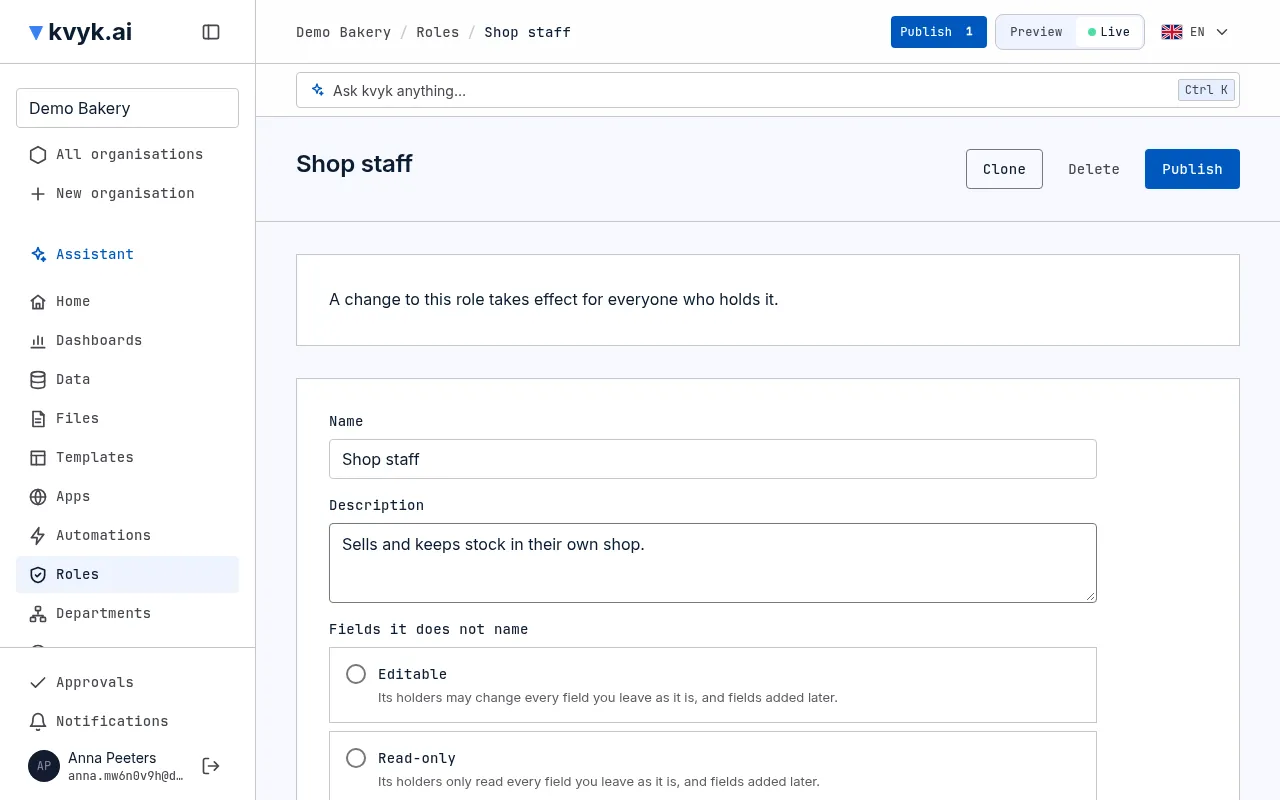
Section titled “Fields a role does not name”Fields it does not name, on a role’s page, says what its holders may do with every field you leave as it is, and with fields added to the data model later: Editable, Read-only or Hidden. A new role starts at Hidden, so its holders see only the fields you show them.
What customers never see
Section titled “What customers never see”Owner, Created by, Last changed by and Department are always hidden from customers, whatever the role says, because they name your staff and your departments.
A link to people shows customers its names only when the link says Show names to customers who can read the record in the data model, and then read-only, unless the role hides it. A link that takes only members is always hidden from customers. Customers never add anyone to such a link, nor take anyone out.
For example, a shop gives its customers a role with: Products, read all records, with Name and Price shown; Orders, read and change the ones linked to them through Ordered by, and add for themselves; Order lines, read the ones linked to them through Order › Ordered by.
What a customer adds is theirs. A link to Customers can only point at themselves, and once it is set they cannot change it. Through a many to many link they can link a record only with themselves, and they never unlink a record from a customer. Customers never change their own email address or consent, never add or delete customers, and never share or give away records.
Give people their data roles
Section titled “Give people their data roles”Administrators give and take data roles:
- A member: when you invite them, or later on their page under People.
- A customer: on their page under People, in Data roles: choose a role under Give a role, then Give role. Take away beside a role takes it away again.
- Many people at once: on the People page, select people one by one, or everyone on the page, then choose a role under Give or take a data role and choose Give or Take away. Once a customer is selected, only your own data roles are offered.
Giving customers a role that reads all records of an entity asks first: they would see other customers’ records there too.
Data roles for new customers
Section titled “Data roles for new customers”Under Data roles for new customers on the People page, choose the roles a customer starts with when you add them, or when they create their account in one of your apps. An app can choose its own on its page: The organisation’s, or Its own roles.
Administrators can also ask the assistant: “Customers of the booking app start with the role Guests.” It shows on a card which roles new customers get and which they had until now, and for the organisation’s roles that the choice reaches every app without roles of its own. Nothing changes until you choose Yes. When the assistant makes an app public with sign-in, or makes a data role for its customers, it offers this card in the same answer, so customers who sign in do not start without access. Customers who already have an account keep their roles.
Make or change a data role
Section titled “Make or change a data role”Builders and Administrators manage data roles on the Roles page, in Preview. Changes reach Live when they are published.
- Open Roles and add a role, or open an existing one. To start from a role you already have, choose Clone beside it: the new role starts with the same grants and fields, named after it with (copy), and is added when you save it.
- Give it a name of 2 to 60 characters, not already used by another role, choose what its holders may do with Fields it does not name and, for each entity, choose the level of each right under What it grants.
- To give many entities the same level at once, search for them by name, select them (or all the ones that match), pick the right and the level, and choose Set for selected.
- To limit fields and links, choose an entity’s name and set each field, and each link under Links, to Editable, Read-only or Hidden.
- Choose Save changes.
If someone else changed the role after you opened it, saving refuses rather than undo their change: reload the role and make your change again. See Working together.
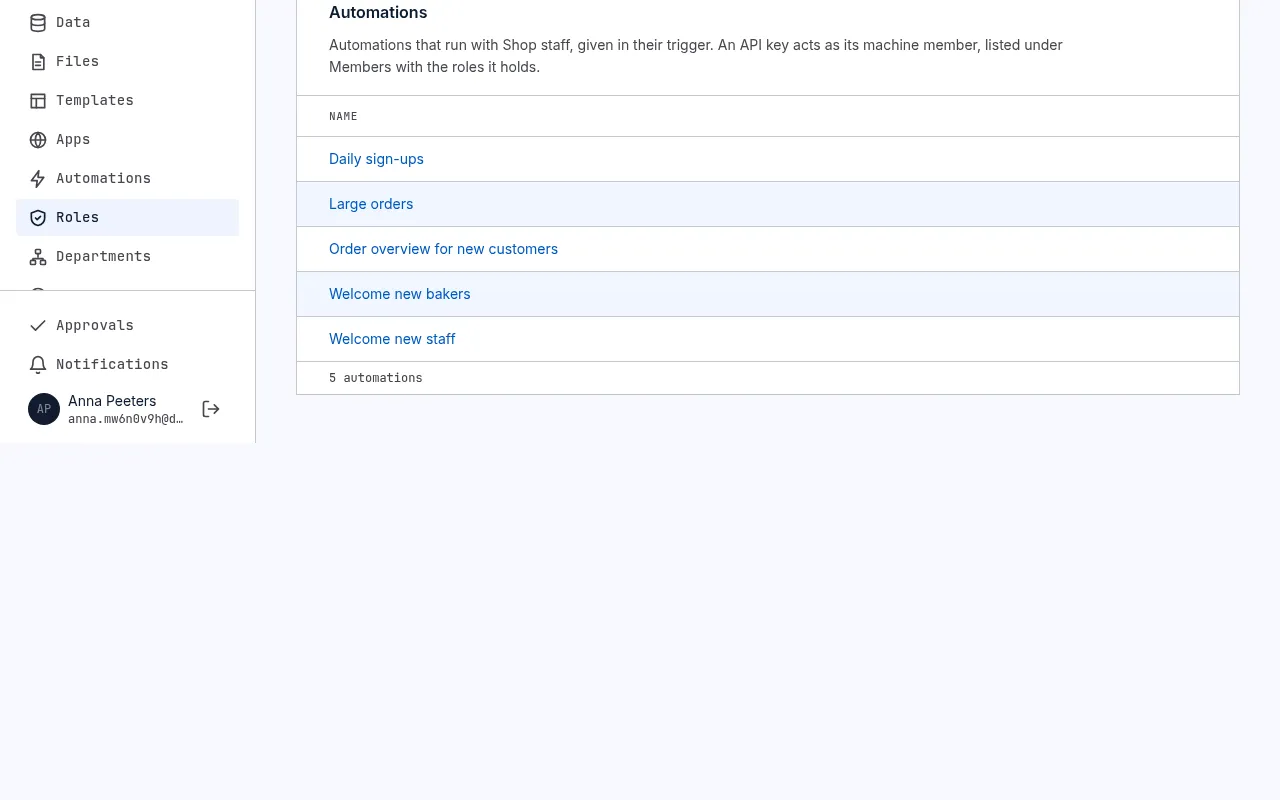
A role’s page also shows who holds it: its members, the machine members of your API keys among them, its customers, and, for Builders and Administrators, the automations that hold it. Give people their roles on the People page, as above. A role that someone or an automation still holds cannot be deleted: take the role away or out of the automation first.
When a change lets people with a role on Live do more, such as reading all records where they read only their own, publishing lists it under Roles would give more, and an Administrator publishes it with Approve and publish. When a Builder publishes it, publishing says so and goes no further: the Administrators are asked in their approvals and by mail; once one approves, the next publish goes through. Publishing also warns of any entity or field that no role but Full access would see; see Publish and discard changes.
You can also ask the assistant: “Make a data role Staff: they may see and add their own clock-ins, not their colleagues’.” It shows the role on a card, and makes it in Preview when you choose Yes. When the assistant adds entities or fields, its card also says, per data role, what each role will see of them, folded per role so you can open one for its fields, and points out fields that look sensitive, such as wages or purchase prices, and who would see them. When something it made would be seen only by people with Full access, it says so.
Why may someone do something?
Section titled “Why may someone do something?”A record’s page explains what you, or someone else, may do with that record and why: which role or share allows it. Builders and Administrators can choose See someone else’s access there to check a colleague’s. In Live, Administrators can also choose See a customer’s access: it shows what a customer may do with the record in your apps, and through which link it reaches them.