The assistant
What the assistant does for you, how to open it, and how to talk to it.
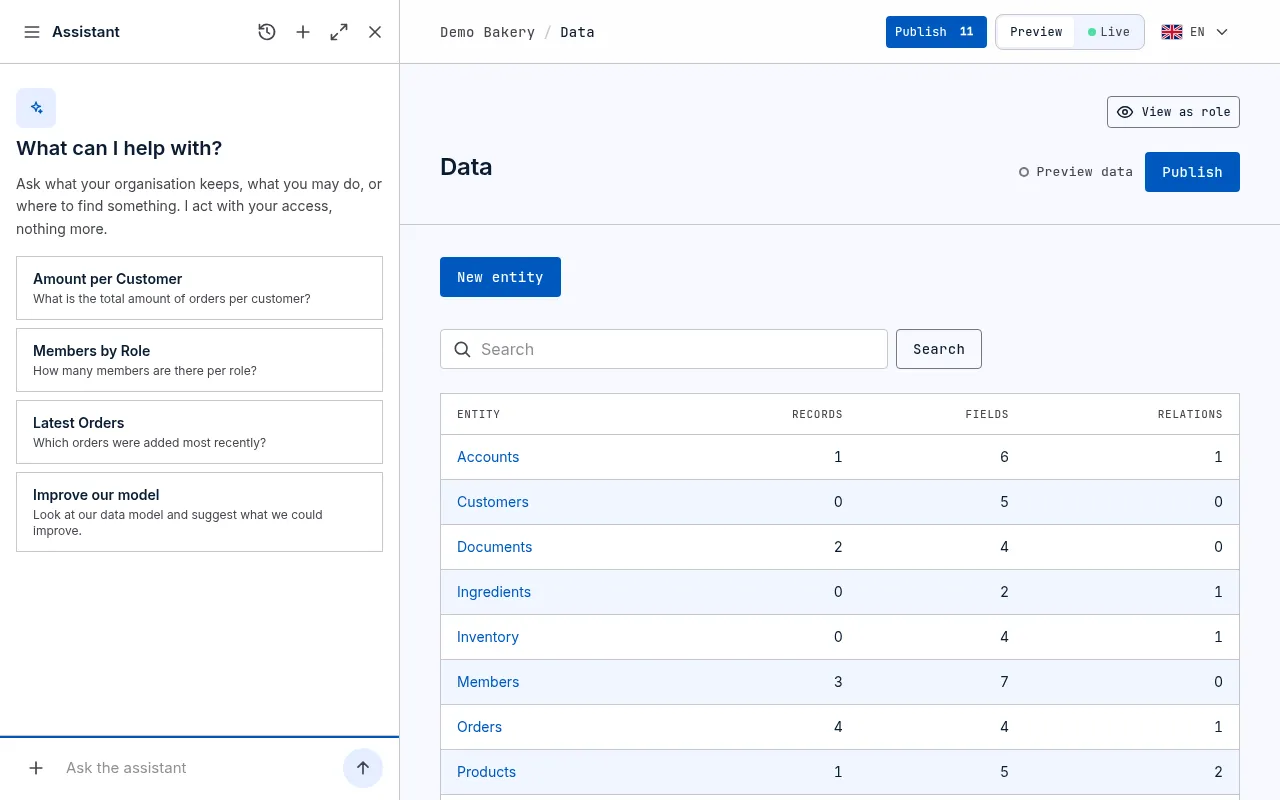
The assistant does what you can do on kvyk.ai, as you, in plain words. Ask it a question about your business, have it add or change records, or describe what you keep track of and let it build the data model with you.
It answers in the language you write in. When it cannot tell, from a single word or a name, it answers in your dashboard’s language. The steps it shows as it works and the cards it asks you to confirm are in your dashboard’s language, and the steps of earlier conversations follow it when you switch.
Open it
Section titled “Open it”Choose Assistant at the top of the sidebar, type in Ask kvyk at the top of any page (Ctrl+K, or ⌘K on a Mac), or say what you want to do on your organisation’s Home. The assistant opens in the sidebar’s place, next to the page you are on, so you can keep working while you talk.
- Drag its edge to make it wider.
- Conversations shows your earlier conversations in the panel, to search, open or delete one.
- Expand opens the conversation as a full page. There, Conversations opens your earlier conversations beside it.
- New conversation starts afresh.
- Close it to bring back the sidebar.
On a phone it fills the screen. Fold it down to a bar at the foot of the page to look at what it changed, and open it again from there.
While the assistant is open, on its full page and on Home, Ask kvyk is hidden, as the assistant’s own box is right there. Ctrl+K (⌘K) then takes you to that box.
Answers waiting. When you close the assistant and an answer comes in, Assistant in the sidebar shows how many conversations have an answer you have not read yet (on a phone, the menu button shows it too). Choose Assistant to open the newest of them; the number goes down by one. Close it and choose Assistant again for the next one, until none is left.
A new conversation offers a few ways to start, chosen for you and the page you are on, in your dashboard’s language.
While it works
Section titled “While it works”While it works, the assistant shows one line saying what it is doing now, such as Working… Searching your data. Once it is done, that line says how many steps it took, and how many did not work, if any. A step that failed but that the assistant then did again successfully counts as fixed: the line stays green, and the list says Failed, then fixed beside that step. Above it, a short note says what the assistant is about to do, and the next note replaces it. Once it is done, only its answer stays in the chat; those notes fold away with the steps. Click the line to see every step, with the notes between them, and click it again to fold them away. A step that did not work says why under Why it did not work, such as an automation it proposed that was not right yet and what was missing; the assistant reads the same and usually tries again. A card it asks you to confirm always shows in the chat; while it waits for you, the line says so, such as Waiting for your go-ahead.
Stop it. While it works, the button beside the box is Stop. The assistant stops at once, where it is: what it already did stays done, and its answer ends with You stopped me here. The line of steps then says Stopped, a card it was waiting on is taken away, and Send is back. An answer that takes far too long is stopped by itself, with a line saying The assistant did not answer in time, so it was stopped. What it did so far is kept: ask again to carry on.
Follow along or read back. The chat follows the new text only while you are at the bottom. Scroll up to read an earlier part and it stays where you are; Jump to latest takes you back down. Sending a message goes to the bottom too.
Write while it works. A message you send meanwhile shows straight away at the foot of the chat as Queued. When the assistant is done, your queued messages are sent together as one message, in the order you wrote them, with their files; if the assistant then waits for you on a card, your messages wait too. Choose Remove to take one back, or Send now to hand that message to the assistant without stopping it: it shows as Sent, and at its next step the assistant answers it in its reply, for example how far it is, and goes on with its work. To stop the assistant, choose Stop. If the assistant is waiting for you on a card, Send now takes the card away and sends the message at once. Queued messages wait in this browser: when you reload the page, they are sent once the assistant is done.
Reply to a passage. Select words in the chat, in an answer or in your own message, and choose Reply just above them. They go at the start of the box as a quote of one line, with room under it for your reply; a longer passage is cut to about 200 characters, ending in ”…”. The message you send shows the quote first.
What you have not sent stays. Text you typed in a conversation but did not send is still there when you close the assistant, open another conversation or reload the page, and come back to that conversation. It is kept in this browser and goes once you send it.
The box grows as you type, up to about eight lines, then scrolls. A message holds up to 8,000 characters; from 7,000 a count shows under the box.
What it can do
Section titled “What it can do”- Explain kvyk.ai, your data model and what you may do. It reads these docs to answer and links the page.
- Tell you about your own account: your name and address, a new address still waiting for you to confirm it, your language and time zone, the organisations you belong to with your roles in each, and your conversations here, by title, the unread ones too: “Did my new address go through?” It does not change your account: it opens your account page for that.
- Recall what you talked about before: it searches your other conversations here for what you mention and reads back a few short passages, or reads one conversation a few messages at a time, then says which conversation it came from: “What did we decide about the opening hours last week?” Only your own conversations, in this organisation.
- Count, list and read your files: how many files each Files field holds and how much storage they use, which files your records hold (by name, type and size, for one record or all of them), and what is in one of them, a part at a time: “Which invoices have a scan attached?” Only the files you may open yourself. See Files.
- Find and read records, and work out counts, totals and averages, per person, option or period, and the hours from a start to an end: “How many hours did each person work per week this month?” It names each person, and a shift without an end yet is left out.
- Add, change and delete records: “Mark the three oldest open orders as urgent.” Several records for Live take one card, which lists them by name; open Their values to see what each gets. After Yes, it says how many it added, and which it could not add and why. Publishing an app does not copy the records you made in Preview to Live: after a publish, the assistant says so and offers to add the ones you want.
- Build the data model with you (Builders and Administrators): it proposes entities, fields and links on a card, a small step at a time, and makes them in Preview when you choose Yes. Each card starts with one sentence saying what the step is for and lists the changes briefly; open The fields in detail for each field’s type and rules, and How this answers your questions for the questions you want answered and how the model answers each. A bigger model comes in a few cards, one after the other. It names what it adds in your organisation’s language, and gives each part an English name in the API, which your apps use: your Diensten are shifts there. A name you ask for is used as you said it. It also adds choices to an options field you have, such as Break to the Type of your clock-ins. It knows the parts kvyk.ai gives you, such as the Member entity, every entity’s Status and Created on: it never adds them again, and renames one only after you choose Yes on a card of its own. What you confirm on a card is made whole or not at all. It can publish them to Live too, after you confirm.
- Make and change data roles (Builders and Administrators): “Make a data role Staff: they may see and add their own clock-ins, not their colleagues’.” It sets out on a card what the role may do with each entity and makes it in Preview when you choose Yes. It reaches Live when you publish.
- Design templates and change dashboards with you: “Make an invoice template for orders, with the order lines and their total”, “Add a chart of orders per month to the Sales dashboard”. Templates are for Builders and Administrators; a dashboard, for whoever may change it. See Change what you have open. It can also save a whole template, remove one, send you a test email, make a document of a record and, for Administrators, change the organisation details, each after you confirm on a card. See Templates.
- Manage people and access as you could: invite someone, give someone a data role, share a record.
- Open pages in the dashboard for you, an app’s page too when you name the app.
- Delete an app (Administrators), after you confirm on a card that says what goes with it. See Delete an app.
- Look things up on the web, naming its sources. It never puts your records in a web search.
- Remember what you tell it. See What the assistant remembers.
How it works with you
Section titled “How it works with you”You
Ask in your own words
Choose Yes or No on the card
Assistant
Reads what it needs, asks if something is unclear, shows a card of what it will do
Does it and says what changed, with links
When it needs a choice or a detail, it asks in a card: pick an option, a date, a record or a person, or type your own answer. You can skip a question. A question you answer with yes or no comes with a Yes and a No button, so there is nothing to type.
Before anything serious, it shows a confirmation card saying exactly what will happen. Nothing is done until you choose Yes. The card is the question: the assistant does not ask you in the chat first, so you say yes once. Choose No to tell it what you would rather do. See Your data and the assistant.
Change what you have open
Section titled “Change what you have open”When you have a template or a dashboard open and ask the assistant to change it, it makes the change right there, as you watch. What it changed stands out, and a bar says what it did, with Keep and Undo:
- Keep saves the change. Like any change of yours, it waits in Preview until you publish.
- Undo puts back what was there, and nothing is saved.
Until you choose, the line of steps in the chat says Keep or undo the change in the editor.
If you have changes of your own not saved yet, it asks you to save or take them back first. When the template or dashboard is not open, it asks first, for example Open the Invoice template?, and opens it when you choose Open.
Next steps
Section titled “Next steps”When a conversation can go a few ways, the assistant ends its answer with up to four next steps: buttons under its answer, such as Add a Category field to Products or Show this week’s shifts. Click one to send it as your message, or just type something else. They disappear once you answer. The choices are in the buttons only: the answer does not list them again.
When the assistant offers to do one thing for you, such as starting an app, the buttons say what it would do, such as Start building the app, beside Not now.
Your conversations
Section titled “Your conversations”Your conversations are yours: no one else in the organisation sees them. Find them behind Conversations, on the assistant’s full page or in the panel.
- They are listed newest first, under Today, Yesterday and Earlier. Older ones load as you scroll down.
- Search conversations finds a conversation by its title or by anything said in it, and shows the words that matched.
- A conversation with an answer you have not read yet shows in bold, and counts in the number on Assistant. Opening it marks it read.
- Click one to carry on with it.
- Every app is built in its own conversation, and only there. That conversation has a badge under its title: a small rounded label with a thin border, a grid icon and the app’s name, such as Builds Shop. Conversations that build no app have no badge. Searching for the app’s name finds it, and clicking it opens the app’s page with that conversation beside the preview. An earlier conversation of an app, left when you started the app’s conversation fresh, keeps its badge and has a line of plain text under it: Earlier conversation of an app. See Build an app.
- Each name uses the whole row. Point at one (on a phone, the one you opened) to see when it was last used and its bin. To delete it, choose the bin, then Delete. A deleted conversation cannot be brought back.
A conversation is kept until 90 days after you last used it, with its pictures.
Send it files
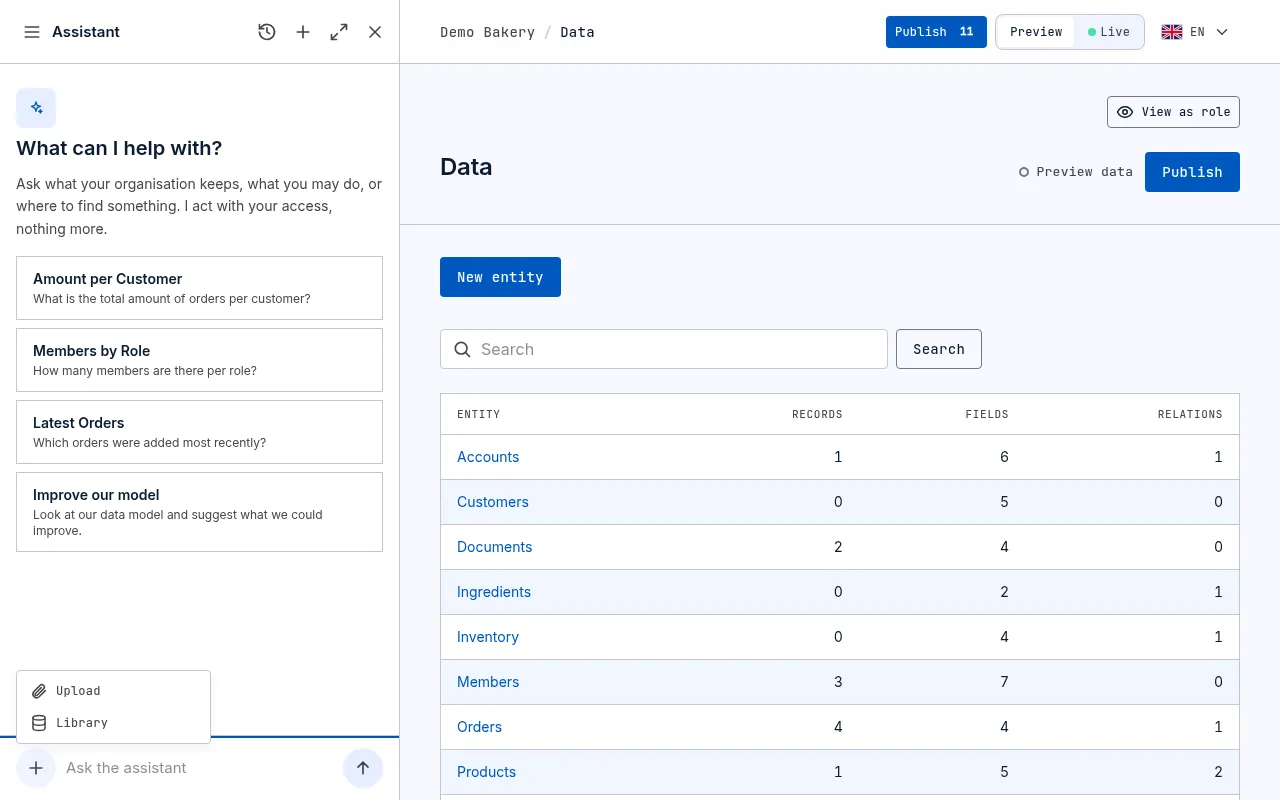
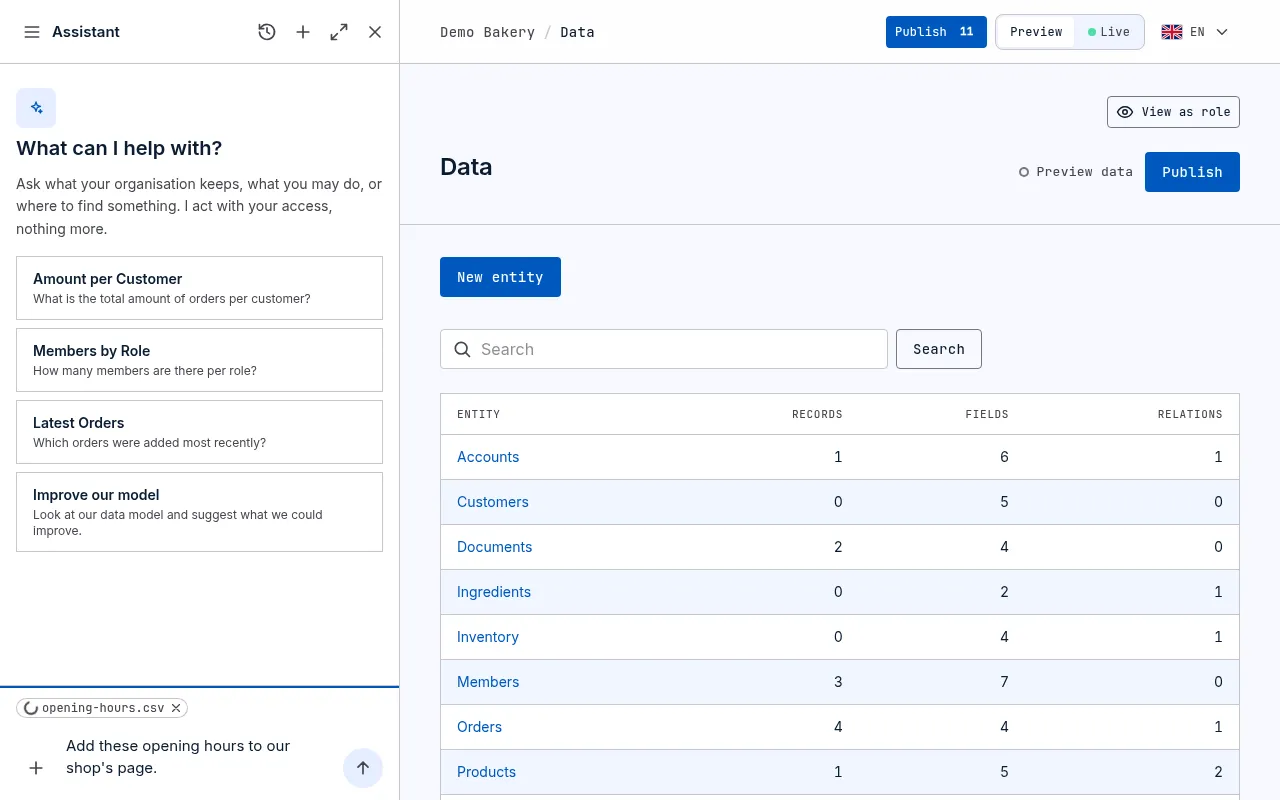
Section titled “Send it files”Add files to a message to ask about them: a receipt, a quote, a spreadsheet of opening hours, a voice memo. Choose + (Add files) beside the box and then Upload, drop files on the box, or paste them into it.
Each file shows above the box. It is first checked for viruses, which can take up to a minute, while a spinner turns beside its name; it goes on while the assistant is closed, and the file is still there when you open it again; you can send the message once every file is checked. A file found harmful is not kept, and says so. Choose × on a file to take it out before you send.
- Up to 10 files in a message, each up to 20 MB, and up to 50 files (200 MB) in a conversation.
- Pictures, PDFs, Word, Excel and PowerPoint files, CSV and text files, recordings (MP3, WAV, M4A and more), videos and ZIP files.
- You can send files without writing anything.
The assistant looks at pictures with the message they came in, and reads the other files when it needs to: the text of a PDF or a scan (up to 100 pages at a time), the rows of a spreadsheet, what is said in a recording or a video, and the files in a ZIP. Reading a long PDF or a recording counts towards your assistant use.
The files you sent show under your message. Choose one to download it, or + beside it to keep it in Documents. They are kept with the conversation and deleted with it; a file kept in Documents stays there.
The assistant can also read the files your records hold, as you: ask about the contract on Anna’s record, say. And it can keep a file you sent in a record’s Files field, asking you first where it would change something.
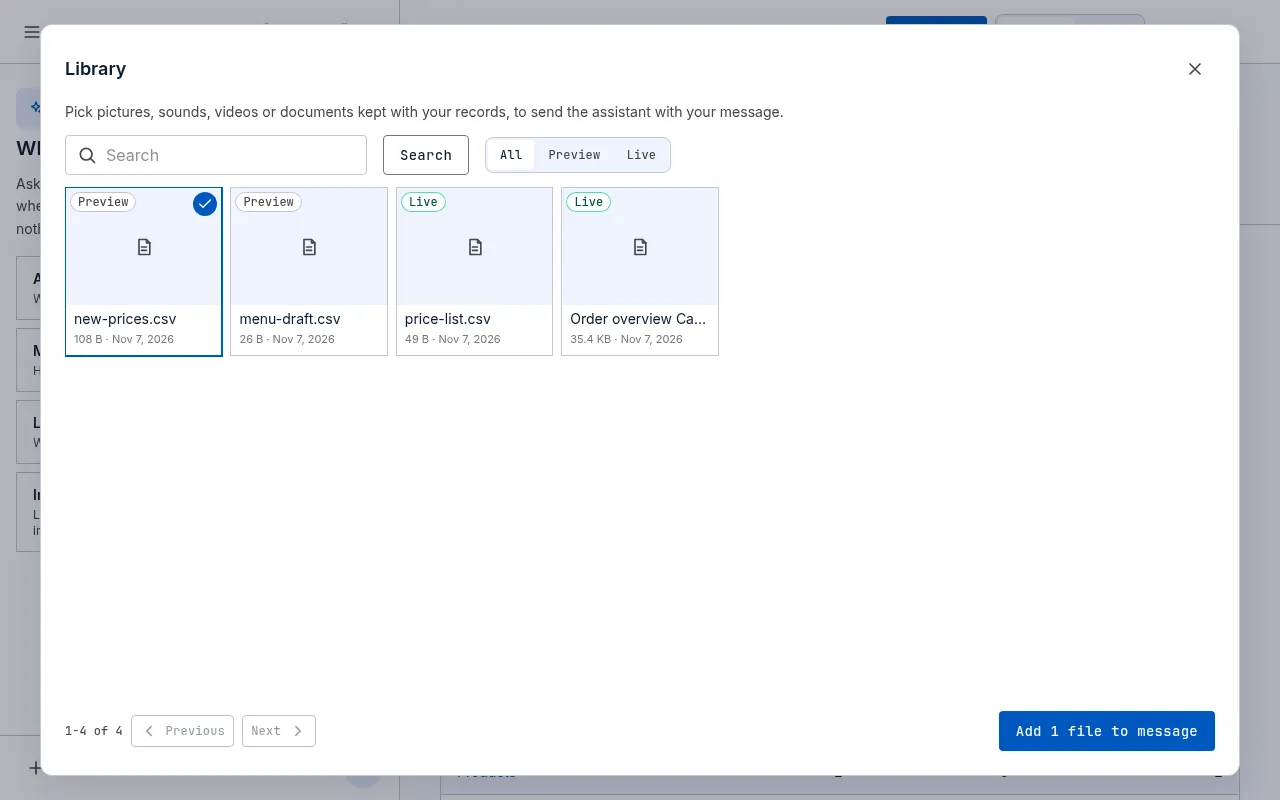
Send a file you keep with your records. Choose + and then Library. It shows the files kept with every record you may open, newest first: a picture’s preview, or a sign for a sound, a video or a document, with its name, size, date and whether it is on Live or Preview. Search by file name, show only Live or Preview, and page through with Previous and Next. Choose one or more files and then Add to message. A copy of each joins your message like a file from your device; the record keeps its own. The assistant gets only the files you pick, even when your organisation does not let it use records by itself.
Put a file in your app. While the assistant builds an app, send it a picture, a logo, a sound or a video and say what it is for: Use this photo at the top of the home page, Play this jingle on the welcome screen. It puts the file in the app, shown in the preview at once and on Live once you publish. See Build an app with the assistant.
Pictures in a conversation
Section titled “Pictures in a conversation”When the assistant builds an app, each time it checks the app it shows a small picture of what it saw. Select one to see it large, then go through every picture in the conversation with the arrow keys or the arrow buttons, or swipe on a phone. Press Escape or choose Close to go back. When a check finds problems, the list of steps shows them under it: what the checks found under Found by the checks, and what the vision model saw wrong in the picture under Seen in the picture by the vision model. The vision model’s view is an opinion; the checks’ findings are measured. See Build an app with the assistant.
- Say what you want done, not how: “Add a field for each van’s next service date”.
- Mention the stage when it matters: “in Live”, “in Preview”.
- Ask “why can’t I change this order?” on a record’s page: the assistant sees the page you have open.