Build your data model
Decide what your business keeps track of with entities, fields and links, and change them safely in Preview.
Your organisation’s data model says what it keeps track of. It is shared by everything in the organisation, so a customer is the same customer wherever you see it.
Builders and Administrators change the data model, always in Preview. Your team sees a change once it is published to Live (see Publish and discard changes). Members can look at the model but not change it. Several people can change it at the same time: see Working together.
Entities
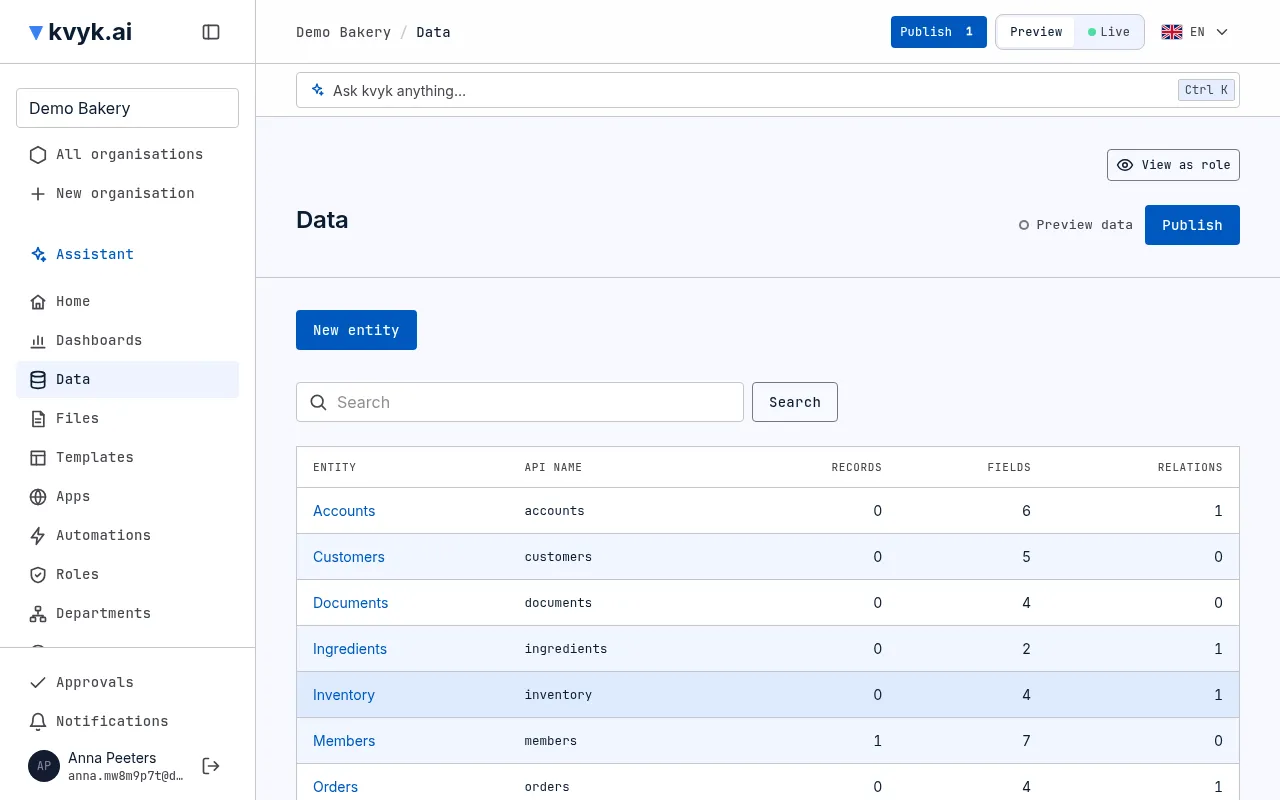
Section titled “Entities”An entity is a kind of thing you keep records of: Customers, Products, Shifts, Vans. Data lists every entity with its API name and how many records, fields and links it has.
A new organisation starts with three entities: Members, one record for each member of your organisation (see Members’ records), Customers, for the people who use your apps (see Customers), and Documents, for loose files (see Documents below). You can rename them and their fields in your own words. Everything else is yours to add, or to describe to the assistant.
To add one, switch to Preview, open Data and choose New entity:
- One record is a: what one of them is called, such as Customer.
- The records are: what several are called, such as Customers.
- API name: the technical name apps, automations and the API use, such as customers. It fills in from what the records are called; change it if you like (see API names).
- Choose Add entity.
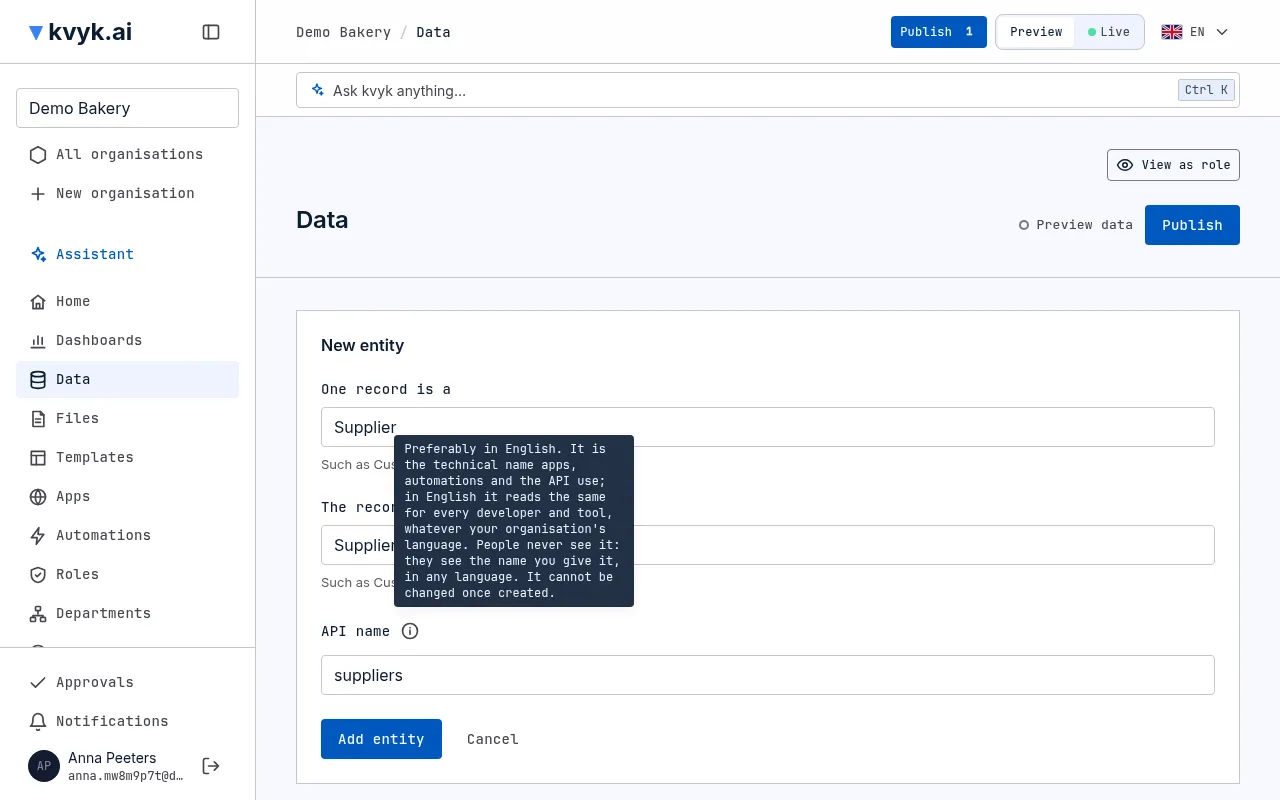
Every entity gets a Status field to begin with, with the options Active and Inactive. You can give it more options, but not delete it.
To rename an entity or delete it, open its Fields page.
API names
Section titled “API names”Every entity, field and link has an API name: the technical name apps, automations and the API use, such as customers or email. It is preferably in English, so it reads the same for every developer and tool whatever your organisation’s language. English is not required. People never see it: they see the names you give, in any language.
The API name fills in from the name as you type, until you change it yourself. Once you stop typing the name, an English API name is proposed in its place, which you can still change; nothing is proposed once you have typed in the API name yourself. It uses lowercase letters, digits and hyphens, such as start-time, and must differ from the other names beside it. Once created, it cannot be changed; renaming an entity or field changes only what people see. The i beside API name says the same.
Fields
Section titled “Fields”A field is something each record holds, such as a customer’s email address. Open an entity’s Fields page to see them, each with its API name, its type, whether it is required and its rules in a few words; open a field to see and change its rules. Choose Add field to add one:
- Name: what it is called, such as Email.
- API name: the technical name, such as email. It fills in from the name.
- Type: what kind of value it holds.
- Required: whether every record must have a value.
| Type | For | Example |
|---|---|---|
| Text | A short line of text | A name, a phone number |
| Long text | Several lines | Notes, a description |
| Whole number | Counting | Quantity in stock |
| Number | Amounts with decimals | A price, hours worked |
| Yes or no | Something that is or is not | Paid, needs reordering |
| Date | A day | A birthday, a due date |
| Date and time | A moment | When a shift starts |
| Options | One choice from a fixed list | Small, Medium or Large |
| Files | Pictures and documents | A product photo, a signed contract |
| Autonumber | A running number kvyk.ai gives | An invoice number, 2026-0042 |
A field can also be calculated, such as the hours worked on a shift or the total of an invoice: see Calculated fields.
You can rename a field or delete it from the same page. Deleting a field deletes its values too; see Restore deleted data for how long they can be brought back.
Built-in fields
Section titled “Built-in fields”Every entity also has four built-in fields that kvyk.ai fills in itself:
- Created on: when the record was added;
- Created by: who added it;
- Last changed on: when it was last changed;
- Last changed by: who last changed it.
The Fields page lists them under the entity’s own fields, marked Built-in. Nobody can change, rename or delete them, and nobody types in their values, not a person, an app or the assistant. You find them everywhere a field is offered: as columns, in filters and sorting, in exports, on a record’s page and as placeholders in templates. Lists show Created on at first; tick the others under Columns to show them too.
Rules for its values
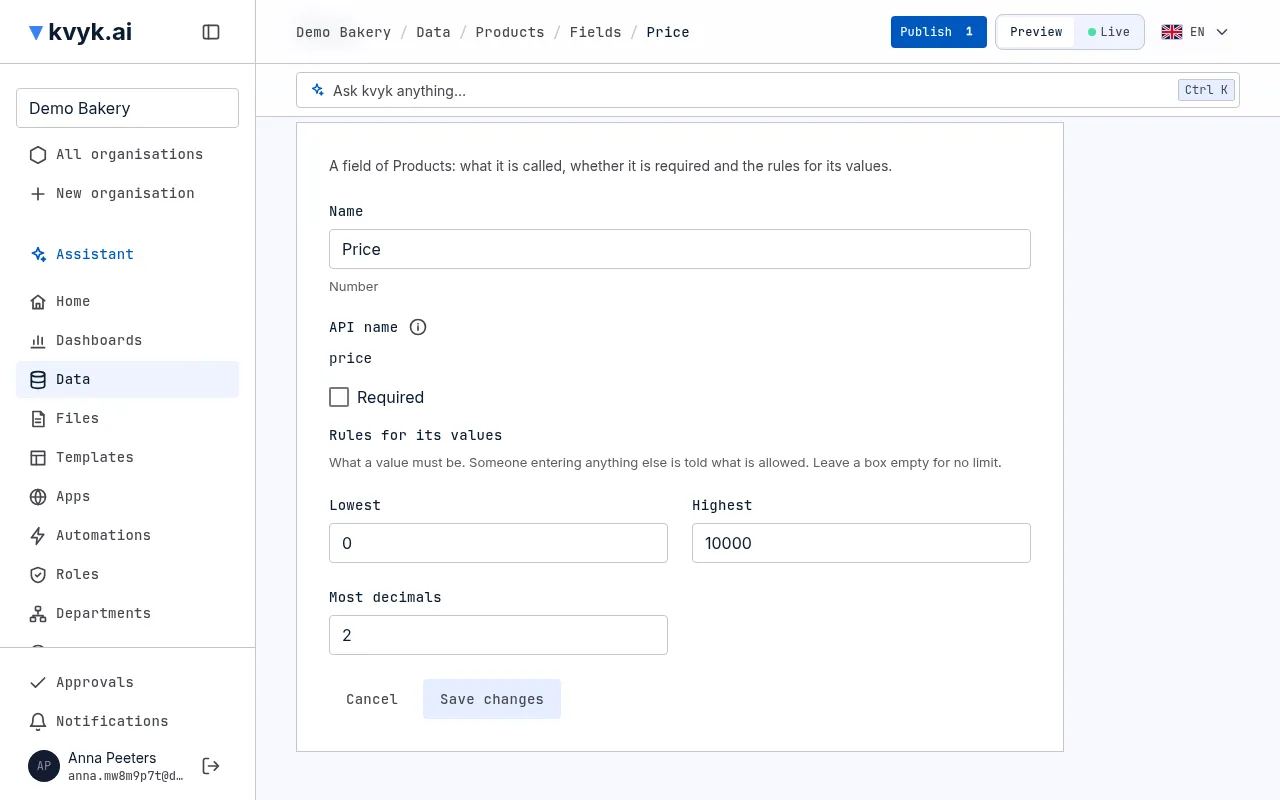
Section titled “Rules for its values”As soon as you choose a type, the form shows the rules that type can have, so nobody enters something that makes no sense. Leave a box empty for no limit.
| Type | Rules |
|---|---|
| Text | Fewest characters, Most characters, and Must be: an email address, a phone number or a web address |
| Long text | Fewest characters, Most characters |
| Whole number | Lowest, Highest: from -2,147,483,648 to 2,147,483,647, what a whole number field can hold |
| Number | Lowest, Highest (up to a trillion either way), Most decimals |
| Date | Earliest, Latest: a date, Today, or a number of days, weeks, months or years before or after today |
| Date and time | Earliest, Latest: a date and time to the minute, Now, or a number of seconds, minutes, hours, days, weeks, months or years before or after now |
| Files | Most files: from 1 to 20; one unless you change it |
A new text field allows at most 200 characters and a long text 10,000, unless you change it. Yes or no fields and options fields need no rules. If a box holds something it cannot, such as a highest value bigger than a whole number field can hold, the form says so under that box and saves nothing until it is fixed.
To change a field’s rules later, open the field from the entity’s Fields page, change them and choose Save changes. Someone entering a value that breaks a rule is told what is allowed, such as Hours must be at most 24., and the record is not saved until it is fixed. Records that already hold such a value keep it until someone changes it; the page tells you how many there are in Preview.
Save changes can be chosen once you have changed something, and takes you back to the entity’s Fields page, unless records already break the new rules: then the page stays to tell you how many. Cancel goes back without saving; when you have changed something, it asks first whether to discard your changes.
Rules are part of the data model: you change them in Preview, and they reach Live when you publish. The assistant can set them too: say what a value must be, such as “nobody works more than 12 hours in a shift”, and it proposes the rule on a card.
File fields
Section titled “File fields”A file field (of the type Files) keeps pictures and documents with a record: an employee’s photo, an invoice’s PDF. When you add or change a record, choose Add files. Each file is first checked for viruses, while a spinner turns beside its name, then joins the record when you save it; the record is saved once every file is checked, and saving before that says the check is still running; it is up to 20 MB. Choose × on a file to take it out. A field holds one file unless you allow more under Most files.
On the record’s page, pictures show small and every file can be downloaded. Whoever may see the record and the field may see its files, and only they. A file you take out, or whose record you delete, is deleted too.
Autonumber fields
Section titled “Autonumber fields”An autonumber field gives each record the next number in a series, such as an invoice number: 2026-0001, 2026-0002, and so on. kvyk.ai gives the number, never a person, an app or the assistant, and no number is given twice or skipped, even when many records are added at once.
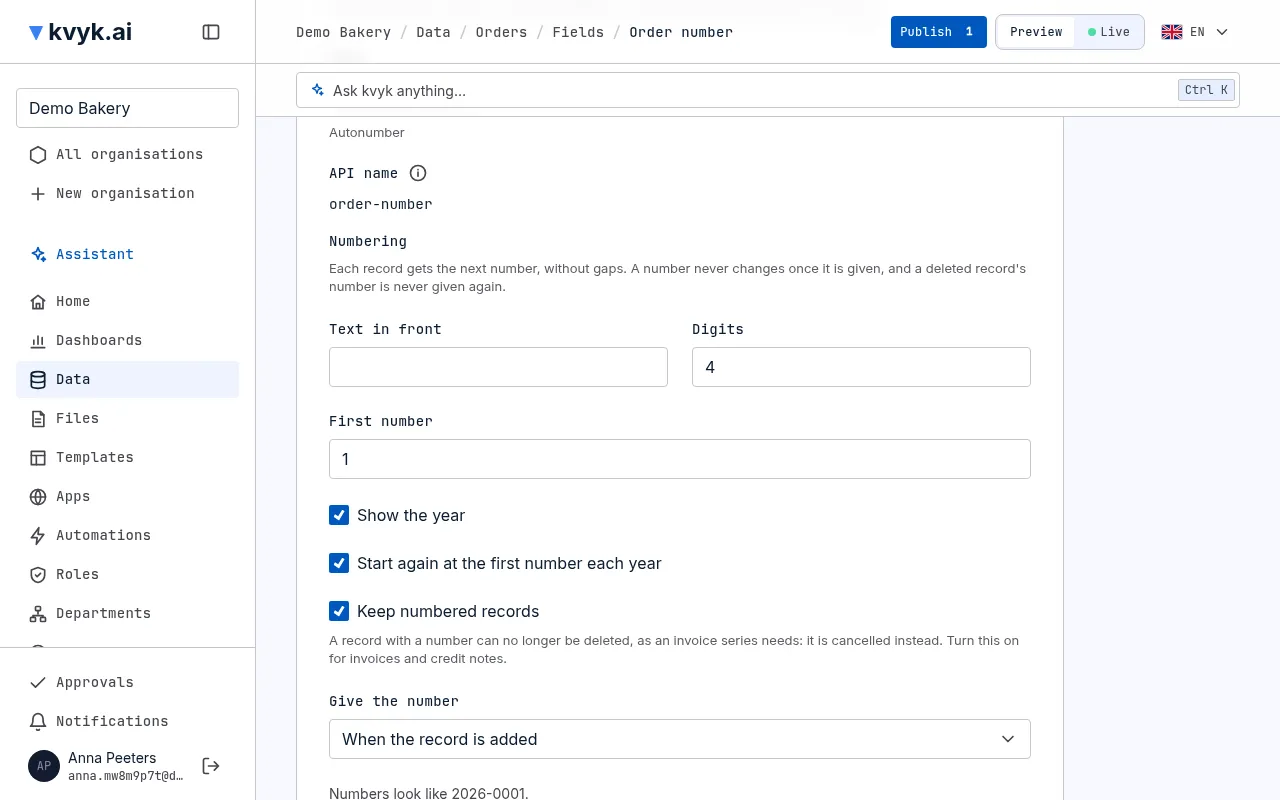
When you add one, set its Numbering:
- Text in front: such as Q- for Q-00042, or nothing.
- Show the year: puts the year in front of the number, as in 2026-0042.
- Digits: how many digits the number has at least, filled with zeros.
- First number: where the count starts, such as 1042 for C1042.
- Start again at the first number each year: with the year shown, the count starts again on 1 January.
- Give the number: when the record is added, or only when an options field becomes one of the options you tick, such as when Status becomes Sent. Until then the record has no number yet.
- Keep numbered records: records that have a number cannot be deleted. Turn this on for numbers you must keep, such as invoice numbers.
The form shows what the numbers will look like. Once given, a number never changes, and nobody can type one in.
You can delete a record that has a number. Its number is never given again, and the record’s history still shows it. With Keep numbered records on, a record with a number cannot be deleted, so the series stays without gaps: to stop using it, change its status instead, with an option such as Cancelled in your Status field. The number stays when a customer’s data is erased, too.
When all the numbers that fit in the digits are given, the numbers get one digit longer, as in 2026-10000 after 2026-9999, and they still sort in the right order. The field’s page warns you when 90% of them are used, so you can add a digit in time and keep all numbers the same length.
Changing the text in front, the year, the digits or the yearly restart, or lowering the first number, on a field that has already given numbers asks you to confirm first. Records keep the numbers they have. Preview and Live count apart, so test records in Preview never use up Live’s numbers.
Calculated fields
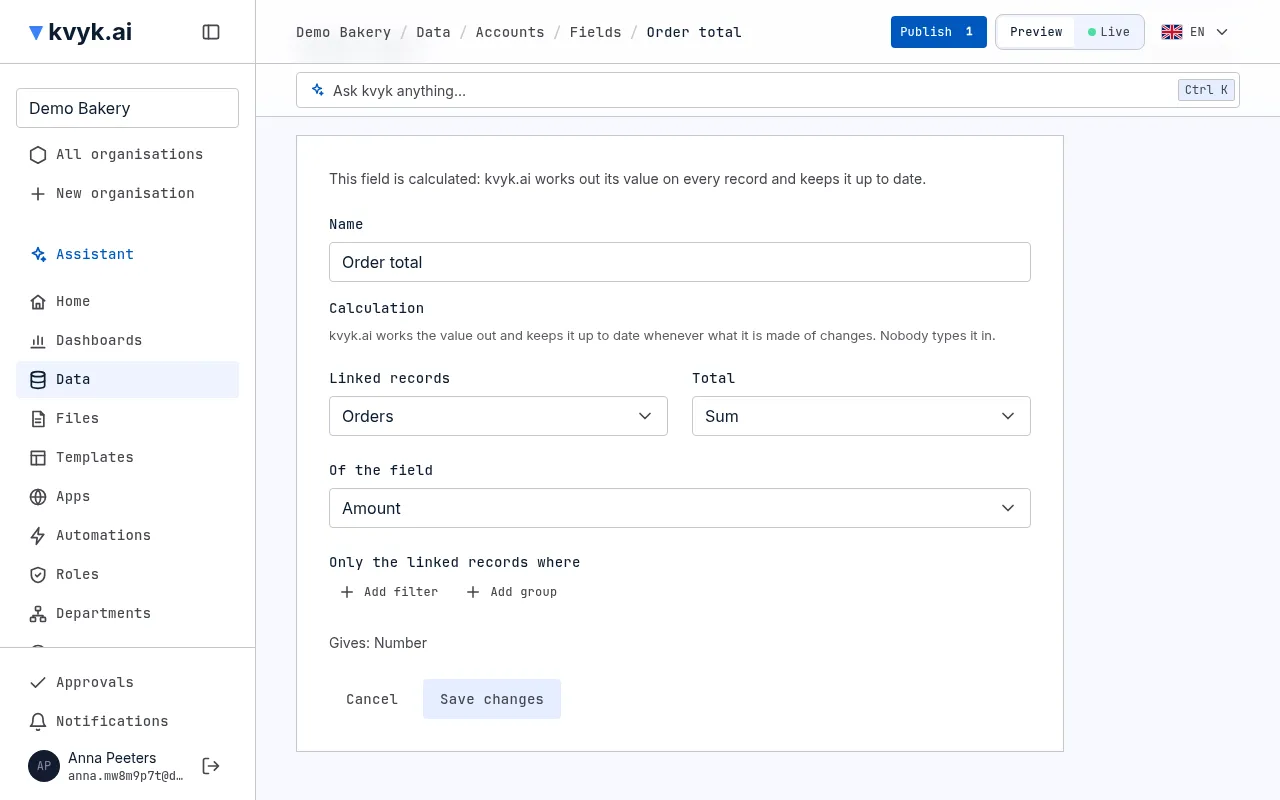
Section titled “Calculated fields”A calculated field holds a value kvyk.ai works out, such as the hours worked on a shift from when it starts and ends, or the total of an invoice from its lines. Nobody types it in, not a person, an app or the assistant, and kvyk.ai keeps it up to date: when a record changes, and when a record linked to it is added, changed or deleted.
When you add a field in Preview, choose its Value:
- Typed in: people fill it in, as with any field.
- Calculated from its own fields: a formula of the record’s other fields. Choose what to work out:
- two values added, subtracted, multiplied or divided, such as Hours times Rate, rounded to the decimals you choose;
- the time between two dates, in minutes, hours or days, such as from Starts to Ends;
- a date some days later, such as Invoice date plus 30 days;
- texts put together, such as First name and Last name with a space between them;
- one value or another, by a condition, such as 10 if Done is yes, otherwise 0.
- Total of linked records: how many records are linked to it, or the sum, average, lowest or highest of one of their fields, such as the sum of Hours of an employee’s shifts. Add rules to count only some of them, such as only the shifts that are Done.
The form shows what kind of value the field will hold. A calculated field shows, filters, sorts, searches and exports like any other field, in the data browser, in views, dashboards, documents and apps. On a record’s page it shows what it is worked out from. A data role’s field access reaches it as any other field: hidden, its holders do not see it, even when they see the fields it is worked out from.
You can change a calculation later, to one that gives the same kind of value. A field or link a calculation uses cannot be deleted while it does; the message names the calculated field. A total counts the records linked directly; it cannot total the records linked to those.
You can also ask the assistant: “Add the hours worked to each shift”, or “Show each employee’s hours this month”.
Documents
Section titled “Documents”Every organisation has a built-in Documents entity for files that belong to no other record: a policy, a price list, a floor plan. Each document has a name, a folder and one file. Like Customers, you can rename it and give it more fields, but not delete it or its own fields. Who may see and change documents is set by its data roles, like any entity.
Options fields
Section titled “Options fields”An options field offers a fixed list to choose from. When you add one, you type its options. If it is required, new records get the first option.
Open the field from the entity’s Fields page to change its options later: rename them, add new ones, change their order or retire old ones. Records keep a retired option, but new records cannot choose it. An option cannot be removed, so no data that uses it is lost.
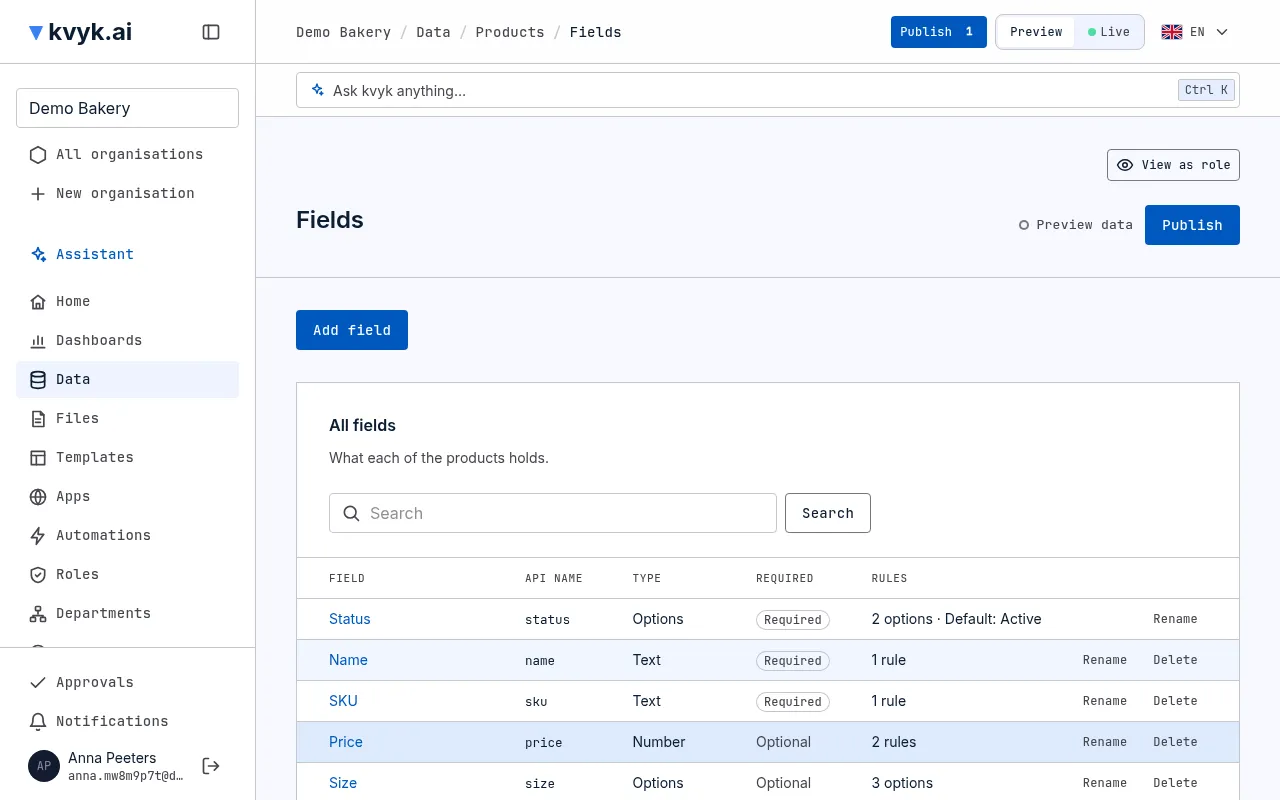
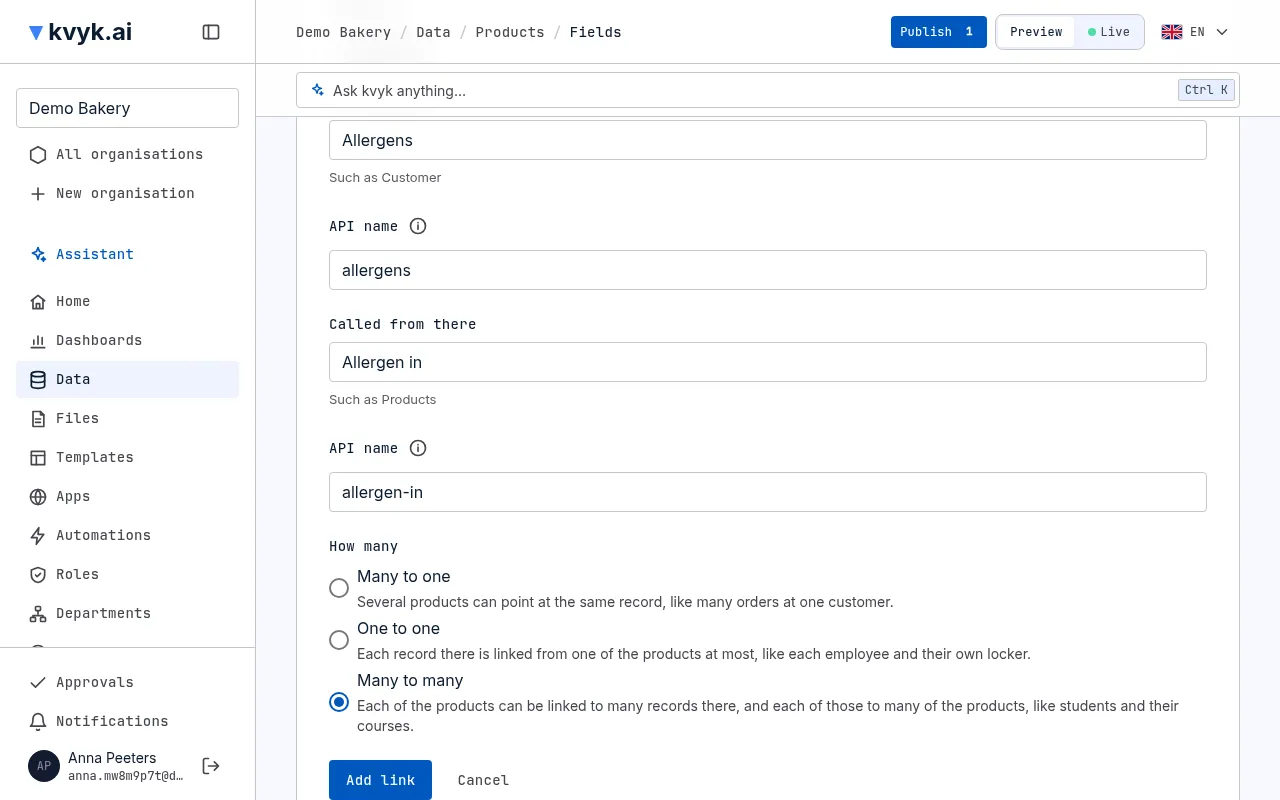
A link connects the records of two entities: each rental to one van, each order to one customer, each student to the courses they take. On the other side, each van shows the rentals that point at it.
On an entity’s Fields page, under Links, choose Add link:
- Choose the entity to point at.
- Called here: what the link is called on this side, such as Van.
- Called from there: what the records pointing back are called on the other side, such as Rentals. Each name has an API name below it, filled in from the name.
- How many:
- Many to one: several records here can point at the same record there, like many rentals at one van. This is the usual choice.
- One to one: each record there is linked from one record here at most, like each employee and their own locker. Linking a second employee to the same locker is refused, with a message that says it is already linked.
- Many to many: each record here can be linked to many records there, and each of those to many here, like students and their courses. You link the records on a record’s page, from either side.
The table of links shows how many each link allows. To change it, remove the link and add it again. You can remove a link from the same table.
Links to people
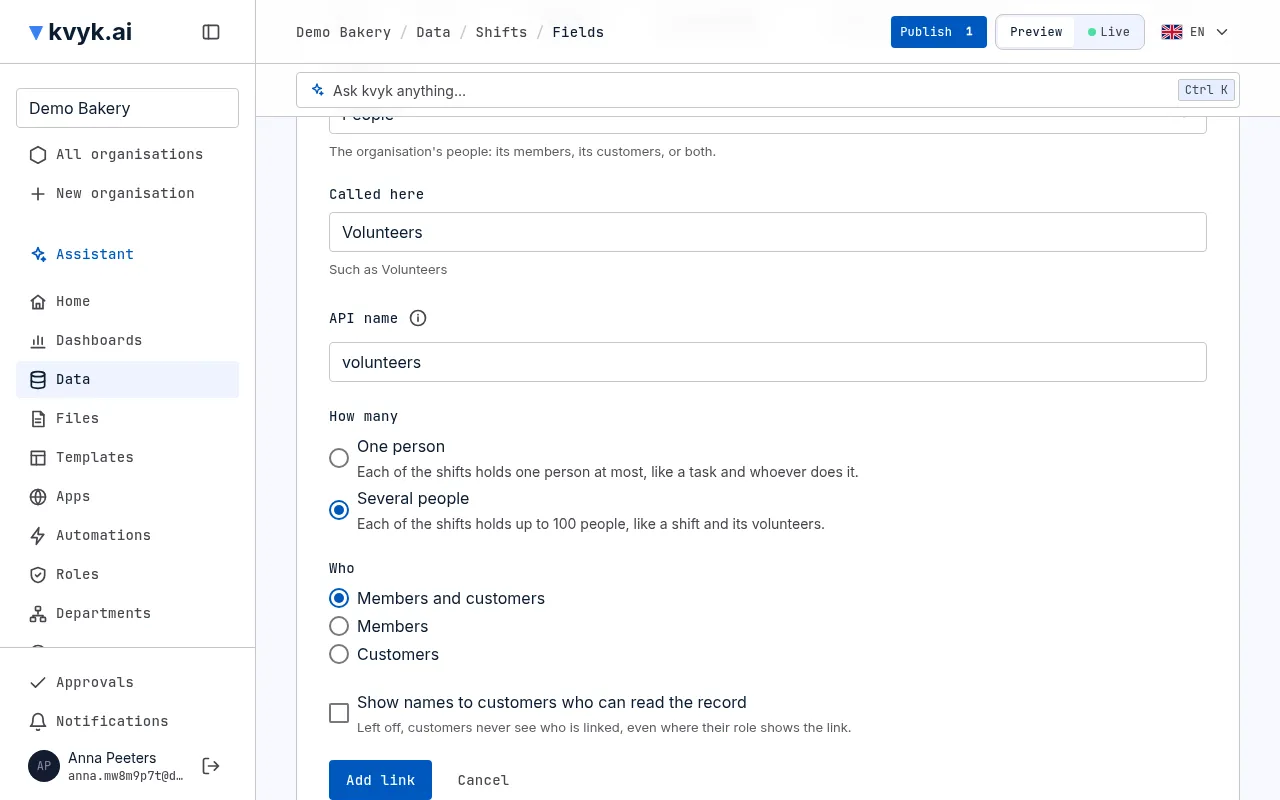
Section titled “Links to people”A link can also hold your organisation’s people instead of records: who leads each shift, which volunteers are on it, who does each task. Choose Add link and, under Links to, choose People:
- Called here: what the link is called on this side, such as Volunteers, with its API name below it.
- How many:
- One person: each record holds one person at most, like a task and whoever does it.
- Several people: each record holds up to 100 people, like a shift and its volunteers.
- Who: Members, Customers, or Members and customers. Only people of that kind can be picked.
- For a link that takes customers, Show names to customers who can read the record. It is off unless you tick it: customers then never see who is linked. With it on, customers see the names, never email addresses.
Links to people have their own table under Links, with whom each one takes, how many, and whether customers see the names. You can change that last choice there at any time.
When a member leaves and their records go to a colleague, the colleague takes their place in links that take members. A customer who is removed or erased is taken out of every link.
Deleting is careful
Section titled “Deleting is careful”Deleting an entity, a field or a link asks you to confirm first. It leaves Preview at once, with Preview’s test records. Live keeps it until you publish, and after publishing Live keeps its data for a while so that you can restore it. See Restore deleted data.