Preview and Live
The two stages of every organisation, what each is for, and how a change travels from one to the other.
Every organisation has two stages, so you can change how it works without disturbing the people working in it.
| Preview | Live | |
|---|---|---|
| For | Trying changes | Real work |
| Records | Test records only | Your real records |
| Data model | Changed here first | Changed only by publishing |
| Data roles | Changed here first | Changed only by publishing |
| Apps | The newest version, at its Preview address | The version you published, at its own address |
How a change travels
Section titled “How a change travels”- Change A Builder or Administrator changes the data model or the data roles in Preview, alone or with the assistant.
- Try Add test records in Preview and see it work, even as one of your data roles.
- Publish The publish panel lists what is waiting. Publishing checks it against Live's records first.
- Live Your team works with the change, with all their records intact.
See Publish and discard changes for the steps.
Switch between them
Section titled “Switch between them”The switch at the top right of every page chooses the stage you see. Records pages also say which stage you are in. A link to a record, such as one from the event log, opens it in its own stage.
The records stay apart
Section titled “The records stay apart”Preview’s records and Live’s records never mix:
- Your real records reach Preview only when an Administrator copies them there, so you can try anything without exposing them.
- Test records you add in Preview never reach Live, not even when you publish.
Copy Live’s records into Preview
Section titled “Copy Live’s records into Preview”To try a change on your real records before you publish it, an Administrator can copy Live’s records into Preview:
- Open Deployment in the sidebar.
- Under Live’s records in Preview, choose Copy Live’s records into Preview.
- Read what happens: Preview’s records are deleted and Live’s are copied in their place. Also copy files says how many files and how large; it is on, so Preview shows your records’ files too. Turn it off to keep only the files’ names in Preview. If you added or changed files in Preview since the last copy, they are listed: Preview loses them.
- Choose Replace Preview’s records.
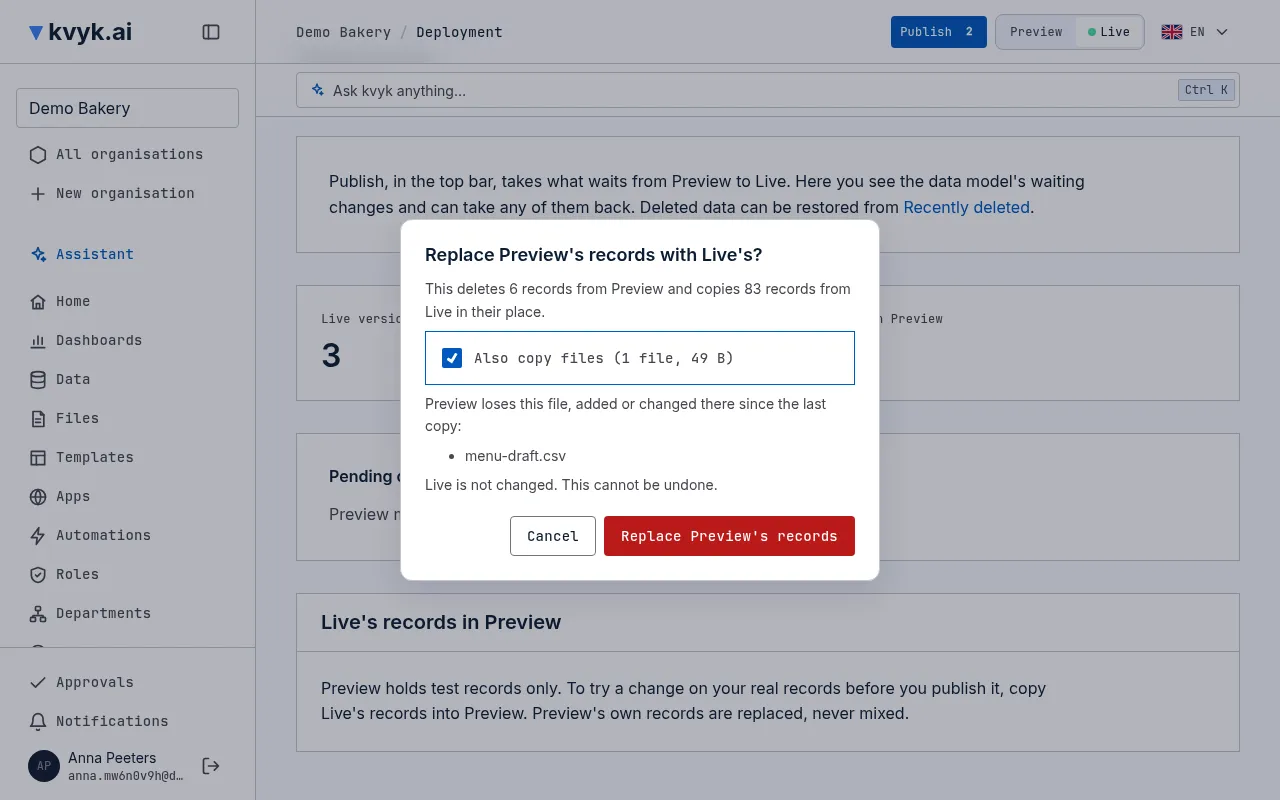
Live is never changed, and nothing is merged: what Live holds wins. Copied files take no extra storage until you change one in Preview. Publish or discard the data model changes waiting in Preview first: records are only copied into a Preview shaped like Live. The event log shows who copied and when.
View the data as a role
Section titled “View the data as a role”Builders and Administrators can see Preview’s data as one of your data roles, to check what someone with that role may see and do before you publish it. On the Data page, choose View as role, then pick the role. The page says which role you are seeing the data as until you choose Stop viewing as role.
Administrators can do the same in Live, to check what someone with a role sees of your real records. Builders can view the data as a role in Preview only.
The assistant and the stages
Section titled “The assistant and the stages”The assistant works in the stage you are looking at, unless you ask about the other one. It changes Live records only after you confirm.