Create your organisation
Set up your business's own space on kvyk.ai in three short steps, with its name and web address, its time zone and whether the assistant may use its records.
An organisation is your business on kvyk.ai: its data, its people and the way it works. Whoever creates an organisation becomes its first Administrator.
Create one
Section titled “Create one”The first time you sign in, kvyk.ai takes you straight to Create your organisation. Later, choose New organisation in the sidebar.
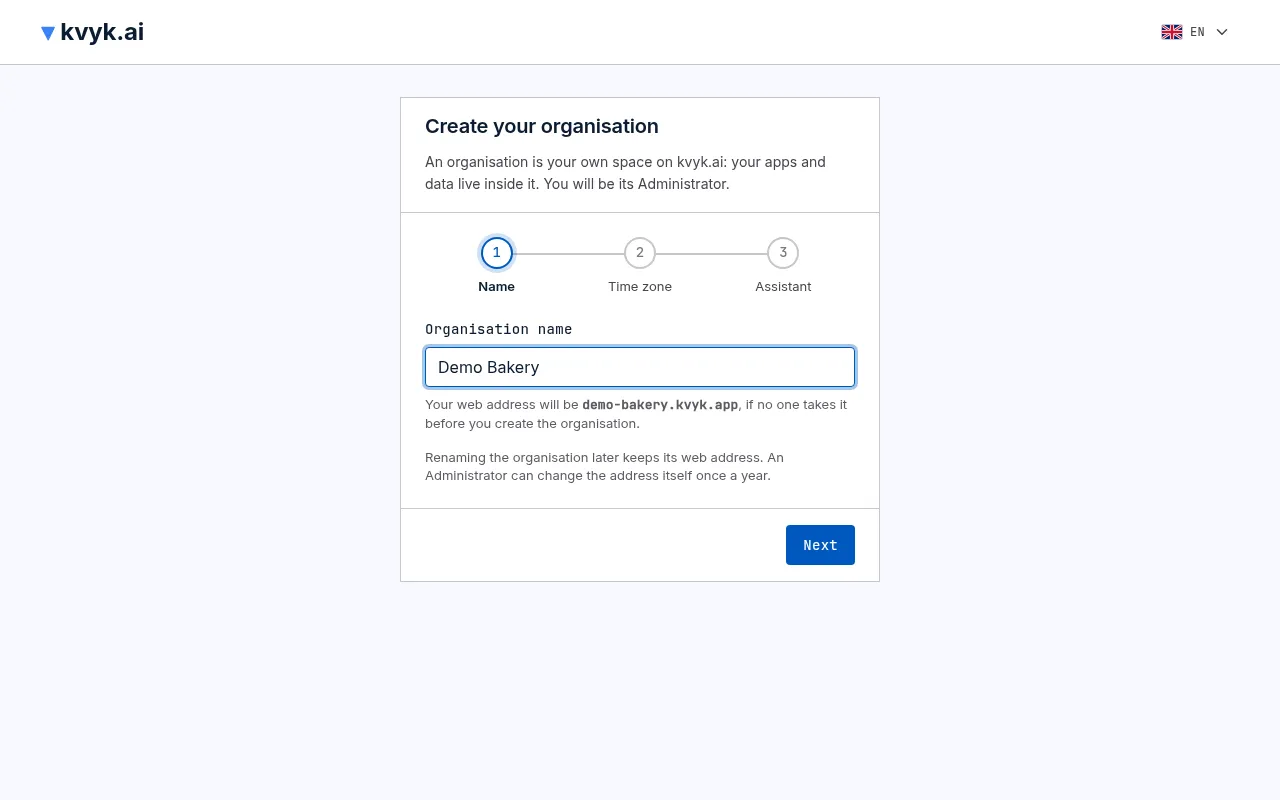
It takes three short steps. Next and Back move between them, and nothing is created until you finish the last one.
-
Name: enter the organisation name, such as your company’s name, at most 80 characters. While you type, you see the web address it will get, such as acme.kvyk.app. If that address is taken or kept for kvyk.ai, you see why and choose one of up to three proposed addresses, or type another under Another address. The address is only yours once the organisation is created. A name kvyk.ai cannot use says why right away.
-
Time zone: choose its time zone. Days, weeks and months in filters, reports and its apps follow it, so “today” in an app is the same day wherever someone opens it.
-
Assistant: decide whether the assistant may use your records:
- Yes, of every entity: the assistant can answer questions about your business, such as how many hours someone worked last week, but only ever sees what the person asking may see.
- Yes, of some entities: the same, but for no entity to begin with. You choose the entities later, with The assistant may see these records on each entity’s page or in Settings, or when the assistant asks you which ones to open.
- No: the assistant still helps with the data model, roles and how things work, but never sees a record.
Then choose Create organisation. This step also says that by creating the organisation you accept the terms and conditions, including the data processing agreement, on its behalf. Both are linked there, to read first.
You can rename the organisation, change the assistant setting and, once a year, its web address later in Settings. Renaming does not change the web address.
Your new organisation comes with a small data model to start from, and is ready in a few seconds. It holds no records yet.
If creating it fails, for example while kvyk.ai is being updated, the page says what went wrong. Trying again is safe: it never creates your organisation twice.
Start by talking to the assistant
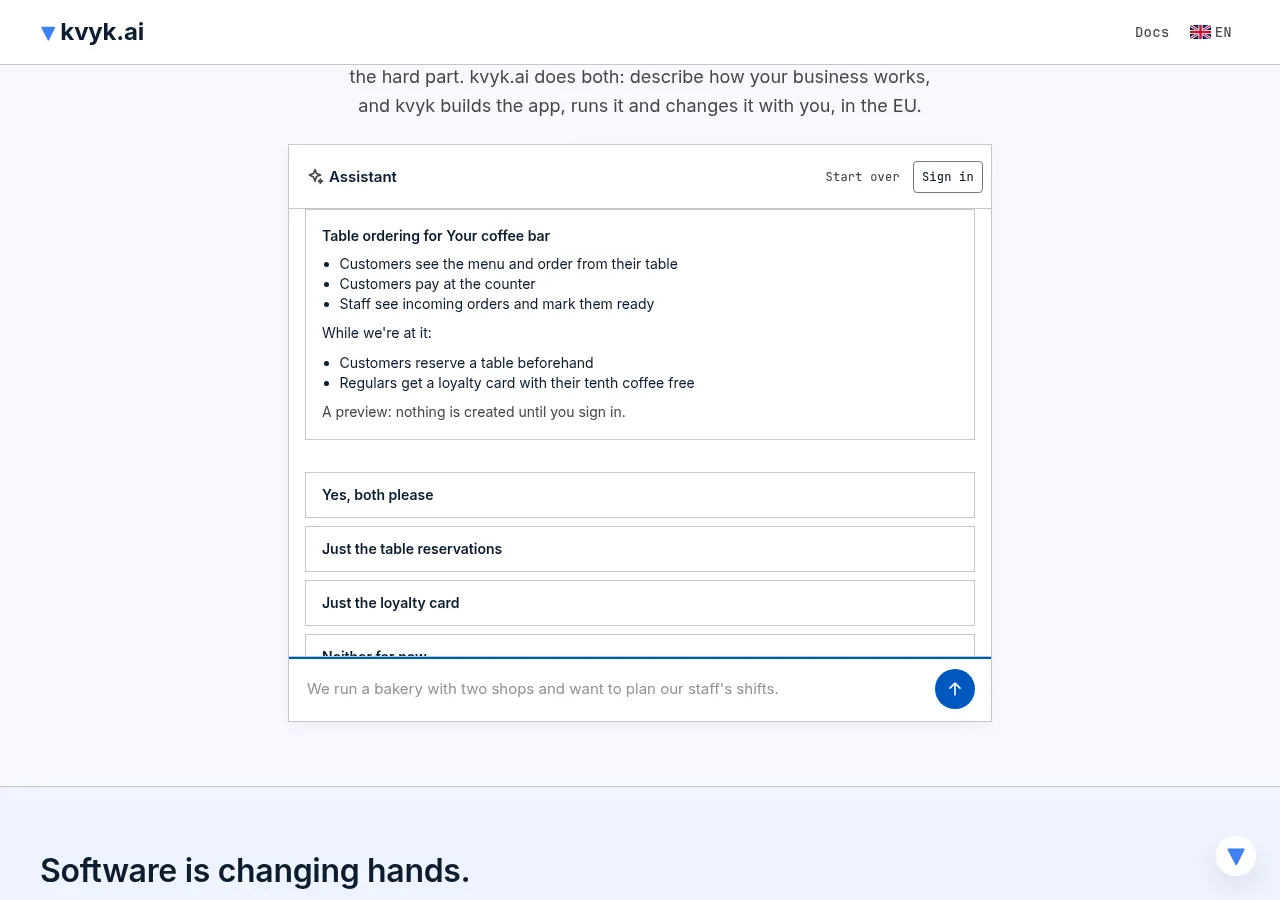
Section titled “Start by talking to the assistant”You can also start on kvyk.ai’s home page, before you have an account. Tell the assistant what your business does, or what you want to start. It shows what kvyk.ai can do for you and proposes a first app: what your staff or customers could do with it, with an idea or two to add while you’re at it. Ask it to change anything. Nothing is created yet.
- When the proposal suits you, give the assistant your email address and choose Continue as your address.
- The sign-in page opens and emails you a sign-in code and link right away. It says when the email went out, or why it could not be sent; then choose Email me a sign-in link to try again. Sign in as usual.
- Create your organisation opens with the proposed name and your browser’s time zone filled in. Check them and finish the steps.
- Your organisation opens with the conversation in the assistant’s panel, the first app listed. Choose Build this app and the assistant builds it with you.
If you already belong to an organisation, signing in opens it instead, and the assistant’s panel asks where to continue your conversation: choose one of your organisations, or New organisation to make one from the proposal. The conversation goes nowhere until you choose.
Before you sign in you can send 15 messages; when 3 are left, the chat counts them down. The conversation stays on that browser only, and comes with you however you sign in or create your account there, within a day. Start over forgets it. A conversation you do not take with you is deleted a day after its last message.
When the terms change
Section titled “When the terms change”When kvyk.ai changes its terms and conditions, the Administrators are told by email at least 30 days ahead. Once the new version applies, the next Administrator to open the organisation in the dashboard sees Accept the terms for your organisation, with links to the terms and the data processing agreement. Choosing Accept for your organisation accepts them on its behalf.
Until an Administrator does, nobody can use the organisation in the dashboard. Others who open it see that it waits for an Administrator, with the names of its Administrators, and can go to All organisations or sign out. The organisation’s apps keep working for everyone in the meantime.
For 30 days after the new version applies, the terms that applied before keep applying to the organisation, and the prompt says until which day. Its Administrators get a reminder by email 7 and 23 days after. If nobody accepts and the organisation is not ended within those 30 days, its continued use counts as accepting the new version; the dashboard still asks until an Administrator accepts.
If you do not agree with the new terms, choose End the organisation instead. It asks for the same confirmation as ending it in Settings.
More than one organisation
Section titled “More than one organisation”You can belong to several organisations, such as your own business and one you help out. Each has its own data, people and settings: nothing is shared between them.
- The organisation menu at the top of the sidebar switches between them: type to find an organisation in the list.
- All organisations lists every one you belong to, with your role in each.
- Each organisation has a web address, such as acme.kvyk.app. Its short name in that address, the slug, is in Settings. An Administrator can change it once a year; the old address keeps leading to the new one.
Next steps
Section titled “Next steps”- Build your data model: decide what you keep track of.
- Invite people: bring your team in.