Import a spreadsheet with an automation
Add or change records from a CSV or Excel file with an Import records from a file step, see how far it got, and fix the rows it refused.
An Import records from a file step reads a CSV or Excel (.xlsx) file and adds or changes records of one entity, a record for each row. Use it for a supplier’s new price list, a list of customers from your old system, or the stock count from the shop.
The file comes from a file field of a record the automation may read: a file added to Documents, a file on an order, or one an earlier step made. A typical automation starts when a document is added, and imports its file.
Set up the step
Section titled “Set up the step”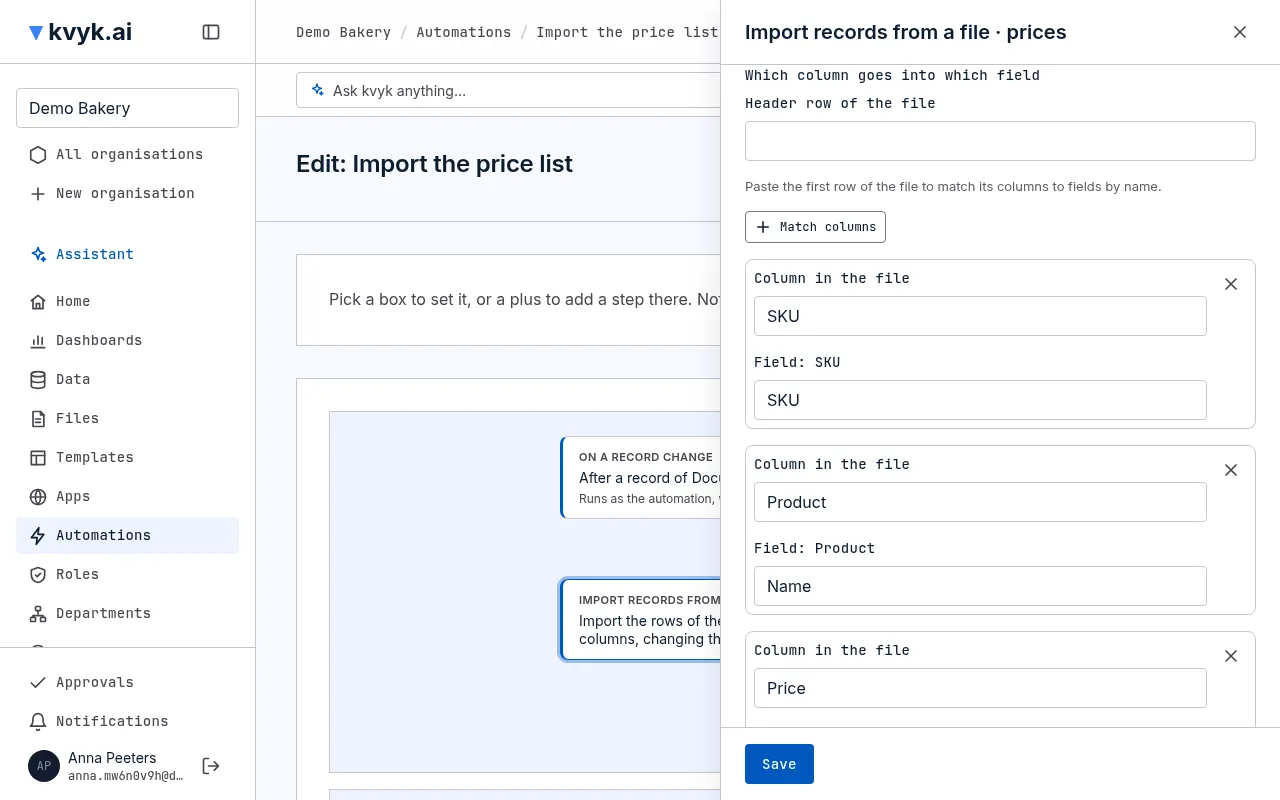
The easiest way is to ask the assistant, for example When a price list is added to Documents, import it into Products, and update a product with the same SKU. Give it the file or its first row, and it matches the file’s columns to your fields. Check what it matched in the step’s panel before you save.
To set it up yourself, add an Import records from a file step and choose its box:
- Under File, choose where the file comes from, such as the file field of the document that started the automation.
- For an Excel file, type the name of the Sheet to read, or leave it empty for the first sheet.
- Choose the Entity the rows go into.
- Under Which column goes into which field, paste the first row of the file into Header row of the file and choose Match columns: each column is matched to the field with the same name. Change or add a column with its Column in the file and Field.
- Under Update the record with the same, choose a field to find the record a row changes, such as the product’s name or the customer’s number. A row whose value no record has adds a record. Choose Nothing: always add a record to add a record for every row.
A column can go into a field of the entity itself. Files, numbers kvyk.ai gives out by itself, links to other records and values that come from a linked record cannot be imported.
What is read from the file
Section titled “What is read from the file”- The first row holds the names of the columns. A column you did not match is left alone.
- An empty cell leaves the field as it is.
- Yes and no can be written as yes, no, true, false, ja, nee, oui, non, 1 or 0.
- A choice is taken by its label.
- A number may use a decimal comma, such as 4,60.
- A date may be written as 31-12-2026, 31/12/2026 or 2026-12-31. In Excel, a date cell is read as a date.
- A file may hold at most 100,000 rows.
While it runs, and what it gives
Section titled “While it runs, and what it gives”The rows are written a hundred at a time. Under Runs, the step shows Rows (how many of the file are done) and, at the end, Result: how many records were added, changed and refused. If the run stops halfway, for example during maintenance, it goes on from where it was, and no row is written twice.
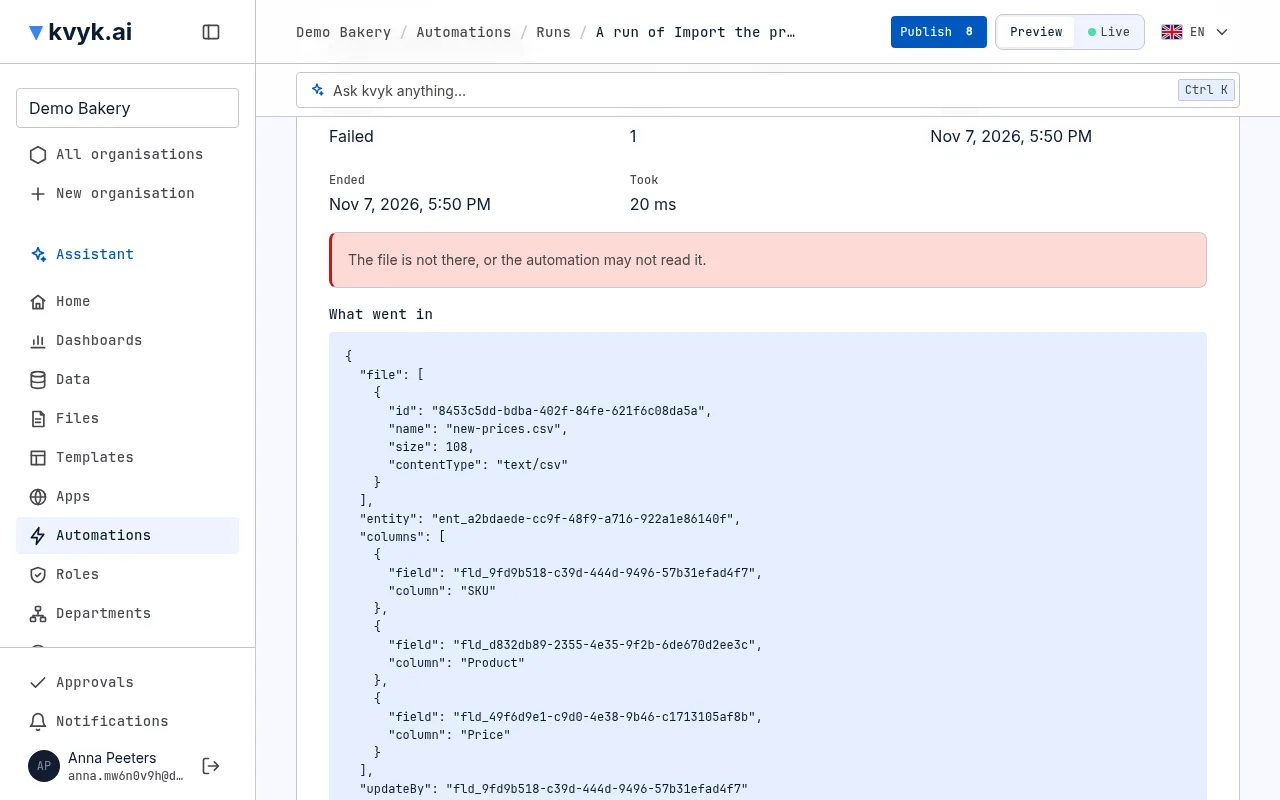
A row is refused when it cannot be saved as it is: a number that is not a number, a required field that is empty, a value that is already taken, or two records with the same value in the field you update by. The other rows go on. The refused rows go into a CSV file next to the original, named after it, with each row’s number and the reason beside its cells. Fix them there and add the file again to import just those rows.
A later step can use what the import gives: the numbers added, changed and refused, and the file of refused rows, for example to mail it to the person who added the price list.
The step fails, and nothing is imported, when the file is not a CSV or Excel file, the sheet is missing, a column you matched is not in the file, or it has too many rows. A file that is still being checked for viruses is tried again a little later.
On Preview
Section titled “On Preview”On Preview the step imports into Preview’s records, so you can try a file there first. Live’s records are not touched.