Build an app with the assistant
Ask the assistant for an app, watch it take shape beside the chat, try it on your Preview records, and undo a step you do not want.
An app is a page or a small website on your organisation’s data, such as a price list for the shop counter or a form to take orders. You do not write it yourself: you tell the assistant what you need, and you see the app change beside the chat while it works.
Only Builders and Administrators build apps.
Start an app
Section titled “Start an app”- Open Apps in the sidebar.
- Under New app, give it a name, such as Orders for the shop, and choose Start building.
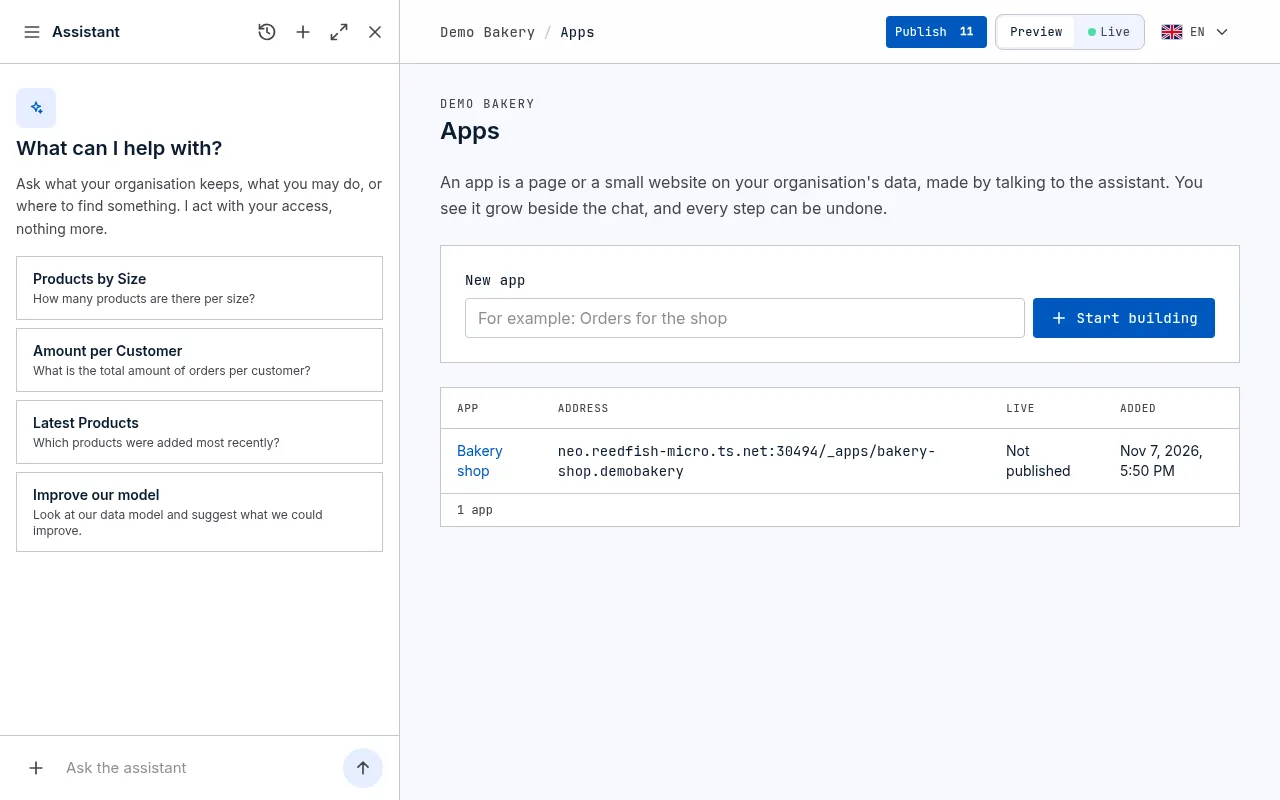
Or ask the assistant from any page, for example Make me an app called Shop that lists our products with their price. It makes the app, opens its page and passes your request on to the app’s own conversation, where it starts building straight away. The answer links to the app’s page: see Find your app’s conversation.
The app’s page opens, with the assistant in the side panel. The first time, kvyk.ai prepares a place to build the app; this can take a few minutes. You do not have to wait for it: meanwhile the assistant already talks with you, asks about anything that is unclear and sets up the data your app needs, and it starts on the app itself as soon as the place is ready. The preview says what it is doing all along: Getting a place ready to build your app, Preparing the app, Installing the app’s packages, Starting the preview, then Opening the preview, until the app itself shows. Your app starts as a simple page listing the records of one of your entities, so there is something to look at straight away.
When many apps are being built at once, every place to build can be taken. Your app then waits in line instead of failing: the preview says how many apps go first and roughly how long it will take, and the assistant tells you the build is queued. You do not have to do anything or try again: it starts by itself as soon as a place frees up. Building a version waits in line the same way, and its card says so.
Each app gets its own address, shown on its page. It opens there once it is published.
Find your app’s conversation
Section titled “Find your app’s conversation”Every app is built in its own conversation and only there: ask for it in another conversation and your request is passed on to the app’s conversation. A line above that conversation says so: This is where you build Shop. Your other conversations send their requests here.
There are three ways to get back to it:
- Open the app’s page. Open Apps in the sidebar and choose the app: its conversation opens in the side panel, beside the preview. If you closed the panel or opened another conversation in it, choose Open the app’s conversation above the preview to go back to it.
- From the answer that passed your request on. When you ask for an app in another conversation, the answer ends with a link such as Open Shop. It opens the app’s page with the app’s conversation, where your request is.
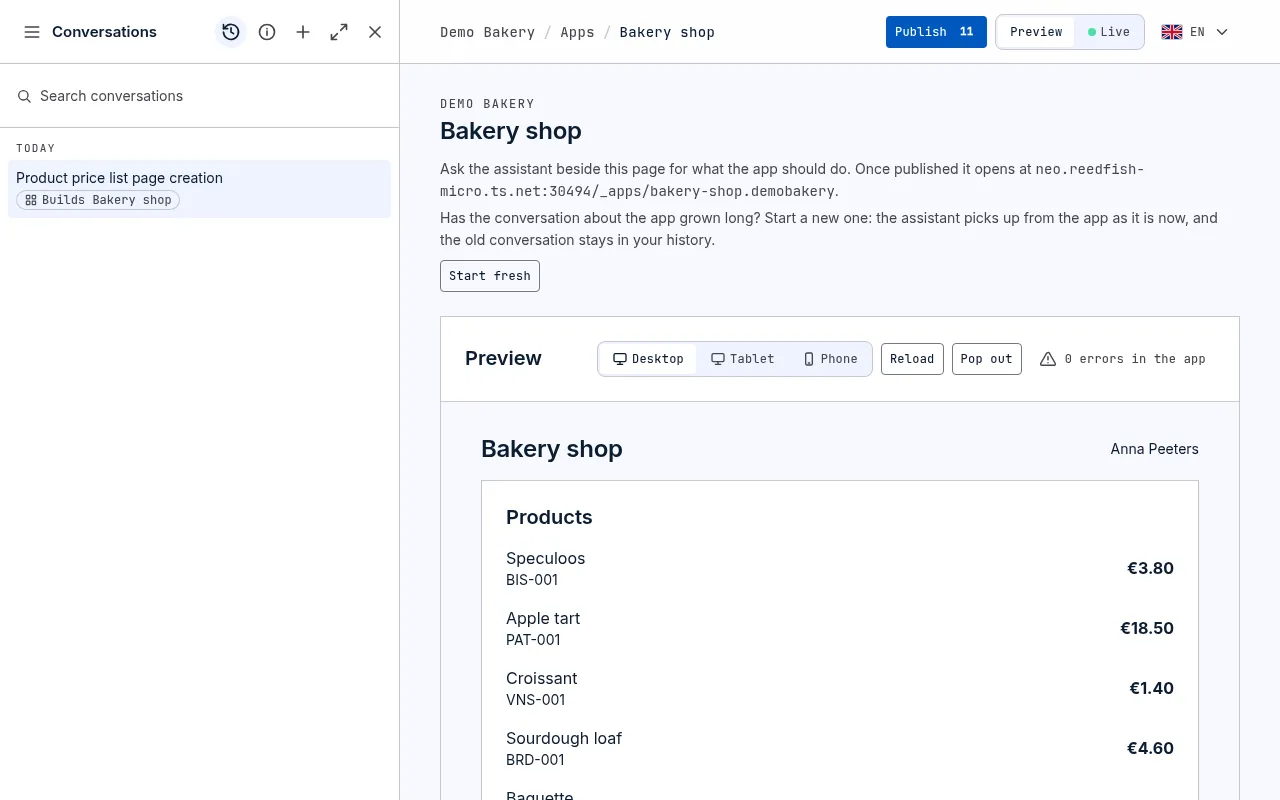
- From your conversations. Under Conversations, the app’s conversation has a badge under its title: a small rounded label with a thin border, a grid icon and the app’s name, such as Builds Shop. Conversations that build no app have no badge. Search for the app’s name to find it. Clicking it opens the app’s page with that conversation.
Ask for what you need
Section titled “Ask for what you need”Write to the assistant as you would to a colleague, for example:
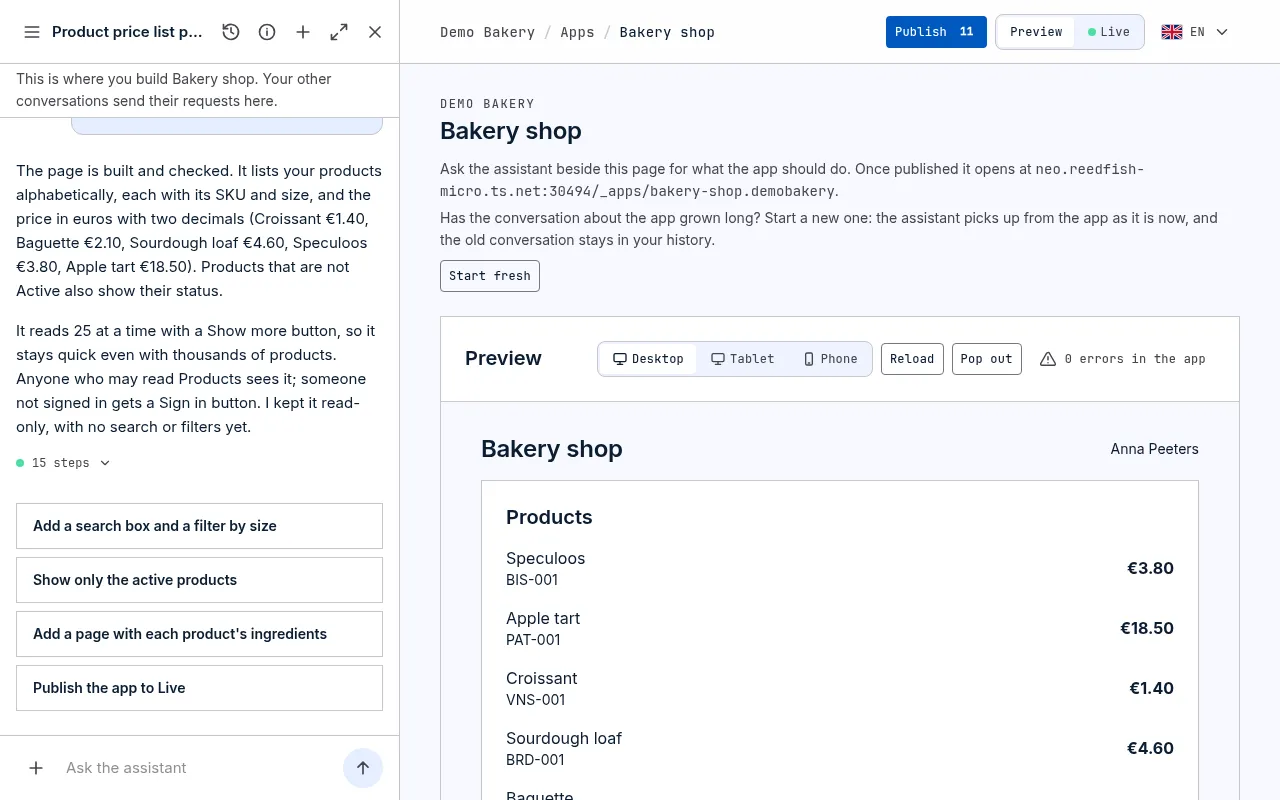
- Make this a page that lists our products with their price, sorted by name.
- Add a search box above the list.
- Show only the orders due this week, the latest first.
- Show the hours each person worked per week, by name.
A short request is enough. The assistant first thinks through what the app needs: who uses it and on what, which records it works with and how many there will be, who may see what, and what happens to the records over time. If an answer changes what it builds, it asks you a few short questions at once, each with its own suggestion first; otherwise it starts straight away and tells you what it assumed, so you can change it.
Apps are made for data that grows. A list shows a page of records at a time, with Show more under it, and you choose a record, such as the book for a loan, in a box that finds it as you type rather than in one long drop-down. Totals and averages in the app, such as the hours per person, count every record you may see, however many there are, not only those on the screen. A person, such as the member of staff or the volunteer a shift is for, is chosen the same way, by name: see Owners and sharing.
An app shows the files your records hold, such as an employee’s photo or a dish’s picture, to whoever may see the record, and members and signed-in customers add files in its forms where their data roles let them; each new file is checked for viruses first. A file that is part of the app itself and rarely changes, such as your logo or a menu PDF, is put in the app instead: ask, for example, Use the logo from our Documents as the app’s logo. The assistant copies it into the app, which keeps that copy until you ask again. When the file is a Live record’s, it asks you first. See Files.
Use your own pictures, sounds and videos. Send the assistant a file in the chat, from your device or from the Library of your records’ files, and say where it goes: Put this photo of our terrace on the home page, Use this recording as the intro video. It puts the file in the app itself, so it shows in the preview at once and on Live once you publish, to everyone who may open the app. Pictures, sounds (MP3, M4A, WAV, OGG and more) and videos (MP4, MOV, WebM), each up to 20 MB. See Send it files.
In the chat, one line says what the assistant is doing now, such as Working… Building the app; click it to see each step it took. Each step says what it did in plain words, such as Built the app and ran the tests; to see the files and commands it worked on, choose Show the files and commands under the steps. While it works on the app, a line above the preview says so, and when it has changed the app, the preview reloads by itself. If your connection drops for a moment, the chat catches up by itself: the assistant carries on meanwhile. It builds the app with your own access: the app shows what you may see, and nothing more.
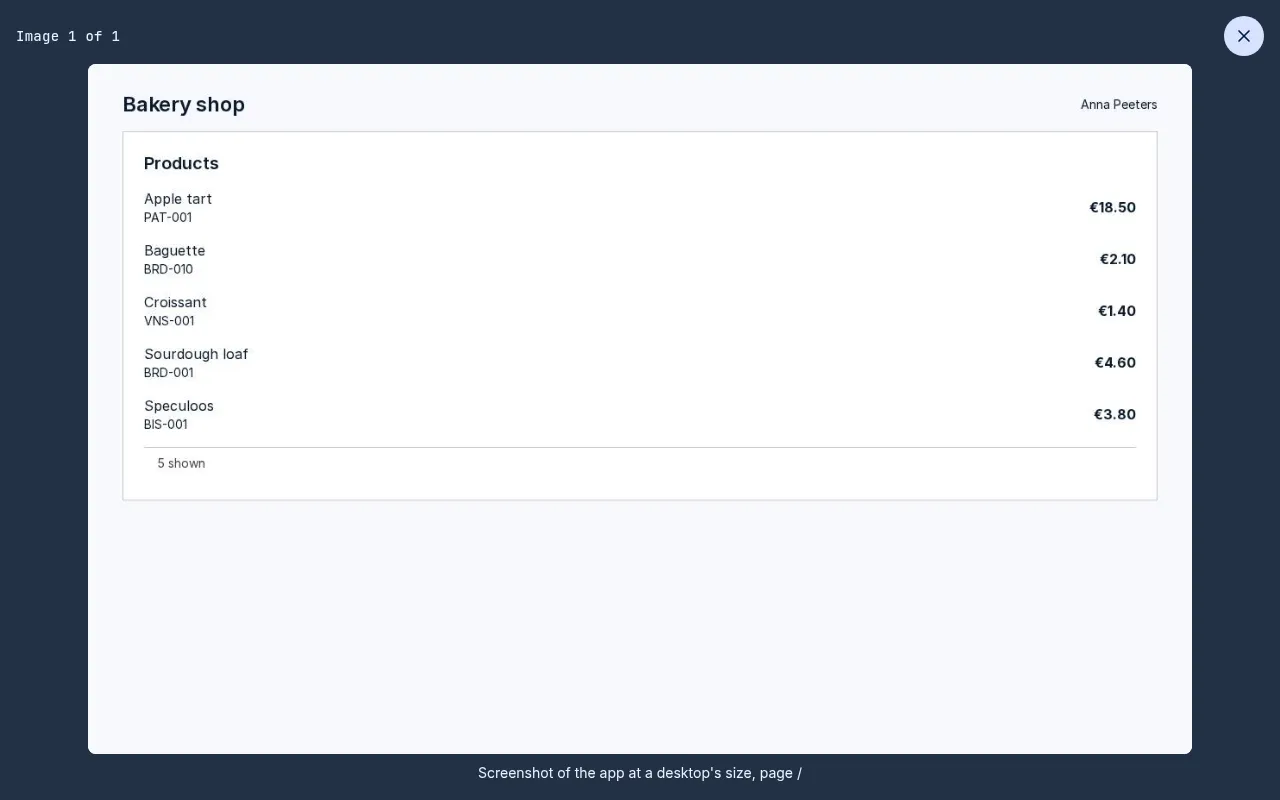
Before it tells you the app is ready, the assistant opens the app itself, as you would see it: with your access and your Preview records, also when you have closed the app’s page. It looks for errors and for anything that looks broken, such as a table running off a phone’s screen, and for text too faint to read against its background, on a computer and on a phone. It fixes what it finds and looks again. Among its steps in the chat this shows as Checked the app, with a small picture of what it saw.
Select the picture to see it large. Go through every picture in the conversation with the arrow keys or the arrow buttons, or swipe on a phone; press Escape or choose Close to go back to the chat.
When the app needs something your data model does not have yet, such as a field for allergens, the assistant proposes the change to the data model first, on a card, and makes it only when you agree. The build waits for you meanwhile, and the line of steps says so: The build waits for your go-ahead on this change. Choose Yes and it makes the change and carries on building where it stopped; choose No and it builds on with the data model as it is.
Who can use it
Section titled “Who can use it”An app shows and changes only what the data roles of the people using it allow. When you ask for something, the assistant works out with you who uses the app and what each of them must see, add, change or delete, and when a role lacks a right it proposes the change on a card in the same reply, saying who it is for: for example, for a public app, letting visitors who are not signed in see the records it shows. When it is unclear who should have access, it asks you first. If someone says the app shows nothing or refuses to save, ask the assistant why: it checks the data roles and tells you which role lacks which right.
Ask how far it is
Section titled “Ask how far it is”You do not have to stay on the app’s page while the assistant builds it. In any conversation, including the one where you asked for the app, ask for example How far is the Shop app?, Is it done? or What went wrong?. The assistant looks at the app being built and tells you where it stands: still being prepared, being worked on and what it is doing, waiting for your answer, done, or stopped and why. It tells you where to see the app, and opens its page if you ask. Asking about an app never starts a new one.
If building the app failed, the assistant says so plainly: it is not done, and there is no preview to look at. It tells you why, and what you can do next, such as trying again on the app’s page. When apps cannot be built here at the moment, it says that trying again will not help yet. You get the same answer in the app’s own conversation.
If no app is being built, the assistant says so and offers to start one; nothing starts until you ask for it. If a colleague is building the app, it tells you only how far their build is, never what they wrote to the assistant.
Start the conversation fresh
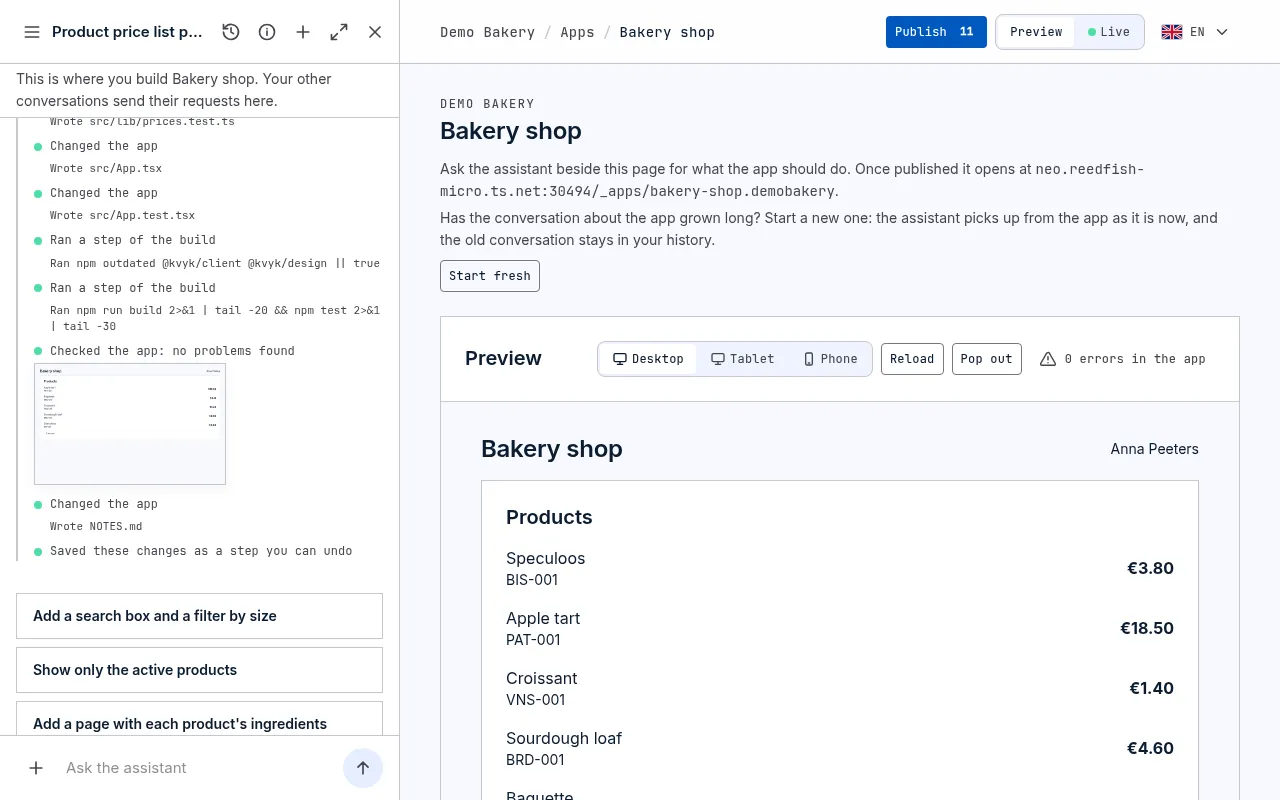
Section titled “Start the conversation fresh”An app you work on for a long time has a long conversation. To begin again, choose Start fresh at the top of the app’s page. A new conversation about the app starts, and the assistant picks up from the app as it is: what it is made of, what was decided and the steps taken. You do not have to explain it again.
The earlier conversation stays in your history. It keeps its Builds Shop badge, and under the badge a line of plain text, without a border or icon, says Earlier conversation of an app. You can open and read it, but no longer write in it; what you ask for the app goes to the new conversation. You can start fresh only while the assistant is not working on the app: wait until it is done, or stop it first.
Try it in the preview
Section titled “Try it in the preview”When you open an app’s page later, nothing starts by itself: the preview starts when you ask the assistant to build or change the app, or when you choose Start the preview.
The preview shows the app working on your Preview records, never on your real ones in Live, so you can add, change and delete freely. Above it you can:
- see it at the size of a Desktop, a Tablet or a Phone (on a phone you see it at your phone’s size, so there is no switch);
- Reload it;
- Pop out to open it in a window of its own;
- open the errors in the app it reports. The count starts again each time the preview reloads, such as after the assistant fixed something. The assistant looks for these itself too; if one remains, paste it into the chat for the assistant to fix. A mistake in the app’s code never covers the preview with an error screen: it is counted here, and the assistant sees it.
When someone else is working on it
Section titled “When someone else is working on it”One person builds an app at a time. If a colleague is working on it, the page names them; try again later, or ask them.
Once they stop, the app is free again after about 10 minutes without activity. The next person who opens it or asks for a change goes on from what was built so far, and the page no longer names your colleague.
An Administrator does not have to wait: on the app’s page, choose Free the app, and confirm with your colleague’s name in the question. What they built is kept, and a change the assistant is making for them is finished or stopped first, never left halfway. The next time they open the app, they see who stopped their work and when. The event log records it as App freed.
If the app cannot be built
Section titled “If the app cannot be built”When something stops the app from being built, the preview says what happened and what you can do, with Try again:
- Apps cannot be built here yet: building is not switched on. This is nothing you did, and trying again does not help: contact kvyk.ai. Meanwhile the assistant can already set up your data.
- Your organisation is already building as many apps at the same time as it can: wait until someone has finished with one, then try again. An app nobody works on is put aside after a while, and nothing is lost.
- So many apps are being built right now that yours has to wait, or getting a place ready took longer than it should: wait a few minutes, then try again.
- Something went wrong while getting your app ready, or work on the app stopped before it was ready: try again. Your earlier work is kept.
Until it can be built, Steps says the app could not be made, also with Try again. Trying again, in either place, starts the app again and, once it can, sends your last request to the assistant again, so you do not have to type it again.
If it keeps happening, contact kvyk.ai.
Undo a step
Section titled “Undo a step”Each time the assistant changes the app, it saves a step, listed under Steps on the app’s page with a short name for what changed (for example Added a break button to the clock-in screen), who asked for it and when; a step made with the assistant is marked Assistant. The page shows the newest five: Show all 9 steps (with your number of steps) opens them all, a page at a time, each with its Undo too. To take a step’s changes back, choose Undo beside it. First you are asked to confirm, with what goes back: how many of the app’s files the step changed, and, when it is the last step that can still be undone, that the app goes back to the app template it started from. Choose Undo the step to go ahead, or Keep the step. The undo is a step of its own, so you can see what happened, but it cannot be undone in turn. Live stays as it is until you publish.
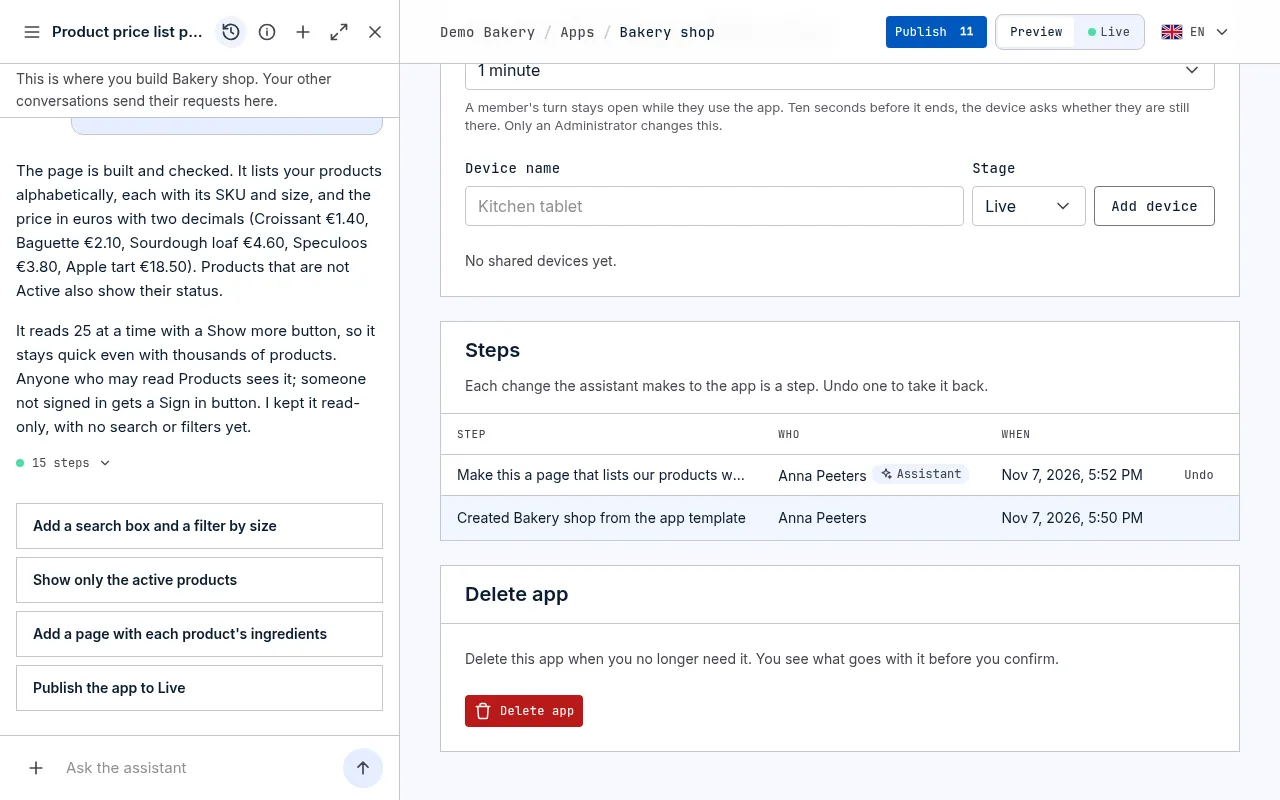
If later steps changed the same part of the app, undo those first, or ask the assistant to change it back.
Publish it
Section titled “Publish it”When the app does what you need, build a version of it and publish it to Live, where your team opens it on its own address. See Publish an app.
A new app is for all your organisation’s members. An Administrator can choose who can open it.