Your apps on a phone
Stay signed in to your organisation's apps on your own phone, put them on its home screen and get their messages there, without an app store.
Every app of your organisation works on a phone. The people who use it, your members and your customers, can stay signed in on their own phone, put the app on its home screen and get its messages there. There is no app store and nothing to install from one.
Stay signed in on your own device
Section titled “Stay signed in on your own device”On an app’s sign-in page, tick Keep me signed in on this device before you sign in. It works for members with Sign in with kvyk and for customers with their code or link.
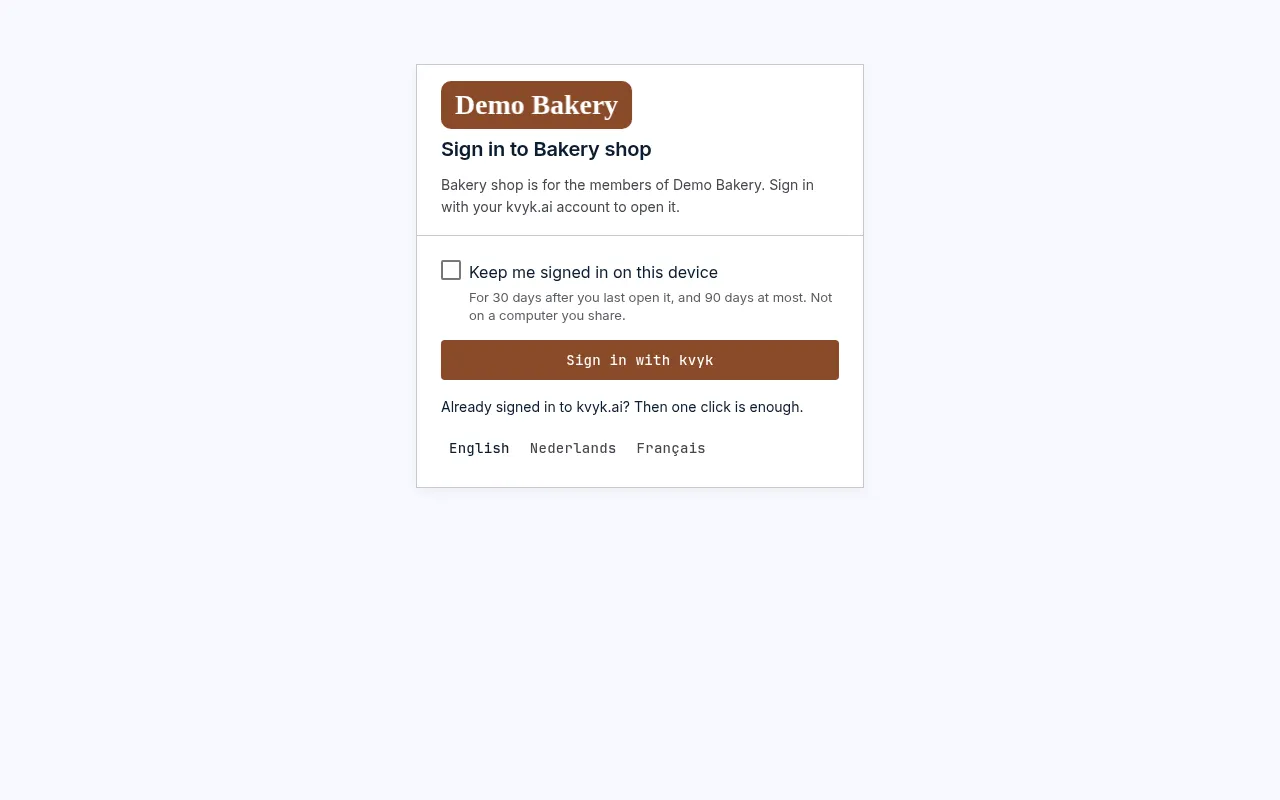
- You then stay signed in on that device for 30 days after you last open the app. Each time you open it, the 30 days start again.
- After 90 days at most, the app asks you to sign in once more.
- Without the tick, you are signed in for 8 hours, as before.
Tick it only on a device of your own, never on a computer you share. You stay signed in on one app at a time, on one address: on another app, or on a domain of your own, you tick it again.
See and sign out your devices
Section titled “See and sign out your devices”Each app has an account page, which the app can open for you. Under Signed in on, it lists the devices you stay signed in on, with when you last used each one. This device is the one you are using.
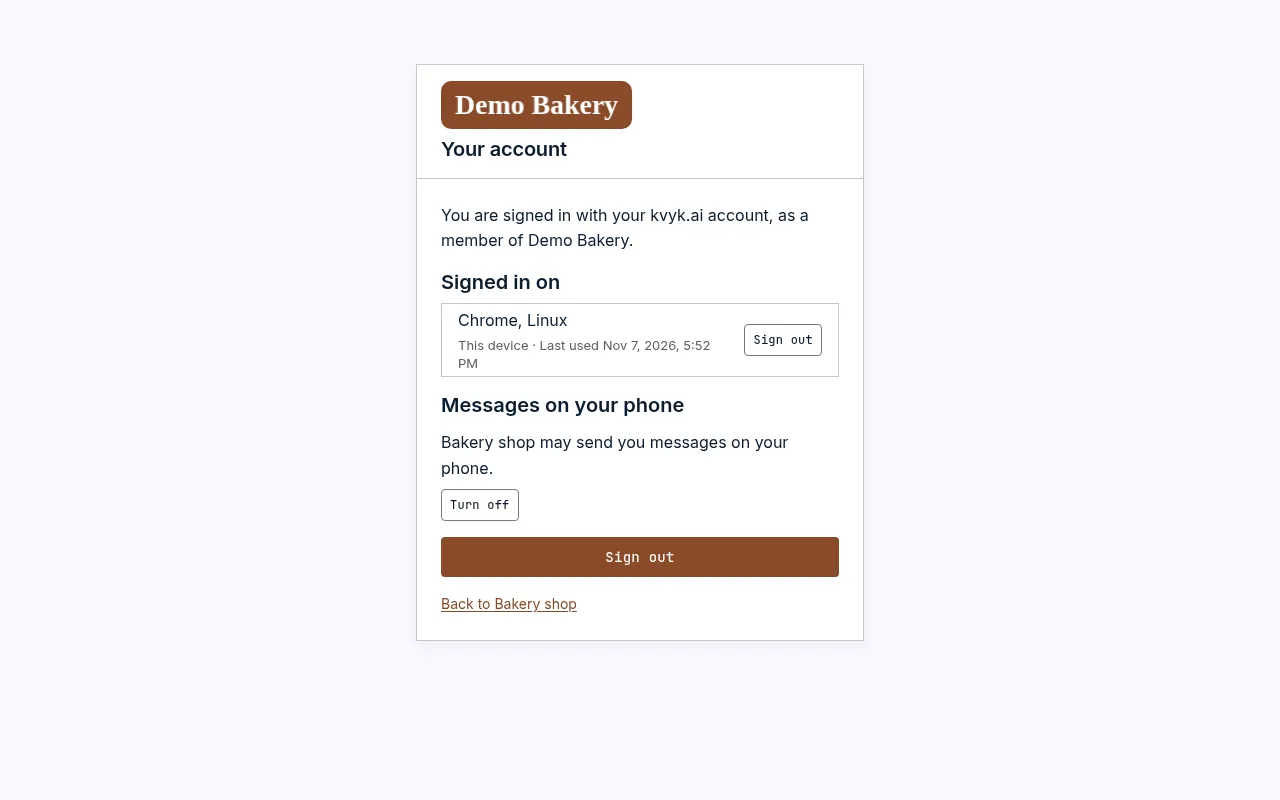
Choose Sign out beside a device you no longer have, such as a lost phone. It is signed out at once.
You are also signed out of every device when:
- an Administrator removes you from the organisation, if you are a member;
- you withdraw your consent, if you are a customer. See How customers sign in.
Put an app on the home screen
Section titled “Put an app on the home screen”Open the app on your phone. The first time, it offers once to put the app on your home screen:
- On an iPhone or iPad, it tells you how: tap Share, then Add to Home Screen.
- On Android, choose Add to home screen.
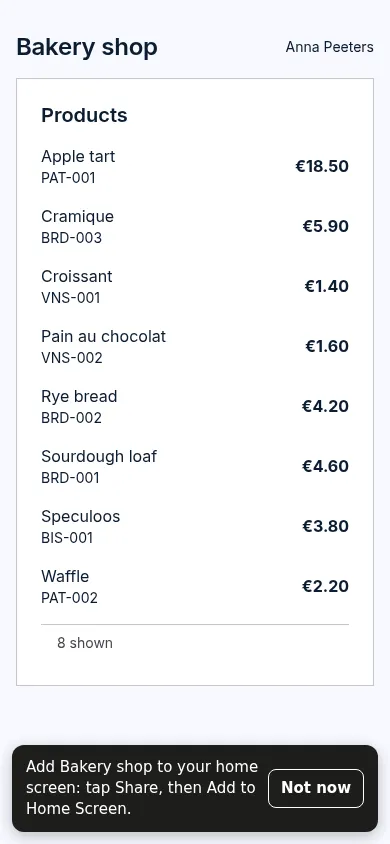
The app then has its own icon with your organisation’s logo, and its own name, and opens full screen like any other app on the phone. You set the logo and colour under Settings.
Choose Not now to leave it; the app does not ask again on that phone. When you build an app that should not offer it, ask the assistant to switch the home screen hint off.
Messages on the phone
Section titled “Messages on the phone”An app on the home screen can send you short messages on your phone: a title and a line of text. Tapping one opens the app on the page it is about.
- The first time you open the app from the home screen, it asks whether it may. Choose Allow, then confirm on the phone. Or choose Not now.
- To build it, ask the assistant, for example: send the person a message when their order is ready. The app can also have a button of its own to turn the messages on.
- To stop them, open the app’s account page and choose Turn off under Messages on your phone. You can also stop them in the phone’s own settings.
The messages go through your phone’s own push service, from Apple, Google or Mozilla. They carry only the title and the text, never your records, and no tracking.
On Preview
Section titled “On Preview”An app on Preview sends no messages to anyone’s phone. They are kept instead, as Preview’s emails are: on the app’s account page on Preview, under Messages on Preview, the makers see the messages of the past week, with who they were for.