Approvals and notifications
Answer what waits for your approval, from automations, apps and changes to roles, and read what automations tell you, from the two links at the foot of the menu.
An automation can stop and ask someone to decide, such as Accept this large order?, or simply tell someone something, such as A new order came in. Both reach people in the dashboard, whatever their role: an automation can ask or tell a member, everyone with a role, or the person in a field of the record, such as its account manager.
At the foot of the menu, just above your name, are two links, each with a count:
- Approvals: what waits for your answer;
- Notifications: what automations told you that you have not read yet.
On a phone the menu button shows a count when something new waits for you, as it does for a new answer from the assistant.
Approvals
Section titled “Approvals”When an automation asks for your approval, it shows on Approvals, you get a notification and a mail such as Large orders asks for your approval, with Open your approvals. The run waits until someone answers.
Each approval shows the question, which automation asked and when, the record it is about, and the date to Answer before. Add a Comment if you like: it is optional, the automation can use it, and it is kept with the run. Then choose Approve or Reject. The run goes on at once, along the path for your answer.
When several people are asked, the first answer counts. If nobody answers in time, the step fails: the automation takes its If this fails path, such as reminding someone, or else the run fails.
An Administrator also sees on Approvals each outside address a Builder’s app asks to call on Live, with the app, the address, why, and the allowed service it goes through. Approve lets the app call it on Live (fill in the service’s name, receiver and purpose when there is none yet); Reject keeps it blocked. See Outside services.
An Administrator also sees what a Builder’s changes wait for:
- Changes to roles: when a Builder publishes changes that let people with a role do more on Live, the Administrators are asked, and get a mail. The card names the roles, each linking to its role, and says in plain words what people could do more, such as People with Staff now read all Invoices, and who asked. Approve lets the next publish of these changes through, whoever publishes; Reject keeps them off Live. See Roles and access.
- Role steps: when a Builder saves an automation with a Give a role or Take a role away step nobody approved, the Administrators are asked, and get a mail. The card names the automation, the role and what the step does, naming the person in words. Approve approves the step for that role and person, as ticking it in the step does, so the automation can be published. See Give or take a data role.
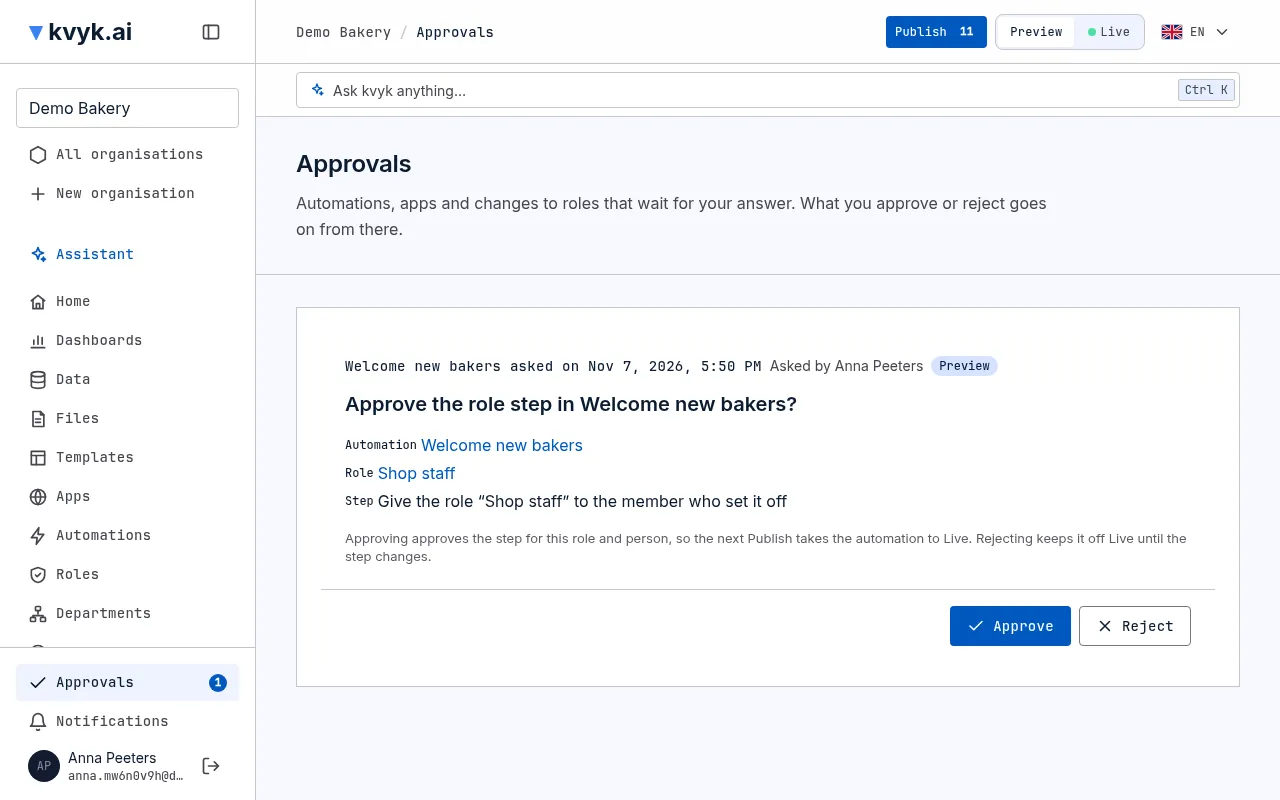
If the changes or the step change before anyone answers, the approval lapses and a new one asks about them as they are now.
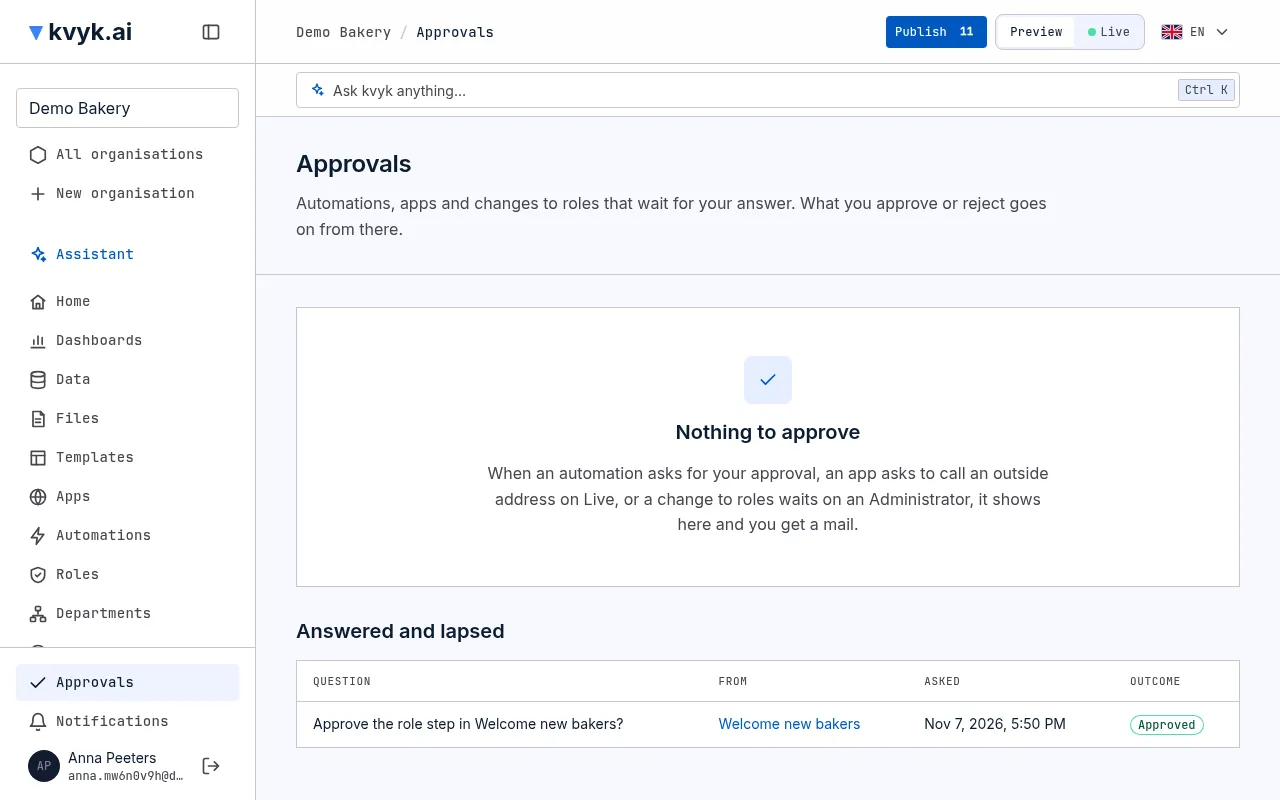
Below the open approvals, Answered and lapsed lists the approvals already answered or lapsed, each with what it was about and its outcome.
Notifications
Section titled “Notifications”Notifications lists what automations told you, newest first, with which automation it came from. New ones show Unread. Open the record takes you to the record a notification is about, and Mark as read takes it off the count.
On Preview
Section titled “On Preview”On Preview, approvals and notifications are captured with the run instead of reaching anyone: they show under What would have happened on the run’s page. A test run answers its own approvals, so it runs to the end without waiting.