Find and export records
Search, filter and sort an entity's records, choose the columns you see, save it all as a view, and download the records as a CSV or Excel file.
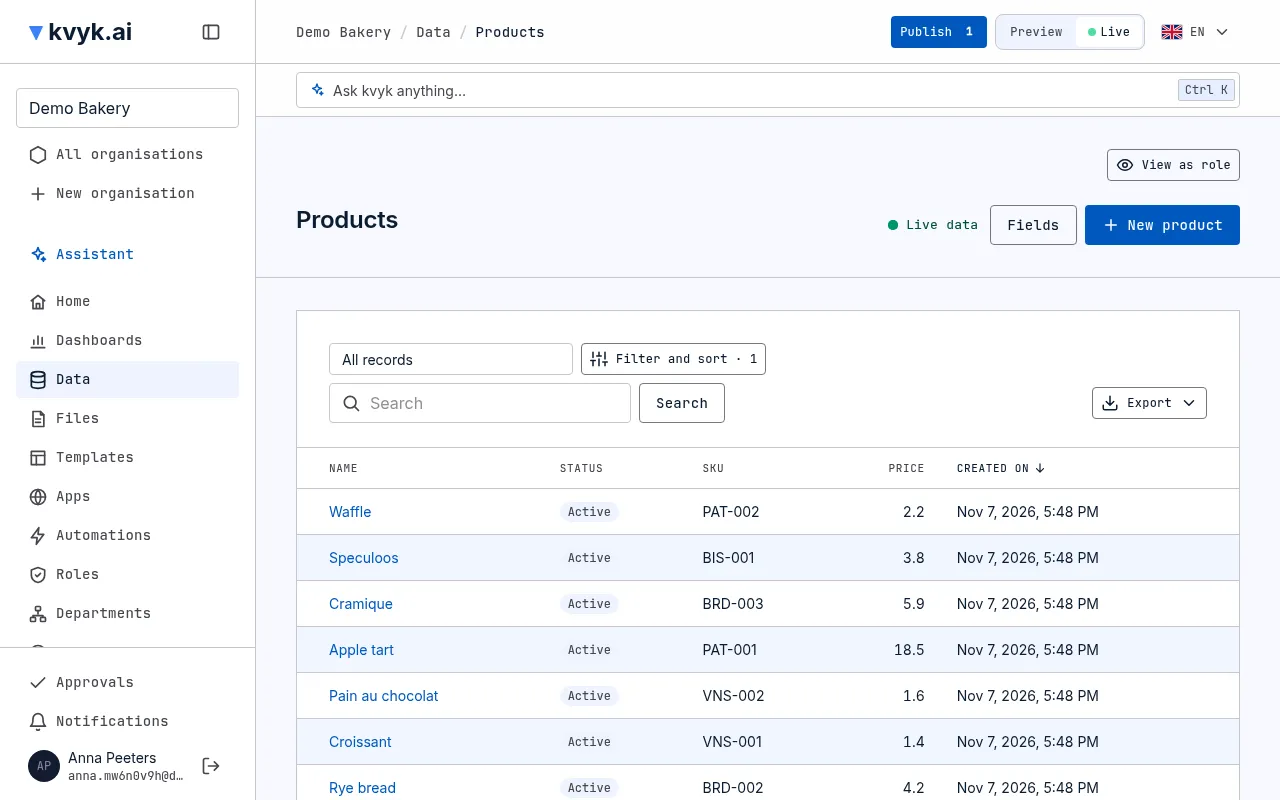
An entity’s records page lists its records a page at a time. The toolbar above the list holds the view you are looking at, then Filter and sort. That button opens the Filter, sort and columns panel at the right edge of the screen, beside the list, which follows each change you make; Done closes it. While the panel is closed, the button says how much you have changed, such as Filter and sort · 3. Below the view are the search box and the Export menu. The page’s address keeps all of it, so you can bookmark the list or send it to a colleague.
Search
Section titled “Search”Type in the search box to find records whose text fields contain what you type, in any case.
Filters
Section titled “Filters”A filter keeps the records that meet a rule, such as Price is more than 4.50. A list starts with Status is Active: choose Filter and sort and remove that filter to see inactive records too.
Choose Filter and sort, then under Filter choose Add filter, then a column, a comparison and a value. You can compare:
- numbers and dates: is more than, is less than, is between, is before, is after;
- dates with a period: is in the last 7 days, is this week, is next month, is today;
- text and options: is, is not, contains, starts with, is any of;
- people, such as Created by and Last changed by: is, is not, is any of, is none of, picking the person by name;
- anything: is empty, is not empty.
Records must meet all your filters. To keep records that meet any of several rules, choose Add group and set it to Any of these. Each filter shows on its own line with a cross to remove it, and Clear filters removes them all, in the list or in a group.
Filter on linked records
Section titled “Filter on linked records”Filters can follow links. On Products, a rule about Inventory keeps the products where any, none or every one of their inventory lines meets it, such as Any Inventory where Quantity is less than 5 and Location is Gent. On Inventory, a rule about Product filters by the product each line points at.
A many-to-many link works the same way from either side: on Products, a rule about Ingredients keeps the products where any, none or every one of their ingredients meets it, and on Ingredients, a rule about Used in does the same with the products they are used in.
Days, weeks and months count in your time zone.
Choose a column’s heading to sort by it, and again to reverse it. In the panel, under Sort, each sort shows on its own line. With Add sort you can sort by up to five columns: the first decides most, the next decides between records that are equal on the first, and so on. Created by and Last changed by are not offered for sorting; filter on them instead.
Columns
Section titled “Columns”In the panel, under Columns, choose which columns the list shows after each record’s title: the entity’s own fields, the records it links to, and the built-in fields: Created on, Created by, Last changed on and Last changed by. Tick a column to show it. To change the order, drag a shown column by its handle to a new place, or use its up and down arrows. With the keyboard, go to the handle and press the up or down arrow key. Use the table layout goes back to the columns set in the entity’s fields.
A view keeps a list’s filters, sorting and columns under a name, for everyone in the organisation who may see the entity. Choose a view from the list in the toolbar, or All records for none.
Once you change a view’s filters, sorting or columns, the toolbar says Unsaved changes:
- Save puts your changes into the view, for everyone;
- Save as new view keeps them as a view of their own, under the name you give it;
- Reset goes back to the view as it was saved.
Anyone who may see the entity can save a new view. The person who made a view, Administrators and Builders can also save into it, and use Edit view to rename or delete it.
An Administrator can make one view the default view with Edit view, then Make default. The list then opens on it, and the view list marks it (default). Stop using as default makes the list open on all records again.
A view never shows anyone a field they may not see: those columns and filters are left out for them.
Export
Section titled “Export”Choose Export, then CSV file or Excel file, to download the records you are looking at, with your search, filters and sorting, up to 10,000 records at a time. For more, narrow the list first. An export holds only what you may see. Each many-to-many link is one column, with the records linked to each record separated by commas, and so is each link to people, with the names of the people in it.