Invite people
Bring your team into your organisation, give each person a role, data roles and a department, and remove them when they leave.
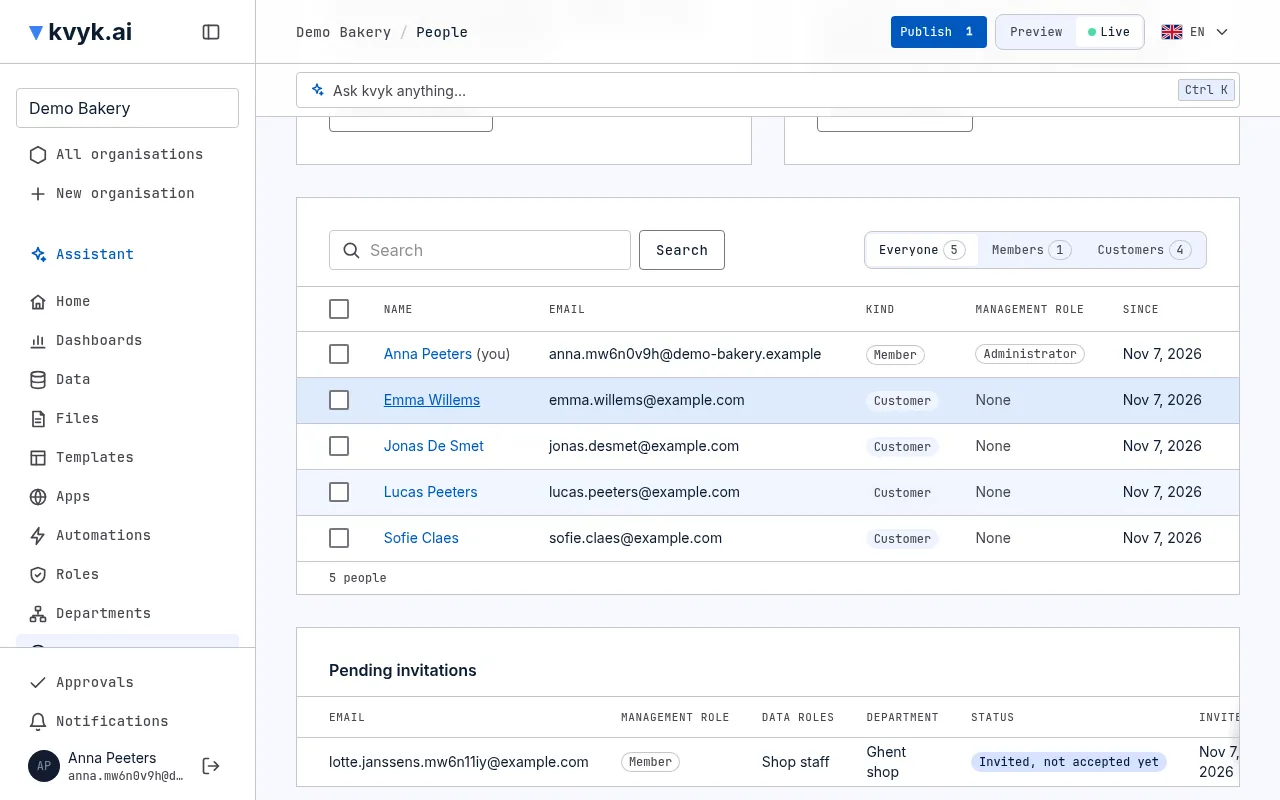
Everyone your organisation knows is on the People page: its members, who work in it and sign in to the dashboard, and its customers. Only Administrators see the page.
Invite someone
Section titled “Invite someone”- Open People and, in the Members card, choose Invite a member. The Invite someone form opens.
- Enter their email address.
- Choose their management role: Administrator, Builder or Member. See Roles and access for what each may do.
- Choose their data roles and their department. You can change these later.
- Choose Send invitation.
They receive an email with a link to sign in. Once they do, they are a member. They do not need an account first: it is made when they sign in.
Until kvyk.ai opens to everyone, the people you invite can sign in even though they are not on kvyk.ai’s list, as long as their invitation or membership lasts. Revoke the invitation or remove them, and they can no longer sign in.
Invitations not yet accepted are listed under Pending invitations, marked Invited, not accepted yet, where you can resend or revoke one.
Someone who already has a kvyk.ai account is a member at once. Until they sign in, the People list and their page show Invited, not accepted yet, with when they were invited. Open them and choose Send the invitation again to email it once more.
Invite someone to an app
Section titled “Invite someone to an app”When someone joins to use one of your apps, such as staff who clock in on their phone, invite them for that app:
- Open the app’s page from Apps and, under Who can open it, choose Invite someone to the app. The app must be published to Live. You can also choose it under For an app in the Invite someone form.
- The form already gives them the data roles that the app’s audience names. Check them, enter their email address and choose Send invitation.
The email then names the app, gives its address and has an Open button: it signs them in and opens the app. Make sure they can open it: see Choose who can open an app. An invitation sent again from Pending invitations is the usual one, without the app.
Where members land when they sign in
Section titled “Where members land when they sign in”Administrators and Builders land on the dashboard. A Member who can open one or more published apps lands on them instead: on the app they were invited to, or on their only app, at once. With several apps, they see Your apps, one large button per app, and Go to the dashboard under them. A Member with no app to open lands on the dashboard.
Find someone
Section titled “Find someone”The list shows members and customers together, by name. Choose Everyone, Members or Customers to see one kind; each shows how many there are. Search by name or email address to find someone quickly. Open a person by their name.
Change what someone may do
Section titled “Change what someone may do”Open a member on the People page to:
- change their management role;
- give them data roles, or take one away;
- move them to another department;
- see what they can do with each entity’s records, and why.
Each change takes effect at once and is recorded in the event log.
Change a member’s email address
Section titled “Change a member’s email address”If a member has a new email address, for example because they lost access to the old one, you can change it for them:
- Open the member and, under Email address, enter the new address.
- Choose Send a confirmation link. kvyk.ai emails a link to the new address, saying an Administrator of your organisation changed it. The link works for 7 days.
- The member opens the email in that inbox, follows the link and chooses Confirm this address.
Until they confirm, they keep signing in with their current address. Their page shows New address waiting for verification, with Send again to email a fresh link and Cancel the change to keep the current address. Once they confirm, they sign in with the new address in all their organisations, and their previous address gets a short email saying it changed. Nobody needs to approve the change from the old address, so it also works when the member can no longer read it.
Each step is recorded in the event log, with who did it. An address that already belongs to another kvyk.ai account is refused. Your own address you change on Your account.
Remove someone
Section titled “Remove someone”Open the member and choose Remove member. If they own records, choose who takes them over: the records stay, with a new owner.
An organisation always keeps at least one Administrator, so the last one cannot be removed or made something else.
Removing someone also ends their conversations with the assistant in that organisation.
They are also signed out of your organisation’s apps at once, on every device they stayed signed in on. See Your apps on a phone.
When two Administrators change the same member
Section titled “When two Administrators change the same member”If someone else changed a member while you had them open, kvyk.ai does not overwrite it: the page tells you and shows how things are now.