Find your way around
The dashboard's sidebar, the stage switch and what each page is for.
The dashboard is where you set up and run your organisation. Everything is reached from the sidebar on the left; on a phone, the menu button at the top opens it.
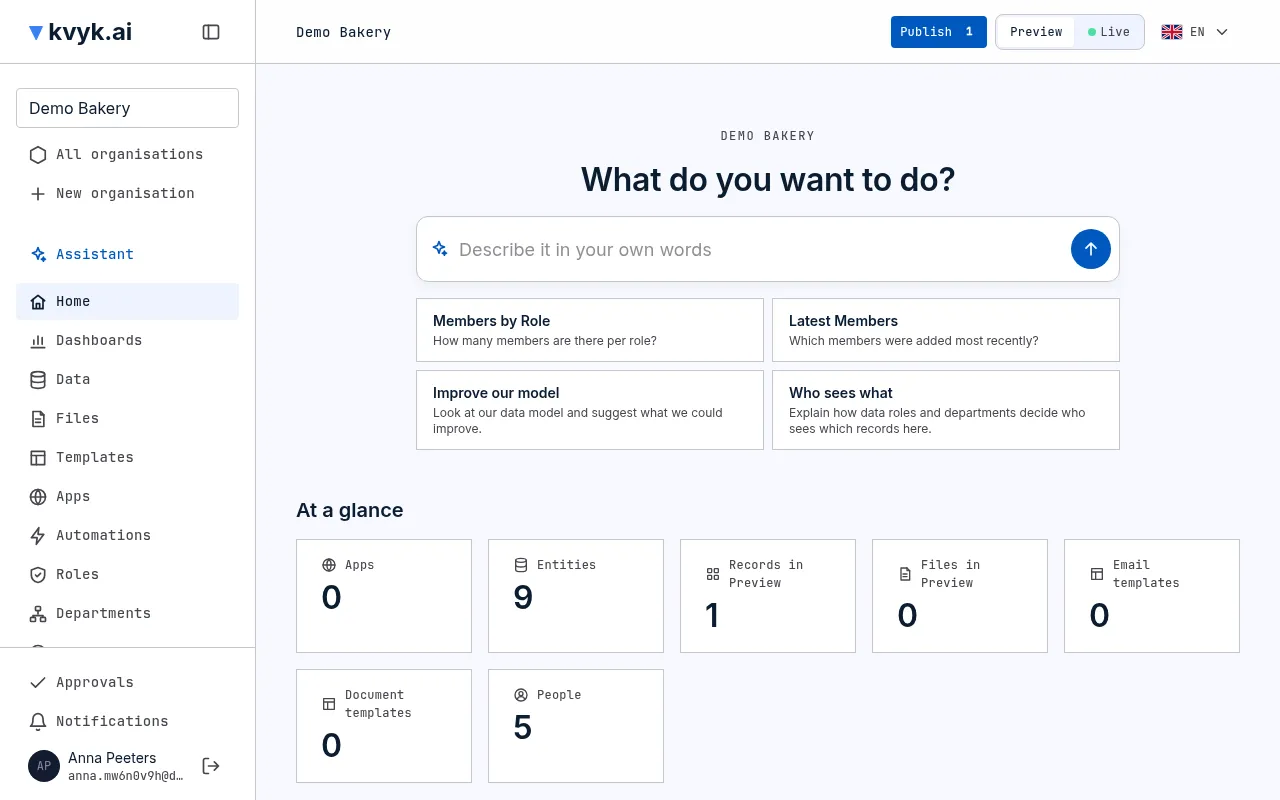
The sidebar
Section titled “The sidebar”At the top, the organisation menu shows which organisation you are in and switches to another: type to find an organisation in the list. Below it are the organisation’s pages. You see the ones your role allows:
| Page | What it is for | Who sees it |
|---|---|---|
| Assistant | Opens the assistant beside the page you are on. It leads the menu, in blue: it is how most work gets done. | Everyone |
| Home | The page an organisation opens on. Say what you want to do and the assistant takes it from there, or start from one of its suggestions. Under that, the organisation at a glance: its apps, entities, records, files, email templates, document templates and people, each a link to its page, and the apps changed last. | Everyone (apps and templates for Administrators and Builders, people for Administrators) |
| Dashboards | Dashboards of cards with the numbers you look at often. | Everyone |
| Data | The entities, their fields and links, and their records. | Everyone |
| Apps | The organisation’s apps, built with the assistant beside a live preview. | Administrators and Builders |
| Automations | What runs by itself: each automation, its runs and whether it is on in Live. | Administrators and Builders |
| Roles | The data roles: who may do what with which records. | Administrators and Builders |
| Departments | How your organisation is split up. | Administrators |
| People | The members and customers of the organisation, and the invitations. | Administrators |
| Technical | Opens to its pages: API reference, every operation of the organisation’s API (everyone); Keys and secrets, the keys for other systems to reach your API (Administrators) and the keys and settings apps and automations need (Administrators and Builders); Events, everything that happened, and who did it (Administrators); Allowed services, the outside services automations may call (Administrators); and Deployment, the data model’s changes waiting in Preview one by one, taking them back, and restoring deleted data (everyone). | Everyone |
| Settings | How the organisation works, such as the assistant’s use of records. | Everyone |
At the bottom are your name, a link to your account and Sign out.
For more room, the button at the top of the sidebar narrows it to its icons. Point at an icon to see its name, and press the button again to widen it. Your choice is kept on this computer.
Ask kvyk
Section titled “Ask kvyk”Ask kvyk, the wide field on its own bar under the top bar of every page, asks the assistant from wherever you are. Type what you want and press Enter: the assistant opens beside the page in a new conversation and knows which page you were on, so on the Data page “add a phone number to customers” just works. Press Ctrl+K (⌘K on a Mac) to jump to it from anywhere. On a phone the bar is hidden to keep the top of the page small: tap the sparkle button at the top to show it, and tap it again to hide it.
Preview or Live
Section titled “Preview or Live”The switch at the top right of every page chooses the stage you are looking at (on a phone, a small drop-down showing the one you are in): Preview, where you try changes with test records, or Live, with your real records. A page of Live records also says so in a line above them. See Preview and Live.
Your language
Section titled “Your language”The dashboard speaks English, Dutch and French. It starts in your browser’s language. To pick another, open the flag at the top right of any page and choose English, Nederlands or Français. Your choice is kept with your account, so the dashboard opens in it on every computer you sign in on. It is the same setting as the language on your account, so you can change it there too. Dates and numbers follow the language you chose, and so do the messages kvyk.ai shows you and the emails it sends you, such as your sign-in code.
Where you are
Section titled “Where you are”The top of each page shows where you are, such as Data / Products / Fields. Each part is a link back.
On a phone
Section titled “On a phone”The dashboard works on a phone: the sidebar opens from the menu button, tables scroll sideways, and the assistant fills the screen.
Working with others
Section titled “Working with others”Everyone in the organisation can work in it at the same time. Working together says what happens when two of you change the same thing, what Publish takes along, and how to see who changed what.
These docs
Section titled “These docs”This documentation is at kvyk.ai/docs, linked from the top of every page of the kvyk.ai site. In the dashboard, ask the assistant: it answers from these pages and links the one you need.