Customers
Keep the people you serve through your apps, make one of them staff, and export or erase what you keep about them.
Your customers are the people your organisation keeps for its AI-driven apps: guests, clients, patients. They are listed on the People page beside your members, but they are not staff:
- a customer never signs in to the dashboard;
- a customer never holds a management role, so they can never be an Administrator or a Builder; what they see in your apps comes from the data roles you give them;
- someone is a member or a customer of your organisation, never both.
Customers sign in to your public apps with a code mailed in your organisation’s name. See How customers sign in to your apps.
The Customers entity
Section titled “The Customers entity”Every organisation has a built-in Customers entity. Each customer has a record of it in Live, with the fields Name, Email, Consent, Consent given at and Status. You can rename the entity, for example to Guests or Patients, and give it fields of your own, but you cannot delete it or its own fields. Its page under Data says so too.
Each customer on the People page has exactly one record there. It is what your apps and your other records (orders, bookings) link to.
Organisations made before customers existed get the entity automatically. If changes are waiting in Preview, publish or discard them first; the People page tells you when that is needed.
Add a customer
Section titled “Add a customer”- Open People and, in the Customers card, choose Add a customer.
- Enter their name and email address.
- Tick They gave their consent to be kept as a customer if they did. The time is recorded with it.
- Choose Add customer.
To see only customers, choose Customers above the list. Search by name or email address to find one.
Open a customer
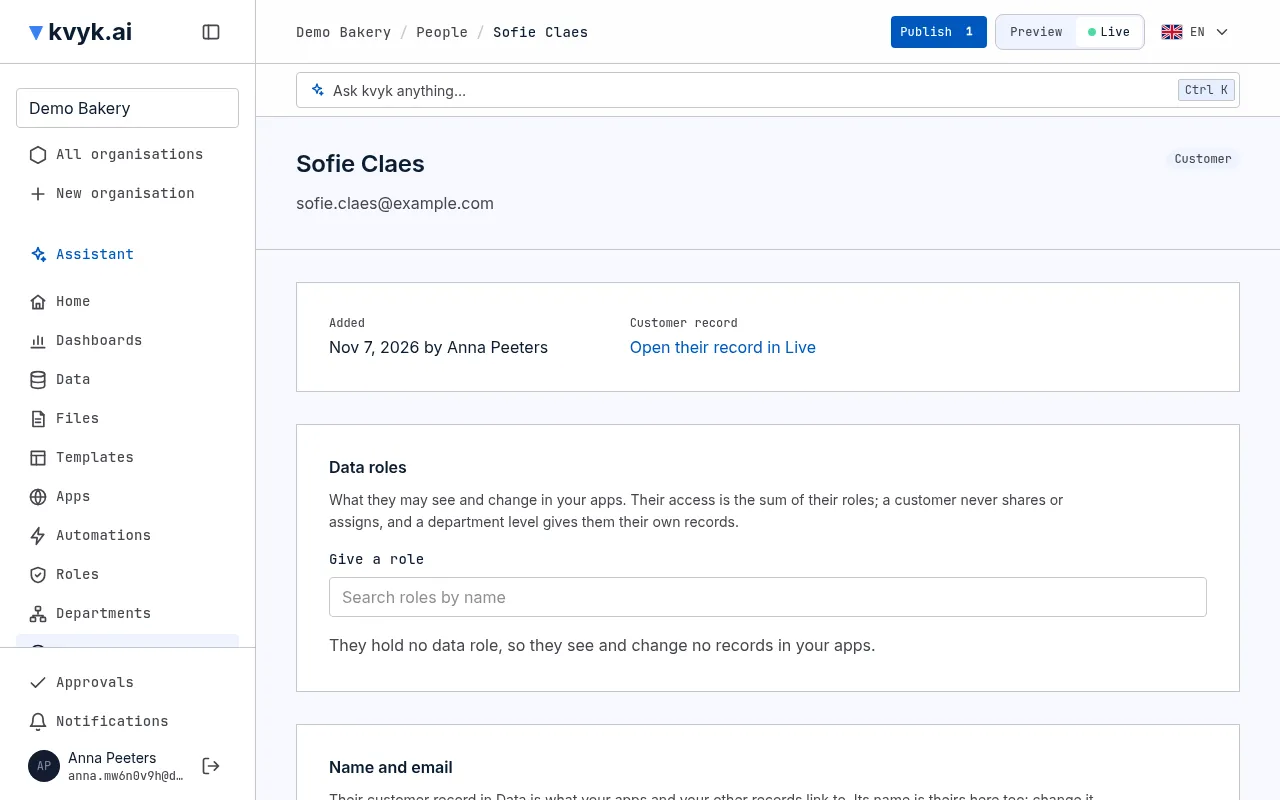
Section titled “Open a customer”Open a customer by their name on the People page. Their page shows when they were added and by whom, and links to their record in Live. A customer who created their own account on one of your apps, or agreed the first time they signed in after you added or invited them, shows when they agreed, the words they agreed to and your privacy link at that moment. See How customers sign in to your apps.
Change their name or email
Section titled “Change their name or email”Change their Name on their page and choose Save name and email. Their record in Data changes with it. It works the other way round too: change the name on the record, and the People page shows the new one.
A new Email counts only once the customer confirms it:
- Enter the new address and choose Save name and email. kvyk.ai emails a link to the new address. The link works for 7 days.
- Until the customer follows the link and chooses Confirm this address, their current address stays in use, on the People page and on their record. Their page shows New address waiting for verification, with Send again to email a fresh link and Cancel the change to keep the current address.
- Once they confirm, the new address is theirs everywhere, and their previous address gets a short email saying it changed.
Each step is recorded in the event log. The email on their record in Data cannot be changed there: change it on their page. An email address that already belongs to a member, a pending invitation or another customer is refused, and nothing changes.
Invite a customer to an app
Section titled “Invite a customer to an app”Under Invite to an app, choose one of your public apps and the Language of the mail (English, Dutch or French; it starts at the one the customer last used), and choose Send invitation. The customer gets a mail in your organisation’s name with a button that signs them in to the app; it works once, within seven days. See How customers sign in to your apps.
Make a customer staff
Section titled “Make a customer staff”Under Invite as staff, choose their role as a member, their data roles and their department, then Send invitation. They become a member when they first sign in, or at once if they already have a kvyk.ai account. They keep their record and what they own, and stop being a customer.
When a customer withdraws their consent
Section titled “When a customer withdraws their consent”A customer can withdraw their consent themselves, on the account page of any of your public apps. When they do:
- they are signed out of every app of your organisation at once, and cannot sign in again until they agree once more;
- every Administrator gets an email;
- the event log records Customer withdrew consent;
- their page shows Consent withdrawn on and the date, and their record’s Consent becomes false.
Their record and what they own stay. Decide what to do next: if they asked to be forgotten, erase them. If they later agree again when signing in, their page shows the new consent and keeps the earlier ones.
Until they accept, the People list and their page show Invited as staff, not accepted yet, with when they were invited. Choose Send the invitation again on their page to email it once more.
Export what you keep about them
Section titled “Export what you keep about them”Choose Export their data when a customer asks for what you keep about them. You get a file with their record, the records they own and the entries about them in the event log. The export itself is recorded in the event log.
Erase a customer
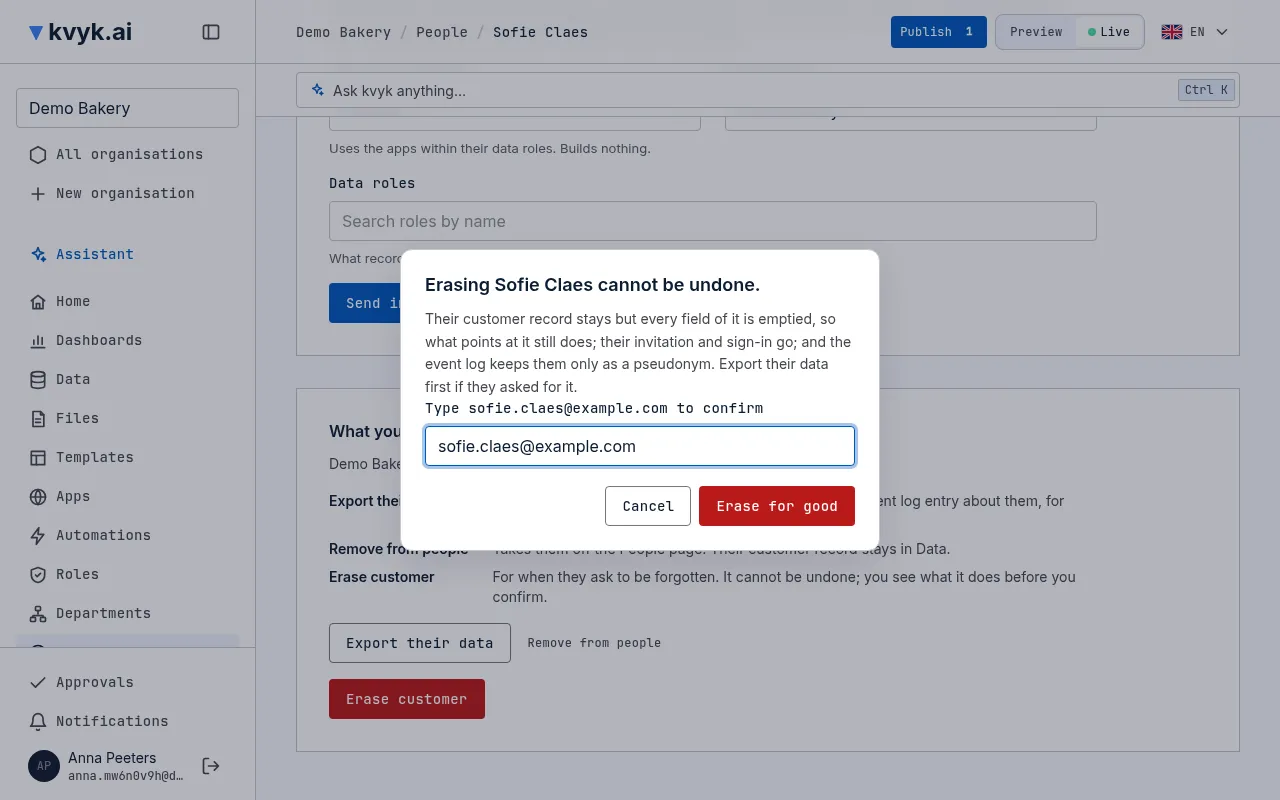
Section titled “Erase a customer”When a customer asks to be forgotten, choose Erase customer, type their email address to confirm, and choose Erase for good. This cannot be undone:
- their record stays but every field of it is emptied, so records that point to it still do; a field that must have a value gets a neutral one, such as Erased or 0;
- their invitation and their sign-in are removed, and they are signed out of every app;
- the documents that name them are removed, those made for records linked to them too, unless the law keeps them for some years (see Keeping documents);
- the event log keeps them only under a made-up name, and the emails sent to them no longer show their address or subject.
Export their data first if they asked for it.
Remove a customer
Section titled “Remove a customer”Remove from people takes them off the People page without erasing anything: their record stays. They are signed out of every app and can no longer sign in. If you invited them as staff, removing them also cancels that invitation; the confirmation tells you so.