API keys and webhooks
Give another system its own key to your organisation's API, with the data roles you choose, and let other services start an automation by calling a web address checked by a secret.
Other systems can work with your organisation in two ways: with an API key, they read and write records and start automations themselves; with a webhook, another service tells kvyk.ai that something happened, and an automation takes it from there.
API keys
Section titled “API keys”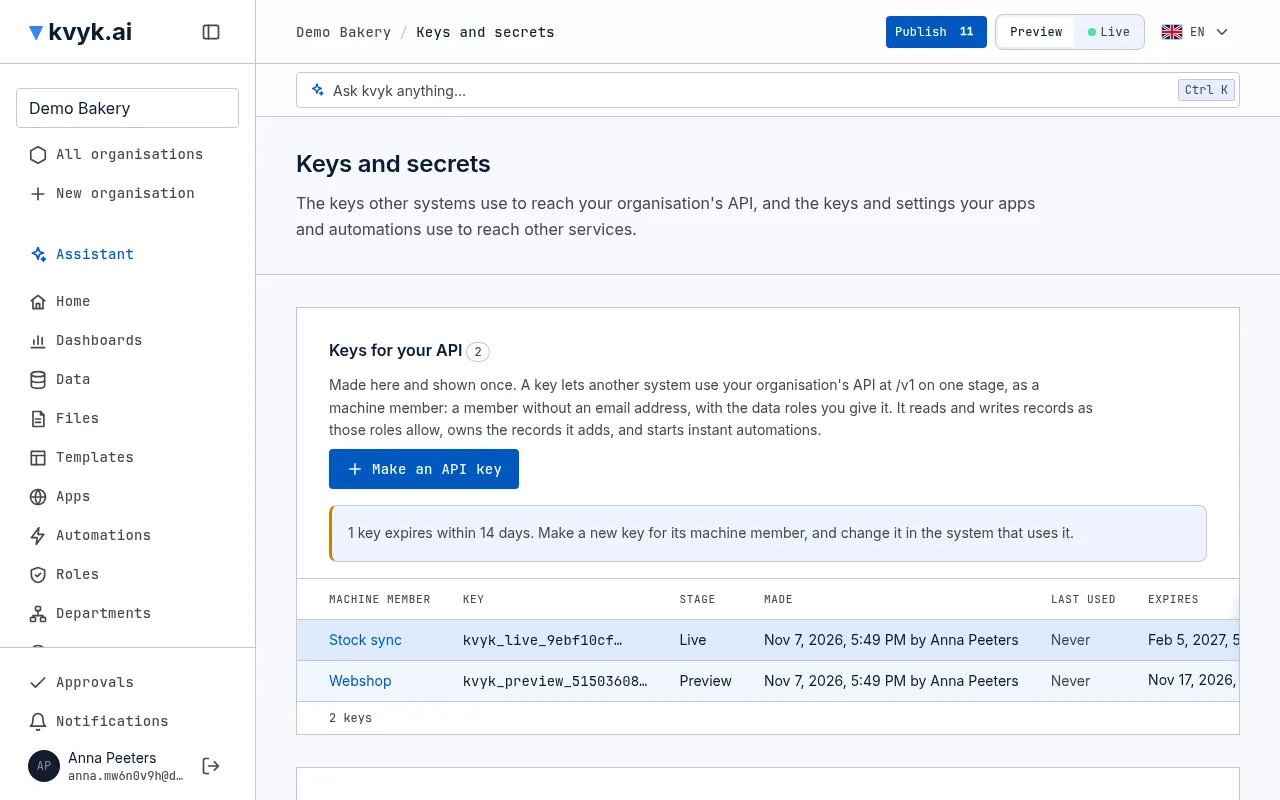
An API key lets another system, such as your webshop or your accounting package, use your organisation’s API on one stage. Each key belongs to a machine member: a member of your organisation with a name and no email address, that never signs in and works only through its keys. The system reads and writes records as that member, with the member’s data roles, and starts automations that may be started from other systems. It can do nothing more. Records it adds are the machine member’s, and the history shows the member’s name.
Open Technical → Keys and secrets in the sidebar: your keys are under Keys for your API. Only Administrators see that list. It shows each key with its Machine member, the start of the key, its stage, when it was Made and by whom, when it was Last used and when it Expires.
Make a key
Section titled “Make a key”- Choose Make an API key.
- Under For, choose A new machine member, or An existing machine member to give one you made before a key on its other stage. For a new one, fill in:
- Name: which system uses it, such as Stock sync.
- Data roles: what it may do. Give it at least one; any data role will do, Full access too, but not Not signed in.
- Choose the Stage: Preview or Live. A key reaches the data of that stage only.
- Choose when it Expires: in 30 days, 90 days, 1 year or On a date. A key always expires.
- Choose Make an API key.
The key is shown once, under Copy this key now. Copy it and store it where the system that uses it keeps its secrets: kvyk.ai cannot show it again. If you lose it, make a new key for the same member.
The system sends the key with each request, as Authorization: Bearer <the key>.
A machine member has one key for Preview and one for Live. Making a new key for a member on a stage replaces the key it had there: the old one stops working at once. Make a machine member for each system, so you can stop one without the others. An organisation can have up to 50 keys.
The machine member
Section titled “The machine member”A machine member is on People, marked Machine member. Open it to change its data roles or its department, as for anyone. It always stays a Member: it builds and administers nothing, and a machine member costs nothing.
To stop a system for good, remove its machine member: its keys stop working at once, and you choose who takes over its records.
When a key expires
Section titled “When a key expires”A key that expires within 14 days is marked Expires soon on the list, and one past its day Expired; the page says how many there are. Every Administrator is told on the dashboard and by email, in their own language, 14 days before, a day before and once it has expired, each once. The notification opens the API keys.
An expired key stops working: a system that still sends it is refused, with a message saying the key expired and on which day. To keep a system going, make its machine member a new key on that stage before then, and put the new key in the system. Once a key is revoked or replaced, nobody is told about it again.
Open an app with a key
Section titled “Open an app with a key”A system that opens one of your apps in a browser, such as a test robot or a screen on the wall, can sign in with its key. It sends the key as Authorization: Bearer <the key> when it opens the app’s address; the app then opens as the machine member, and stays signed in for a quarter of an hour, after which the key is checked again. This works only when the machine member may open the app: add it, or one of its data roles, to the app’s audience. A key opens the apps of its own stage only.
Before you rename or delete a field
Section titled “Before you rename or delete a field”A system with a key uses the names of your entities, fields and links. Renaming or deleting one on Live breaks the system until it is changed too. When you publish such a change while a Live key works, kvyk.ai warns you with the keys and when each was last used, and asks once more; see Publish and discard changes. Change the system first, or add the new field next to the old one and delete the old one once every system uses the new one.
Revoke a key
Section titled “Revoke a key”Choose Revoke beside a key, then Yes, revoke. Systems that use it can no longer reach your organisation, at once. This cannot be undone. The machine member stays, and you can make it a new key.
Webhooks
Section titled “Webhooks”A webhook lets another service start an automation by calling a web address, for example Mollie when a payment is made. The automation’s Starts column on Automations says From another service, and its first box shows the address it listens on, such as /v1/hooks/mollie.
So that nobody else can start it, each webhook has its own secret for each stage. Make the secret with the operation Make a new secret for a webhook automation in the Automations group of your API reference: an Administrator or a Builder calls it for Live or Preview, and the answer holds the secret and the full address for the other service. It is answered this once. Making a new secret stops the old one at once.
Then set the address in the other service. The service proves the call is real in one of two ways, as the automation’s first box says:
- By its signature. The service signs each call with the secret, in the header
X-Kvyk-Signature: sha256=<signature>, an HMAC-SHA256 of the call’s body. - By the secret in the address. For services that cannot sign, such as Mollie, the secret is part of the address you give the service.
A call that is not signed right is refused. A good one is answered at once, and the automation runs on the stage of the secret. Test the automation on Preview first with a test run, with A sample body, as JSON like the one the service sends.