Work with records
Add, change and delete records, see a record's history, and what happens when two people change the same record.
A record is one of the things your organisation keeps track of: one customer, one product, one shift. Open Data, then an entity, to see its records.
What you may do with records depends on your data roles. A button you do not see is one your roles do not allow.
Add a record
Section titled “Add a record”- Open the entity’s records and choose New followed by its name, such as New product.
- Fill in the fields. Fields marked (optional) may stay empty; the rest need a value. For a many-to-many link, pick each record to link; choose the cross beside one to leave it out.
- If your role allows it, choose who owns the record. You own it unless you choose someone else.
- Choose Add to Preview or Add to Live, depending on the stage you are in.
The records you picked to link are linked as soon as the record is added. If one cannot be linked, the record is still added and kvyk.ai names the records it could not link, so you can link them on its page.
If a field that needs a value is empty, kvyk.ai says so under that field and adds nothing until you fill it in. When kvyk.ai cannot accept a value, it says why beside the field. Under a field you also see the rules its values keep to, such as At most 200 characters or From 0 to 24; a value outside them is refused with what is allowed. If kvyk.ai does not answer, the form says the record may already be saved and links to the entity’s records: check there before you send it again.
A field marked Read-only for you is one your role lets you see but not fill in.
Open a record
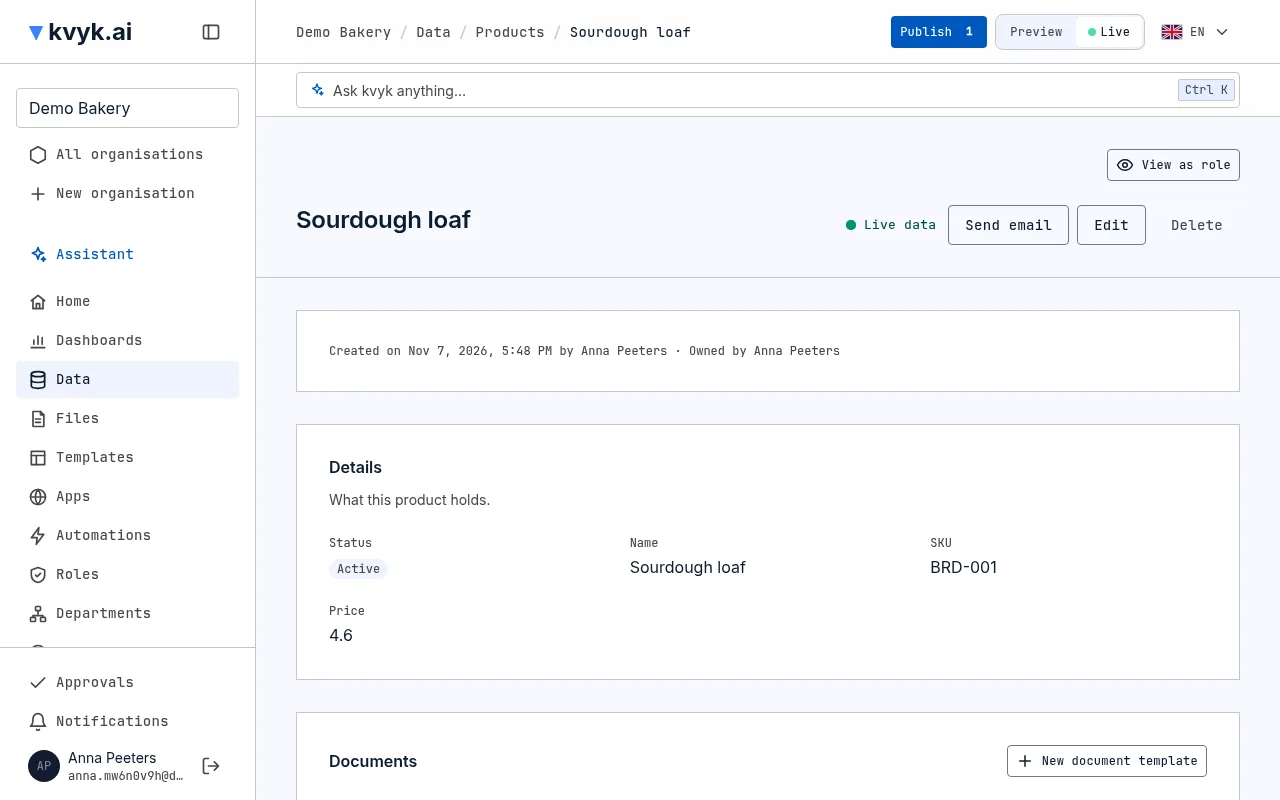
Section titled “Open a record”Choose a record in the list to open its page. It shows every field you may see, its Created on, Created by, Last changed on and Last changed by, and who owns it. Each Files field has its own section under the details, with a tile for each file: pictures are shown, and every file has its name and a download button.
A link to another record opens that record. A record that others point at lists them, such as a customer’s orders. Through a one-to-one link it shows the one record linked to it, and offers to add one only while there is none.
Link records many to many
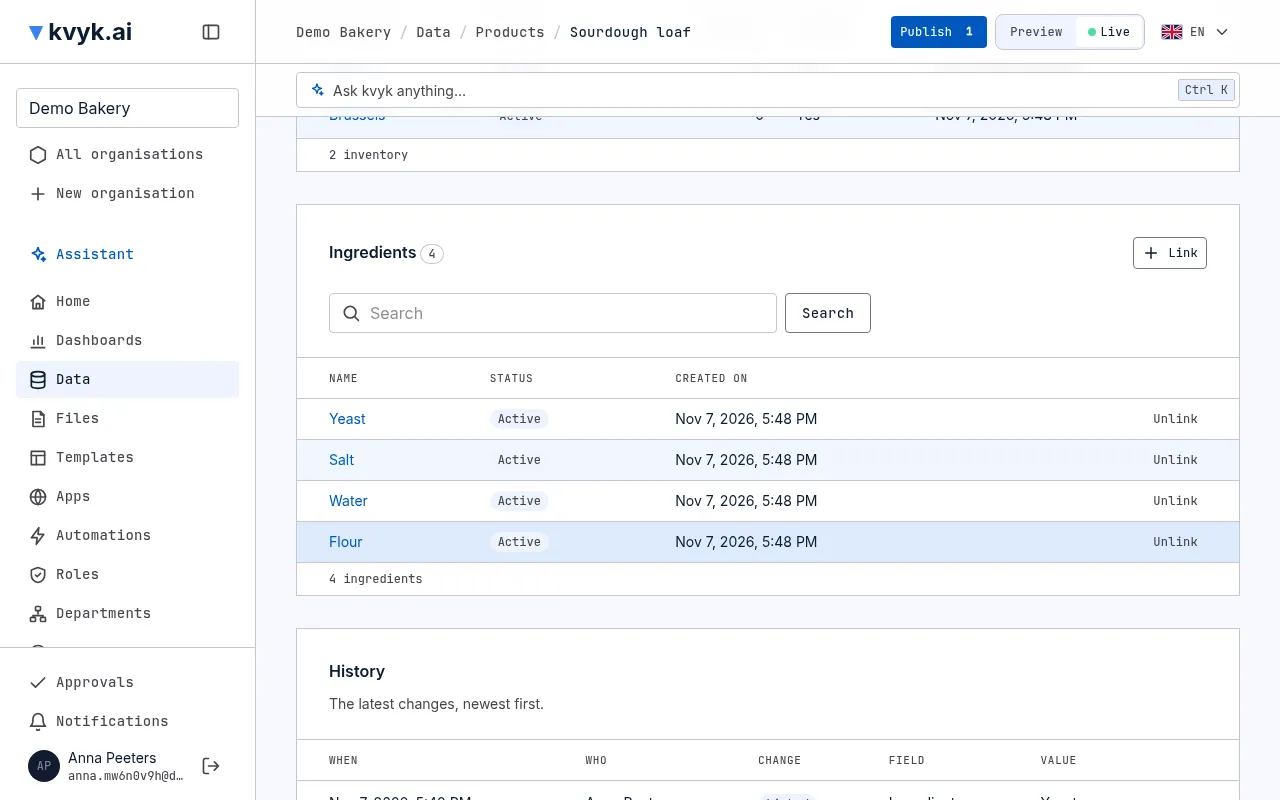
Section titled “Link records many to many”Through a many-to-many link, a record’s page lists the records linked to it with how many there are, such as a product’s ingredients, and the same link shows on each ingredient’s page as the products it is used in. Search the list, or page through it when it is long.
If you may change the record, choose Link, pick the record to link and choose Link again. Unlink on a row takes that link away; both records stay. Each one shows in the history of both records, and the automations of both records run, wherever you link from. An automation can refuse a link, and then kvyk.ai says why.
People on a record
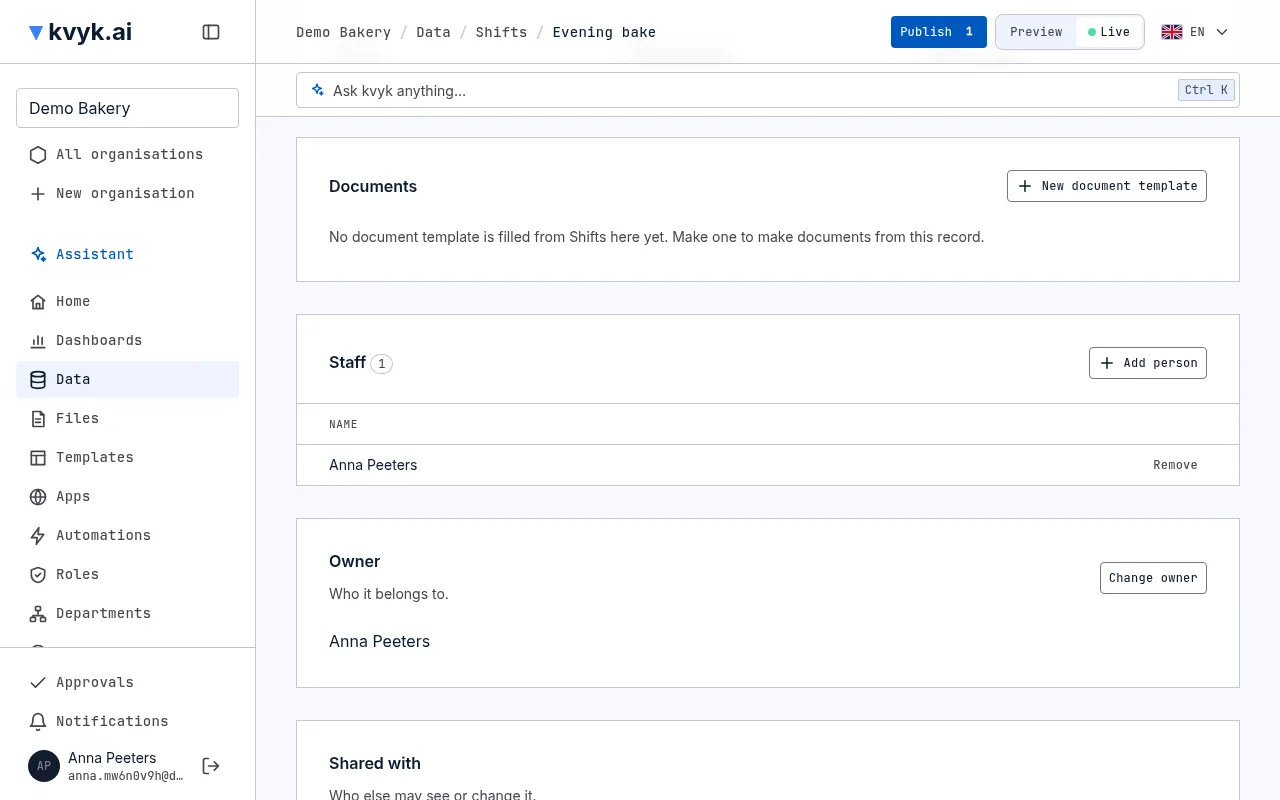
Section titled “People on a record”A link to people has its own section on the record’s page, such as a shift’s Volunteers, listing everyone in it with how many there are.
If you may change the record, choose Add person, search by name and pick someone. Only the kind of people the link takes are offered, and a full link offers no more. Remove on a row takes that person out. For a link that holds one person, Choose person picks them, Replace picks someone else and Clear leaves it empty. Each change shows in the record’s history as Person added or Person removed.
Documents of a record
Section titled “Documents of a record”When a document template is filled from the record’s entity, its page has a Documents section. Choose the template and the language, then Make document: the PDF is made, checked for viruses and listed with when it was made and until when it is kept. Anyone who may read the record can download it. Making one shows in the record’s history, with the document’s name. Documents on the entity’s list of records shows the documents of all its records. Builders and Administrators always see the section, with New document template to make one filled from the entity.
Send an email from a record
Section titled “Send an email from a record”When an email template is filled from the record’s entity, choose Send email on its page. Pick the template and the language, check the address, which comes from the record’s first email field, and confirm. The email shows in the record’s history with its template, address and subject. Builders and Administrators always see Send email; while no email template is filled from the entity, it offers New email template instead.
Change a record
Section titled “Change a record”On the record’s page, choose Edit, change what you need and choose Save changes.
If someone else changed the same record after you opened it, kvyk.ai does not overwrite their change. It tells you, shows the record as it is now, and you make your change again.
Delete a record
Section titled “Delete a record”On the record’s page, choose Delete and confirm. Deleting a record cannot be undone. A record with an autonumber can be deleted, and its number is never given again. When the field keeps numbered records, as for sent invoices, it cannot be deleted: change its status instead, for example to Cancelled.
When other records point at it, what happens depends on how their link was set up: deleting is refused until you change those records first, their link is cleared, or they are deleted with it. When a record cannot be deleted, kvyk.ai says why.
A record’s history
Section titled “A record’s history”Every record’s page shows the latest five changes in its History: when, who, what kind of change (Added, Changed, New owner, Shared, No longer shared), and each field with its value. A changed value shows the old one struck through before the new one, such as Active → Inactive. A long value is cut short: point at it to read it whole. A change the assistant made for someone says so: “Anna, via the assistant”.
When there are more, choose Show all changes under the table to open the record’s whole history. There you can:
- search for a field, a value or a person;
- show one kind of change, such as only New owner;
- choose When to show the oldest changes first, and again for the newest first.
Records in Preview and Live
Section titled “Records in Preview and Live”Preview and Live have their own records. What you add in Preview stays there, and Preview never holds your real records. Check the switch at the top right before adding: see Preview and Live.
An entity made in Preview is not in Live until it is published. If you open it while Live is shown, kvyk.ai says it is in Preview only and offers Switch to Preview.