Use an app on a shared device
Run one app on a tablet everyone shares, where each member taps their name and types a PIN, and what they do is still recorded as them.
A shared device, such as a tablet by the kitchen door, can run one of your apps for everyone. Nobody signs in on it. Each member taps their name, types their PIN and does what they came for, such as clocking in. The app then acts as them, with their own data roles, and the event log and the record’s history say who it was and on which device: Sam via Kitchen tablet.
Only members the app is open to can use it, never customers or visitors. See Choose who can open an app.
Switch it on
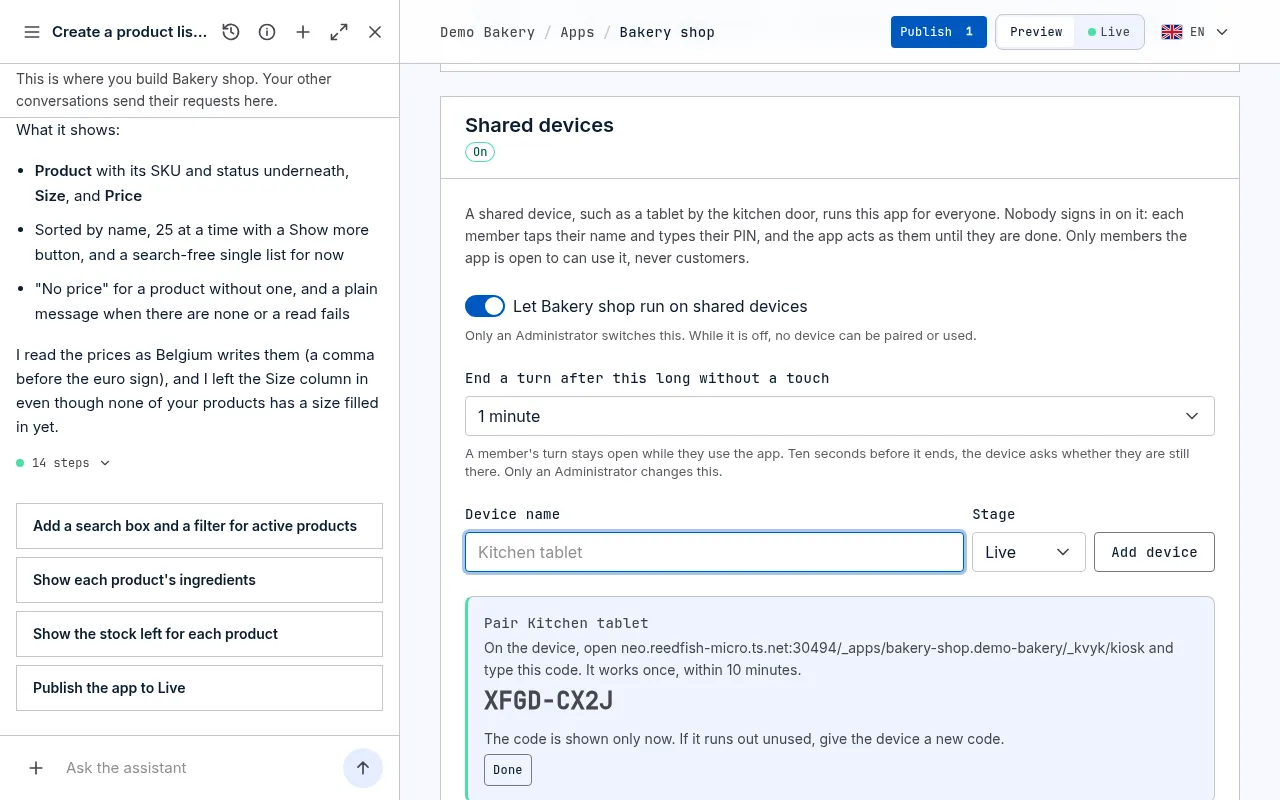
Section titled “Switch it on”Shared devices are off for every app until an Administrator switches them on.
- Open the app’s page from Apps in the sidebar.
- Under Shared devices, switch on Let … run on shared devices.
Switching it off again stops every device of the app at once. The devices stay listed, so you can switch it back on later.
Add a device
Section titled “Add a device”- Under Shared devices, type a Device name, such as Kitchen tablet.
- Choose its Stage: Live for the real app, or Preview to try it out on Preview’s records. Only an Administrator adds a device to Live; a Builder can add one to Preview.
- Choose Add device. A pairing code appears.
- On the device, open the address shown with the code and type the code. It works once, within 10 minutes. If it runs out unused, choose New code.
The code is shown only once. The device then shows the screen where members tap their name, and nothing else: on its own it shows none of your data.
The list shows each device with its stage, when it was paired and when it was last used.
Choose how long a turn stays open
Section titled “Choose how long a turn stays open”A member’s turn ends when nobody touched the screen for a while, so the next person never finds someone else’s turn open. It is a minute unless an Administrator changes it: under Shared devices, choose another time at End a turn after this long without a touch, from 30 seconds to 10 minutes. The change shows in the event log.
Pick a longer time for an app where people read or fill in more, and keep it short where they only tap once, such as clocking in.
Use it as a member
Section titled “Use it as a member”- Tap your name. If the list is long, search for it.
- Type your PIN. It goes on by itself after the fourth digit.
- Do what you came for. Your turn stays open as long as you keep using the app. It ends when the app is done, when you tap Done, or when nobody touched the screen for a while (a minute, unless an Administrator chose another time). Ten seconds before, the device asks Still there?; touch the screen to keep going. Then the device goes back to the list of names for the next person.
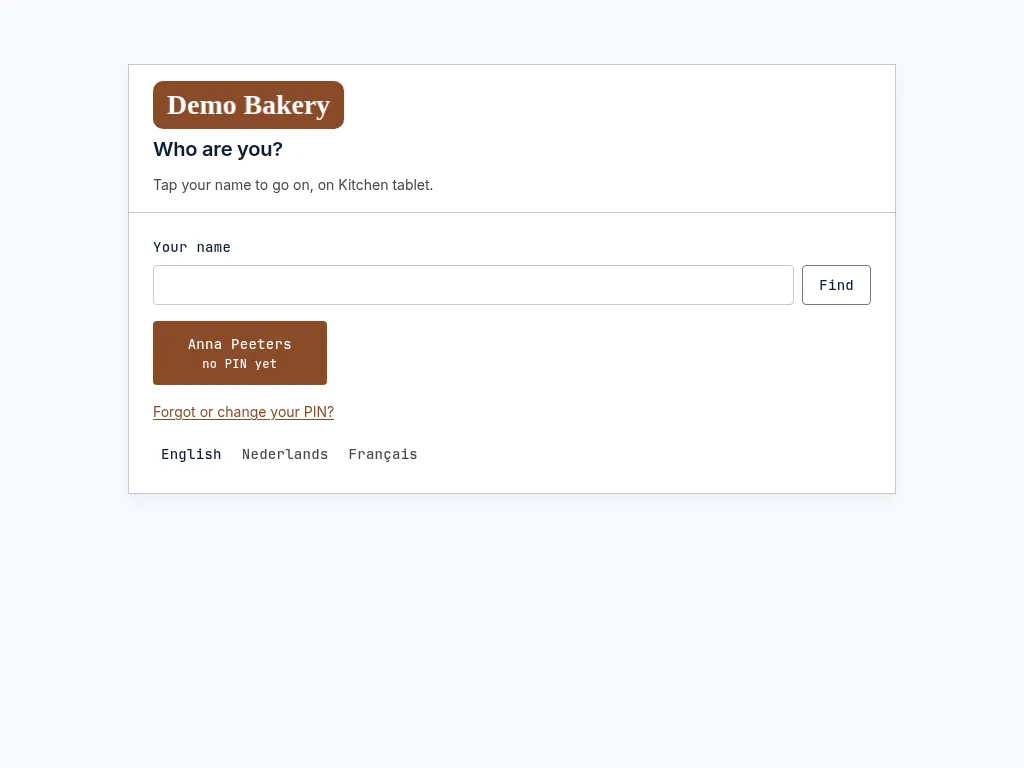
The device needs a connection. Without one it says so, and nobody can go on until it is connected again.
Your PIN
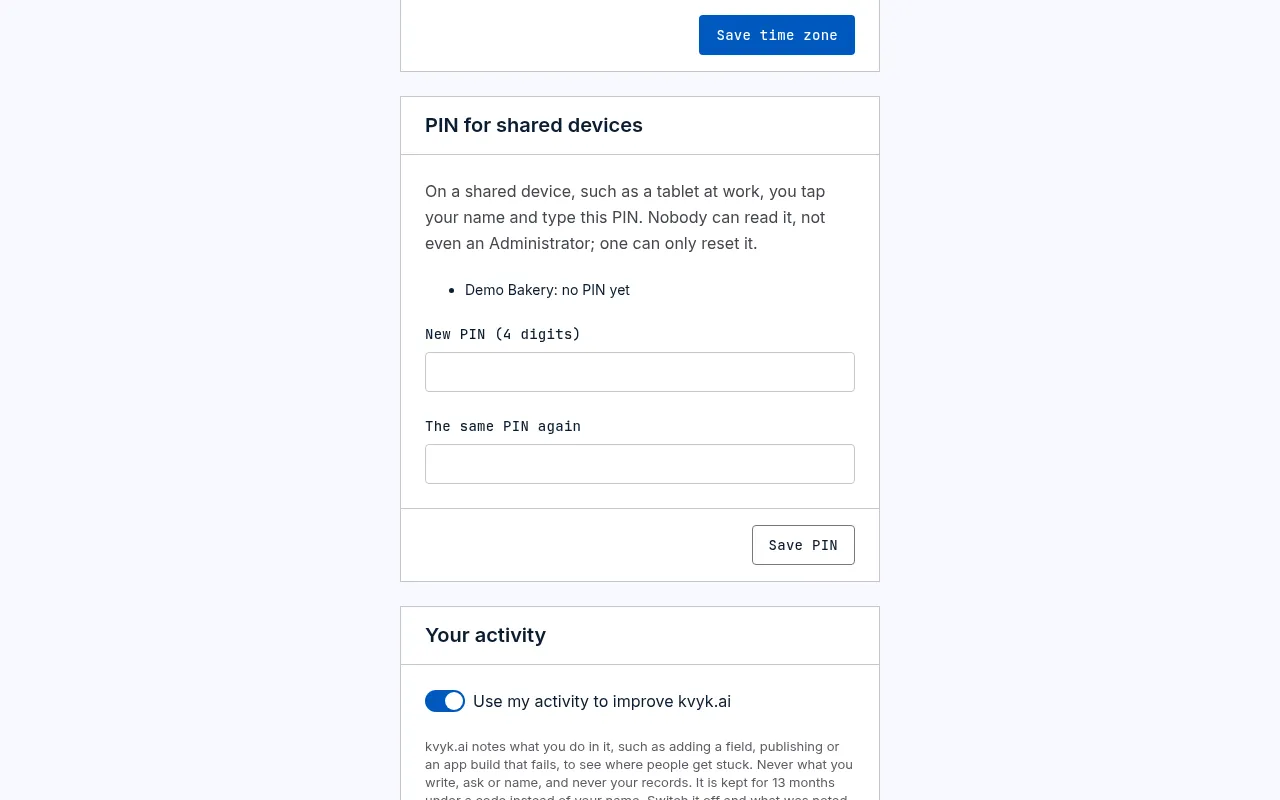
Section titled “Your PIN”A PIN is 4 digits. You have one per organisation, and it works only on that organisation’s shared devices, never to sign in anywhere else. Nobody can read it, not even an Administrator.
A PIN that is too easy to guess is refused: one digit four times (7777), a run up or down (1234, 4321), two digits twice (1212) and a few others people pick often (such as 2580, straight down the keypad).
- On your account page: open Your account at the bottom of the sidebar and, under PIN for shared devices, type a new PIN, type it again and choose Save PIN.
- On the device, the first time: tap your name, choose Mail me a code, then type the code from the mail and the PIN you want, twice. Your turn starts after the last digit.
- On the device, when you forgot it or want another: choose Forgot or change your PIN? under the names, type the email address you sign in with and choose Mail me a code. Then type the code from the mail and your new PIN, twice. Your old PIN is not needed. The device gives the same answer for any address, so it never shows who is a member.
Wrong PINs
Section titled “Wrong PINs”- After 5 wrong PINs in a row, you cannot use that device for 15 minutes, not even with Forgot or change your PIN?, and we mail you about it. Your name shows locked for now until then. If it was not you, tell an Administrator.
- After 10 wrong PINs in a row on a device, by anyone, the device locks. An Administrator unlocks it under Shared devices on the app’s page with Unlock.
Ask a member for a new PIN, or reset it
Section titled “Ask a member for a new PIN, or reset it”An Administrator opens the member’s page from People. Under PIN for shared devices:
- Ask for a new PIN mails the member a link to set a new one on their account page. The PIN they have keeps working until they do. You can ask a member three times a day.
- Reset PIN removes their PIN at once, for when someone else may know it. The member then sets a new one on their account page, or on a shared device after a code we mail them.
Both show in the event log. A member who only forgot their PIN can also choose Forgot or change your PIN? on the device themselves. Customers do not use shared devices, so they have no PIN.
A member who leaves your organisation can no longer use its shared devices.
Remove a device
Section titled “Remove a device”If a device is lost, stolen or no longer used, choose Remove next to it. Its sign-in ends at once, and whoever is using it is signed out. Even before that, a stolen device is of no use without a member’s PIN.
Build an app for a shared device
Section titled “Build an app for a shared device”Ask the assistant for it, for example Make a clock-in app for the kitchen tablet. It builds the app so that each member is greeted by name, does one thing and is done, and so that the app says which device it was done on.