Organisation settings
Your organisation's name and web address, how its apps' sign-in page and mail look to customers, what its own address shows, whether the assistant may use records, its plan and what is used of it, how much the assistant is used, which version of the terms it accepted, and how to export all data or end the organisation.
Settings holds how the organisation works. Everyone can see the settings; only Administrators change them. Every change shows in the event log.
The Name card shows the organisation’s name.
To rename the organisation, an Administrator types the new name, at most 80 characters, and chooses Rename. Everyone in the organisation sees the new name at once, and invitations carry it. A name with “kvyk” in it, or one kept for kvyk.ai itself, cannot be used.
Your organisation’s own department, at the top of Departments, started with the organisation’s name. While it still has the old name, the card asks Also rename the department …: leave it ticked to rename the department too, or untick it to keep its name.
Renaming the organisation does not change its web address.
You can also ask the assistant to rename the organisation. It asks you about the department too, and shows the old name and the new on a card for you to confirm first. Each rename shows in the event log with the old name and the new.
Web address
Section titled “Web address”The Web address card shows the organisation’s web address, such as acme.kvyk.app, and the addresses it had before.
An Administrator can change the web address once a year, for example to fix a typo or after a new company name. The card says when the next change is possible.
To change it:
- Choose Change web address and type the new address: lowercase letters, digits and hyphens, such as acme-bakery.
- If the address is taken or cannot be used, the card says why and proposes up to three that can. Choose one, or type another.
- Choose Next. Read the warning, type the new address once more and choose Change web address.
The old address keeps working: links, bookmarks and QR codes with it lead to the new address, for good. It stays your organisation’s, and no other organisation can ever take it, also not if your organisation is deleted.
Administrators get a mail when the web address changes: who changed it, from which address to which, when, and when the next change is possible.
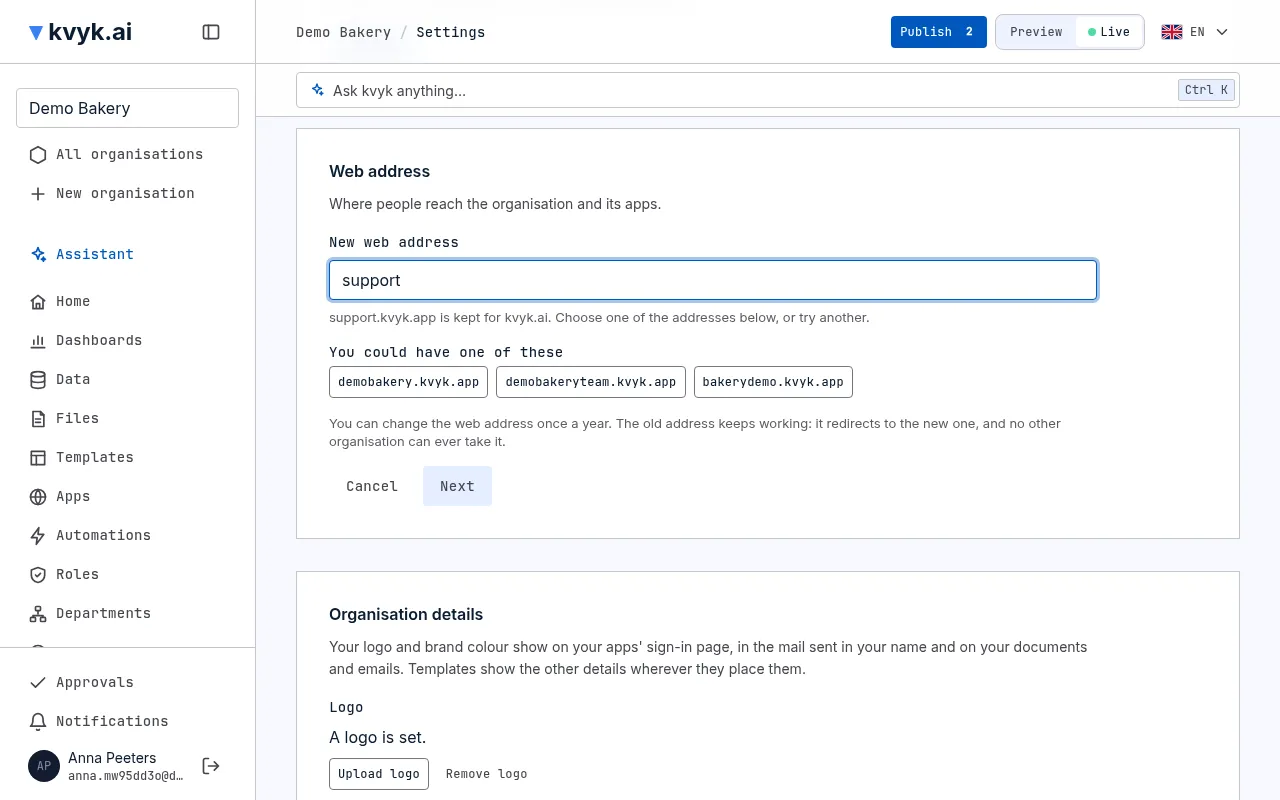
You can also ask the assistant to change the web address. It checks the address first and proposes others when it cannot be had. Then it shows a card that warns the change is permanent: type the new address on the card to confirm. Each change shows in the event log with the old address and the new.
Organisation details
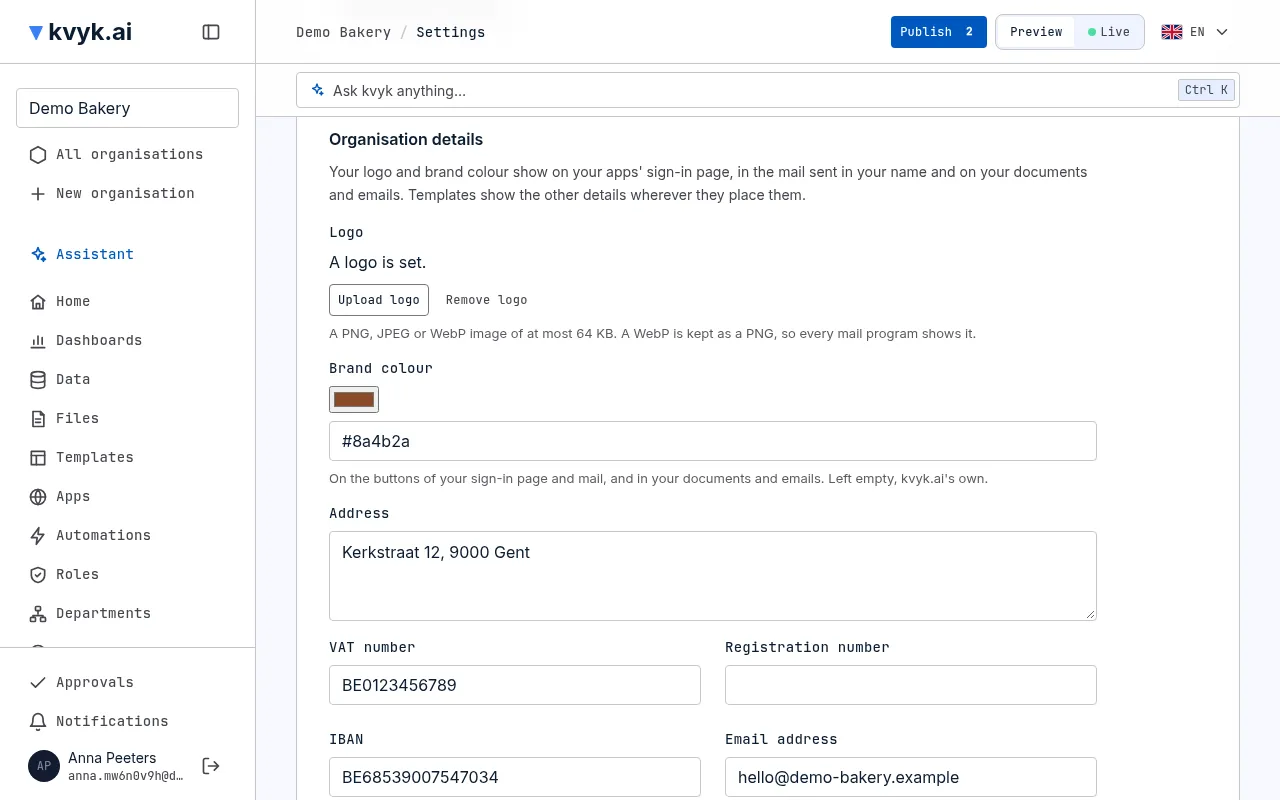
Section titled “Organisation details”The card Organisation details holds how your organisation shows itself, and what your templates can show about it on documents and emails. Only Administrators change it; a change shows in the event log.
- Logo: a PNG, JPEG or WebP image of up to 64 KB, shown at the top of your apps’ sign-in page, of the mail sent in your name, and wherever a template places it. A WebP is kept as a PNG, so every mail program shows it. Choose Upload logo or Remove logo; the change is saved at once. Without a logo, your organisation’s name is shown.
- Brand colour: the colour of the buttons on the sign-in page and in the mail, and the colour of your documents and emails, picked or written as #0058be. Left empty, kvyk.ai’s own is used.
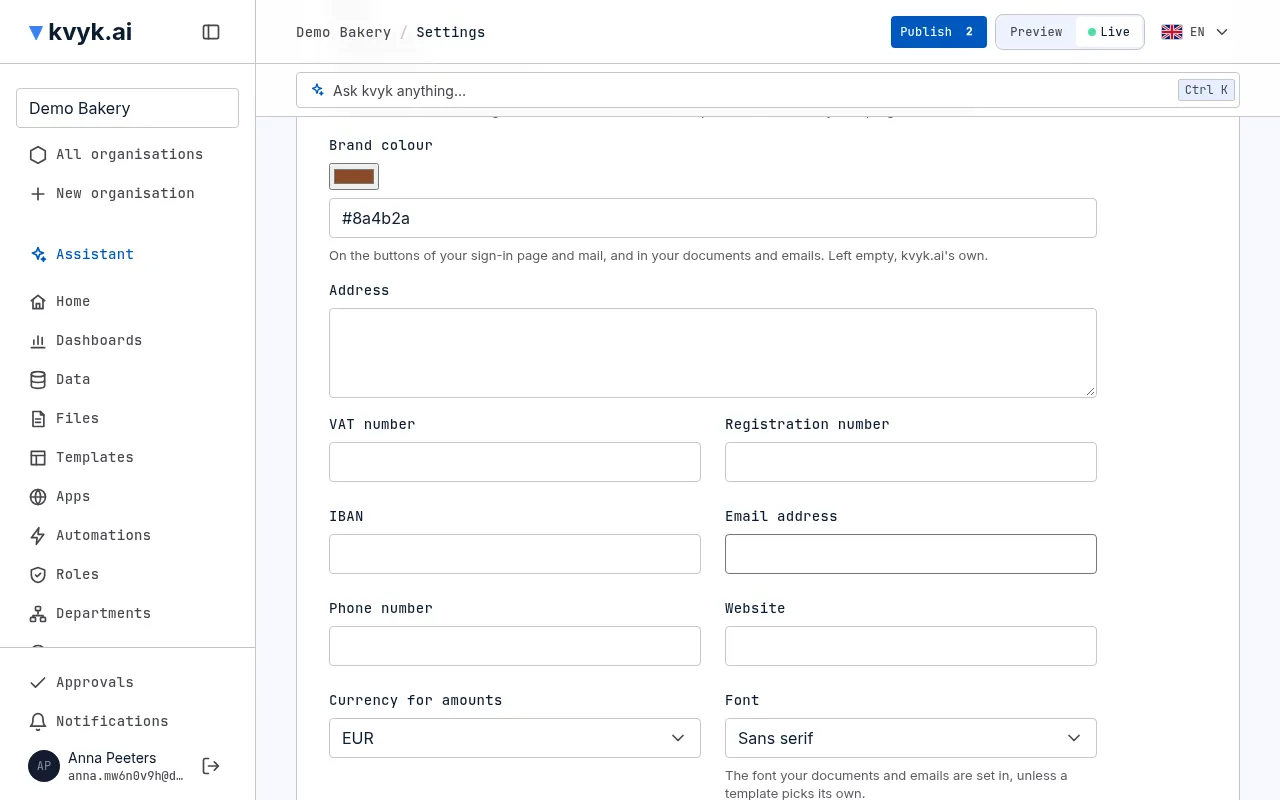
- The address, VAT number, registration number, IBAN, email address, phone number and website, and the Currency for amounts, which templates show wherever they place them.
Privacy statement and reply address
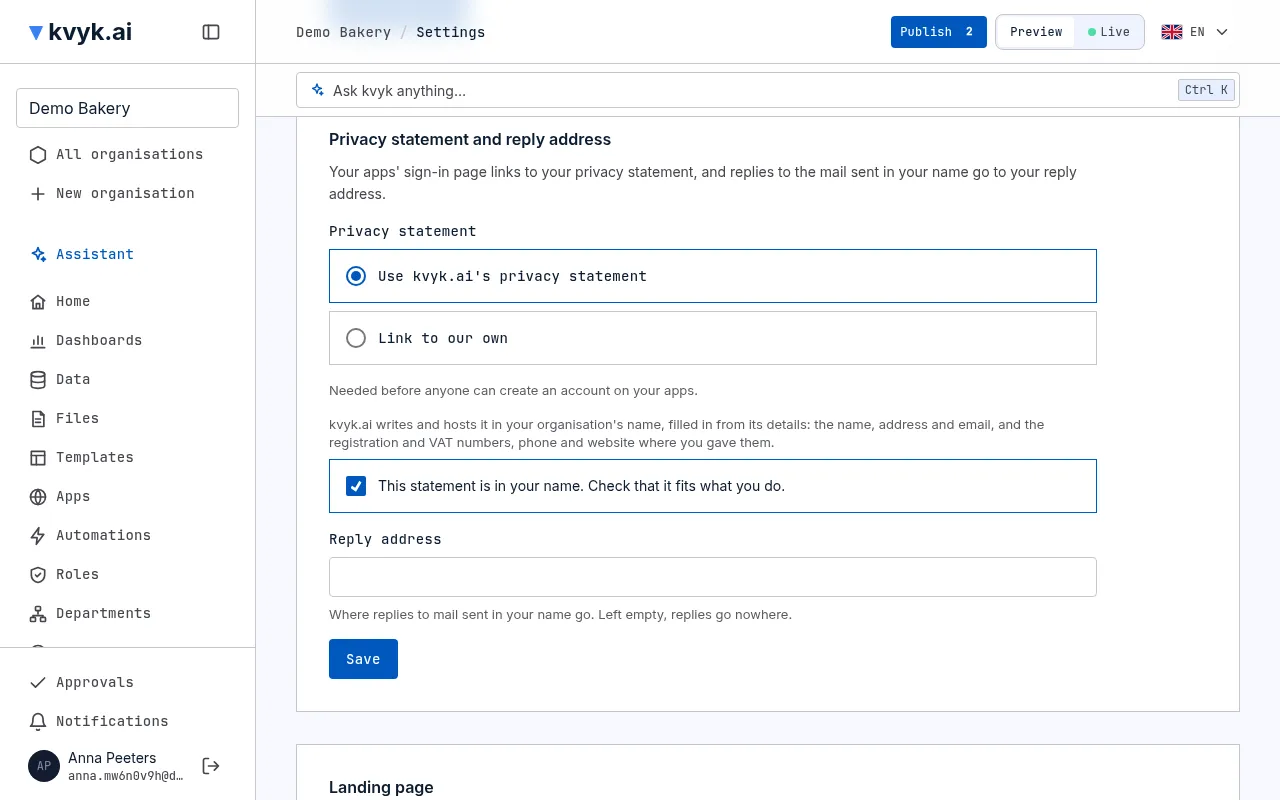
Section titled “Privacy statement and reply address”The card Privacy statement and reply address holds the rest of what your customers see on the sign-in page of your public apps and in the mail sent in your organisation’s name. Only Administrators change it.
-
Privacy statement: what visitors agree to when they create an account on your apps, needed before anyone can. A customer you added or invited agrees to it the first time they sign in. Nothing is chosen at first. Choose one of these:
- Use kvyk.ai’s privacy statement: kvyk.ai writes and hosts a privacy statement in your organisation’s name, at privacy on your organisation’s address for its apps, such as demo-bakery.kvyk.app/privacy. It is filled in from your organisation details, so it needs an address and an email address there first; your registration and VAT numbers, phone number and website appear when you gave them. Tick This statement is in your name. Check that it fits what you do. and choose Save. Read it before you choose it: it is offered as is, and it is not legal advice.
- Link to our own: the web address of your own privacy statement, starting with https://.
You cannot remove it while an app lets anyone create an account, and while you use kvyk.ai’s, you cannot empty the address or email address in your organisation details.
-
Reply address: where replies to mail sent in your name go. Without one, the mail says not to reply.
When you change your organisation details, or kvyk.ai updates the statement, a new version appears with its date. Earlier versions stay readable at their own address, such as demo-bakery.kvyk.app/privacy/1, and each customer’s consent keeps pointing at the version they agreed to. Nobody is asked to agree again. Visitors read it in English, Dutch or French, and can switch.
The mail always comes from kvyk.ai’s own address, with your organisation’s name as the sender. See How customers sign in to your apps.
Landing page
Section titled “Landing page”The Landing page card says what people see at your organisation’s own address for its apps, such as demo-bakery.kvyk.app: one of your apps, or a page with your name, logo and colour that lists your public apps. Administrators and Builders choose an app that is on Live and confirm what the address will show. See Your organisation’s landing page.
Connectors
Section titled “Connectors”The Connectors section says how many connectors your organisation added and opens Connectors: your organisation’s own accounts at outside services, such as Mollie to take payments, each connected for Preview and for Live. Everyone sees them; only Administrators add, connect and remove them. See Connectors.
May the assistant use records?
Section titled “May the assistant use records?”Choose one of three answers:
- Yes, of every entity: the assistant finds, reads, counts and changes records with the access of the person it is talking to, and what it reads goes to its language model, Mistral, in the EU.
- Yes, of some entities: the same, but only for the entities an Administrator switches on. Settings then lists your entities in a table you can search, with a switch for each. An entity added later stays off until an Administrator switches it on.
- No: the assistant sees no records at all: it cannot find, count or change them. It still knows your entities and fields and helps with the data model, roles and how things work.
Whichever you choose, the assistant never sees more than the person it is talking to may see. A file someone picks from the Library in the chat is sent to the assistant whatever you choose: picking it is their choice to share that one file, and only files they may open are there.
Administrators also find the switch The assistant may see these records on each entity’s page. Switching it off while the assistant may use every entity keeps it from that entity only; entities added later then stay off until switched on. Switching it on while the answer is No lets the assistant use that entity alone.
When the assistant needs an entity it may not use and you are an Administrator, it asks you which entities to open and changes the setting once you confirm on a card. Anyone else hears that an Administrator must open it.
You choose this when you create the organisation, and an Administrator can change it at any time. Each change shows in the event log, naming the entities switched on or off. See Your data and the assistant.
The Plan card shows the organisation’s plan and, for each limit, how much is used: apps, members, file storage and the AI steps in automations, and whether the plan includes an app’s own domain, payments and API keys. See Plans and their limits.
Assistant use
Section titled “Assistant use”Assistant use shows everyone how much of the plan’s assistant allowance the organisation used, in credits, in each window, and when each window starts again. Administrators also choose how much of it each member may use, and see the use over time, per day, week or month, for the organisation or each member. See Assistant use and limits.
The Terms card shows which version of kvyk.ai’s terms and conditions, with their data processing agreement, the organisation accepted. A version is named by the day it took effect, such as 30 October 2026.
Administrators also see who accepted that version and when: the person who created the organisation, or the Administrator who accepted a newer version. Everyone else sees only the version.
When kvyk.ai changes its terms, the card says that a newer version is in force until an Administrator accepts it. See When the terms change. Choose Read the terms to read the version in force.
Export all data
Section titled “Export all data”An Administrator can take all of the organisation’s data at any time: in End the organisation, choose Export all data. You get one zip file with the records of every entity in Live, one CSV file per entity, the data model, and the files kept in the records. It holds every record, whatever the roles allow. Each export shows in the event log.
End the organisation
Section titled “End the organisation”When you stop using kvyk.ai for this organisation, an Administrator ends it:
- In End the organisation, choose End the organisation.
- Read what follows, with the date the organisation is deleted, and choose End followed by the organisation’s name, such as End Acme.
From that moment:
- Nothing in the organisation can be changed, by anyone, and its apps no longer open. Everyone who opens it sees a notice that it has ended.
- Its data can still be read and exported for 30 days. Export what you want to keep.
- Every Administrator gets a mail, and another one 7 days before the deletion.
- After 30 days the organisation is deleted with all its data, its apps, its files and its event log. That cannot be undone. Its web address stays unused, so no other organisation ever gets it.
Until the deletion, an Administrator can choose Undo the end in Settings or in the notice at the top of every page. The organisation then works as before.
When kvyk.ai ends the contract, it tells every Administrator by mail at least 30 days ahead, and the notice at the top of every page says on which day. Everything works as usual until that day; after it, the same 30 days follow, and only kvyk.ai can undo that end.
An account that belongs to no organisation any more is deleted 30 days after its last organisation ended or it left it. What that person did stays in each organisation’s records, apps and event log, under Deleted account instead of their name and email address.