Owners and sharing
Every record has an owner, and a record can be shared with one person beyond what their role allows.
Data roles decide access for whole groups of records. Owners and sharing handle the single record.
Owners
Section titled “Owners”Every record has an owner: whoever added it, unless it was added for or given to someone else. A record belongs to its owner’s department, which is what own records and their department mean in a data role.
The record’s page says who owns it. To give it to someone else, choose Change owner and find the person by name: a member of your staff or a customer, each shown with which they are, such as Ben (staff) or Bea (customer). You need the Assign right for that record, and the new owner must be able to see that kind of record. A record you give to a customer belongs to no department.
Your apps can show who owns a record too, by their name. Only someone who may see the record sees whose it is, and only the name, never an email address. Someone who has left the organisation shows as A former member, and someone whose account was deleted as Deleted account. A customer’s name shows only to someone who may see that customer; otherwise it reads A customer. Customers never see who owns a record.
In an app, a member can also choose a person by name, for example to give them a shift or to see only their records. The app finds them as you type, among the organisation’s members and its customers together (your staff and, say, the volunteers you invited), and shows only their name, never an email address. An app can also keep to staff only, or to customers only. Giving a record to someone in an app follows the same rules as Change owner: you need the Assign right, and the new owner, a member or a customer, must be able to see that kind of record. Customers cannot choose anyone else: an app shows a customer only their own name.
When a member is removed, their records go to someone you choose, so nothing is left without an owner.
Share a record
Section titled “Share a record”Sharing gives one person access to one record, even beyond what their roles allow, such as letting a colleague in another department change one order.
- Open the record and go to Share this, such as Share this product.
- Choose the person and what they may do: Read, Read and change, or Read, change and delete.
- Choose Share. They can now find and open the record.
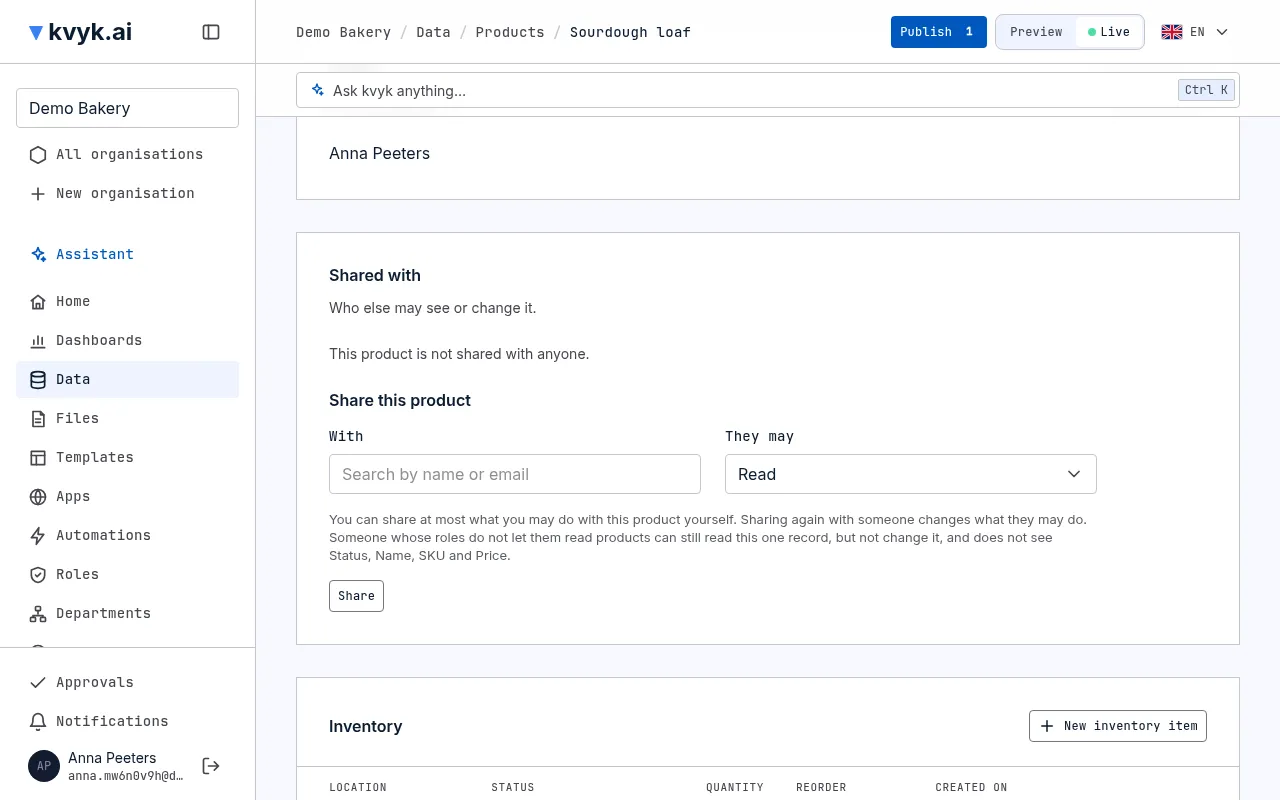
You can also share a record with someone whose roles do not let them see that kind of record at all, such as a contract with a colleague who never works with contracts. They can read that one record, but no other of its kind, and they cannot change or delete it. They see the fields that every role able to share it shows; the share form names the fields they will not see. Under Data, that kind of record shows for them only while something of it is shared with them. To let them change it, give them a role that lets them change at least their own records of that kind.
You need the Share right for that record.
The same list shows everyone the record is shared with, who shared it and when. Choose Remove next to someone and confirm to stop sharing with them.
Sharing and changes of owner show in the record’s history and in the event log.