Mollie
Take payments and subscriptions in your apps: iDEAL, Bancontact, cards and more, paid straight into your own Mollie account.
Take payments and subscriptions in your apps: iDEAL, Bancontact, cards and more, paid straight into your own Mollie account.
What it connects to
Section titled “What it connects to”Your organisation’s own account at Mollie, a Dutch payment provider. Your customers pay on Mollie’s payment page, and the money goes straight to your Mollie account: kvyk.ai never holds it and takes nothing from it. Mollie charges its own fee per payment.
In Preview and in Live
Section titled “In Preview and in Live”- Preview: Test payments in Mollie’s test mode: nobody is charged, and you choose whether a payment succeeds or fails.
- Live: Real payments, once Mollie has verified your business.
Set up your account at Mollie
Section titled “Set up your account at Mollie”You need an account at Mollie first. If you have none:
- Sign up at mollie.com with your business’s email address. An account costs nothing; Mollie charges a fee per payment.
- Your account starts in test mode at once. Test payments work straight away, so you can connect Preview and try your apps before anything else.
- For real payments, finish Mollie’s onboarding in your Mollie dashboard: your business details, the people who own or run it, a bank account for your payouts, and the website or app where you take payments. Mollie checks these before it pays out real money, which can take a few working days.
- Switch on the payment methods you want, such as iDEAL, Bancontact or cards, in your Mollie dashboard. Your customers choose from these on Mollie’s payment page. For subscriptions, switch on SEPA Direct Debit or cards as well: Mollie charges the later payments with them.
Connect it in kvyk.ai
Section titled “Connect it in kvyk.ai”Only Administrators connect Mollie.
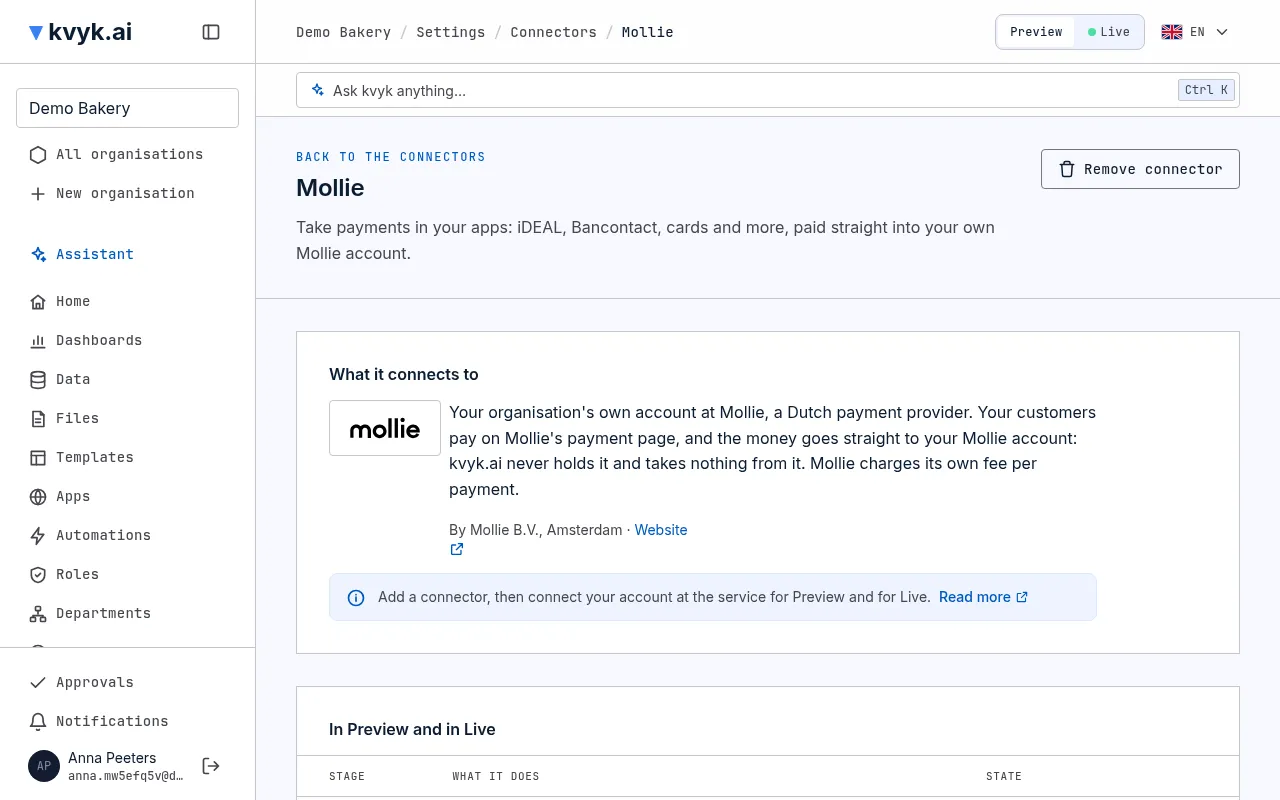
- Open Settings, then Connectors. If Mollie is not in the list, choose Add a connector, search for Mollie and choose Add. Adding Mollie gives your data model the built-in Payments and Subscriptions entities, in Preview and in Live.
- Open Mollie. Under Connection, in Preview, choose Connect Mollie. Mollie opens: sign in and allow kvyk.ai to create payments and subscriptions for you.
- Mollie sends you back to the Mollie connector, which now says which Mollie account is connected.
- Do the same under Live when Mollie has checked your business and you are ready for real payments.
Both stages may use the same Mollie account. If your Mollie account has more than one website profile, choose the one the payments are made on under Website profile, and choose Save profile. Until you do, that stage takes no payments.
If you connected Mollie before subscriptions came to kvyk.ai, the stage says so: choose Connect again and allow kvyk.ai at Mollie once more. One-off payments keep working until you do; subscriptions start only after.
Disconnect it
Section titled “Disconnect it”On the Mollie connector, choose Disconnect under the stage, and confirm. The payments made so far stay. The apps on that stage can take no new payments until you connect Mollie again. Subscriptions keep running at Mollie, but nobody can cancel them from kvyk.ai until you connect Mollie again: cancel them first, or in your Mollie dashboard.
To stop using Mollie altogether, choose Remove connector: it disconnects both stages first and takes Mollie’s settings away. The Payments and Subscriptions entities and their records stay; if you add Mollie again, it uses them again. Refunds are made in your Mollie dashboard for now.
Use it in your apps
Section titled “Use it in your apps”Ask the assistant to build a payment or a subscription into an app, and follow every payment and subscription as a record. See Take payments in your apps and Take subscriptions in your apps.