Publish an app
Build a version of your app, see what kvyk.ai checks in it, publish it to Live together with your data model changes, and open it on its own address.
While you build an app with the assistant, only you see it, in the preview beside the chat. To let your team use it, you build a version of it and publish that version to Live. Only Builders and Administrators build versions and publish.
Build a version
Section titled “Build a version”- Open the app’s page from Apps in the sidebar.
- Under Versions, on the Preview card, choose Build from latest step.
kvyk.ai takes the app as it is after its latest step, installs what it needs and builds it. The Preview card says what it is doing; this usually takes a minute or two. A version never changes once it is built.
While the assistant builds your app, you often do not need this: about half a minute after it finished a step and checked it, kvyk.ai builds a version of it by itself, and you find it under Versions.
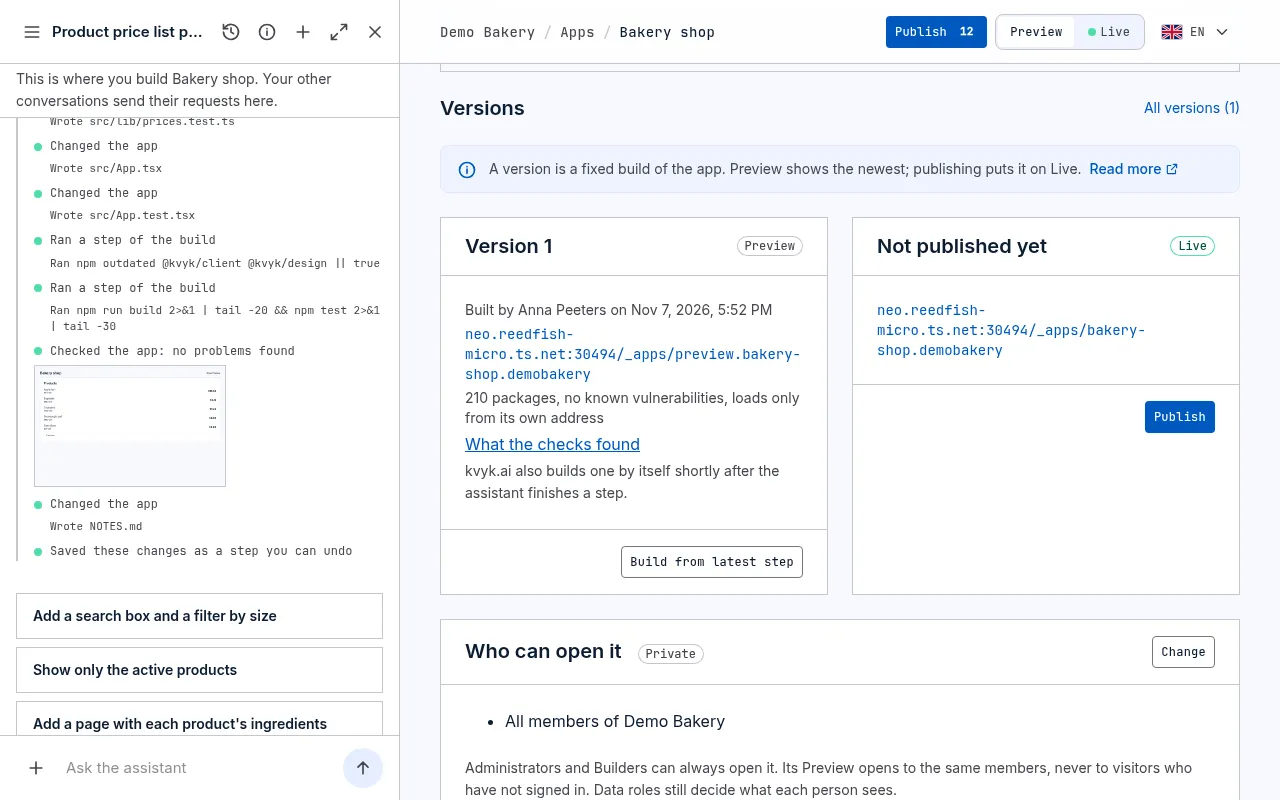
Two cards show the two stages side by side, each with its version, who built it and when, and its own address:
- Preview serves the newest version at once, on your Preview records, at
preview.<app>.<organisation>.kvyk.app. Use it to try the version before you publish it. - Live serves the version you published, on your real records, at
<app>.<organisation>.kvyk.app.
When a build fails, the Preview card says why, for example a part of the app that no longer fits your data model. Ask the assistant to fix it, then build again.
What every version is checked for
Section titled “What every version is checked for”Before a version is kept, kvyk.ai checks it. A version that fails a check is not kept, and Preview and Live stay as they were.
- Its packages. An app is built from packages: pieces of code that others wrote and share. Every package in its package-lock.json, the ones that only build it included, is checked against the public list of known vulnerabilities (OSV), which kvyk.ai copies once a day. A package with a critical vulnerability, or one known to be malicious, stops the version; high and lower ones are listed with the version, so you can fix them when it suits you. The version says when it was checked, and against which day’s list. A version built while that check was off says not checked for known vulnerabilities: build it again to check it.
- Keys. An app holds no passwords or keys: anyone who opens it can read its code. A version that seems to hold one, of any kind, a payment provider’s secret key as much as a Maps key, is stopped with Put this key in Variables and secrets. Keys belong in Variables and secrets, where an app reads the ones meant for browsers on the stage it runs in.
- Other sites. An app may load scripts and styles from other sites, such as a chat widget. That is allowed, and the sites are listed with the version, so you know what it loads. Load only what you trust: such a script sees what the app shows. An app calls a service or loads images from another site, such as a map’s tiles, only when it lists that address: see Outside services.
- Its package-lock.json, the list of the exact packages it uses. Without it no version is built: ask the assistant to make one.
When a version is stopped
Section titled “When a version is stopped”The card says why in plain words: which package and version, what is wrong with it and which version fixes it, or which file seems to hold a key.
Ask the assistant in the app’s conversation to fix it: it reads the same reason and offers to upgrade the package, or to move the key to Variables and secrets. Then build again. Administrators find every stopped version under Technical → Events.
See what the checks found
Section titled “See what the checks found”On each stage’s card, one line says how many packages the version has, how many known vulnerabilities they have (or that they were not checked), and how many other sites it loads from. Choose What the checks found to see them.
Download the SBOM saves the version’s software bill of materials: the full list of its packages with their licences, and the sites it loads from, in the standard CycloneDX format. Keep it for an audit, or share it with anyone who asks what your app is made of.
Publish it
Section titled “Publish it”While Preview serves a newer version than Live, the Live card offers Publish. It opens the publish panel with this app ticked. When the version needs the data model’s changes waiting in Preview, they are ticked too, and the panel says why: the data model’s changes go to Live all together, before the app. Everything else that waits, such as other apps, automations or a colleague’s template, is listed under Also waiting, unticked: tick what should go along, or leave it waiting.
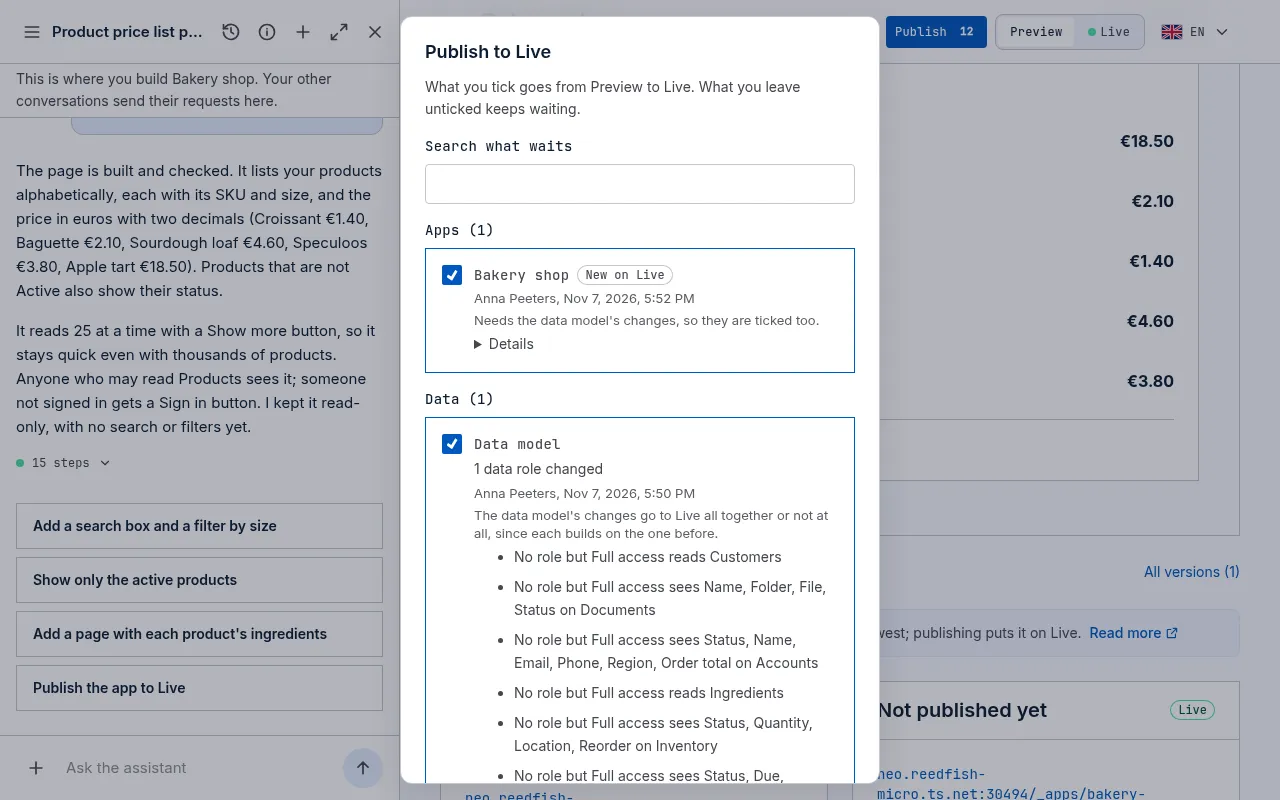
- Details shows the version numbers, and whether the version is built on what Live already has or needs the data model’s waiting changes. If those changes were discarded meanwhile, build a new version.
- When the data model’s changes delete something, tick that you understand before you publish.
- Choose Publish. Everything ticked goes at once, or nothing does.
Publish in the top bar opens the same panel with everything that waits ticked. See Publish and discard changes.
Or ask the assistant, in the app’s conversation: “Publish the app.” It shows on a card what goes to Live: the version, usually already built while you were working, or that it first builds a new one from the app’s latest changes (about a minute), and the data model’s changes and the Variables and secrets the app goes with. Nothing goes to Live until you choose Yes; afterwards it says which version of the app is on Live.
When the version calls an outside service no Administrator allowed on Live yet, the card names it with its reason. An Administrator allows it with Allow and publish; a Builder sees that it waits for an Administrator, and the version keeps working in Preview.
When some of the people the app is for cannot use all of it, because their data role lacks a right, the card says so before you choose, for example Visitors who are not signed in cannot see Conflicts. You can still publish; the assistant proposes the data role change that closes the gap.
Publishing changes to the data model is refused when they would break the version an app serves on Live, for example when they delete a field it reads. Build a new version in Preview that fits the changes and publish them together, or leave the changes out. See Publish and discard changes.
Publishing again works the same way: build a new version, publish it, and Live serves it from then on. Older versions stay as they were, and Live can go back to one: see Go back to an earlier app version.
Open the app
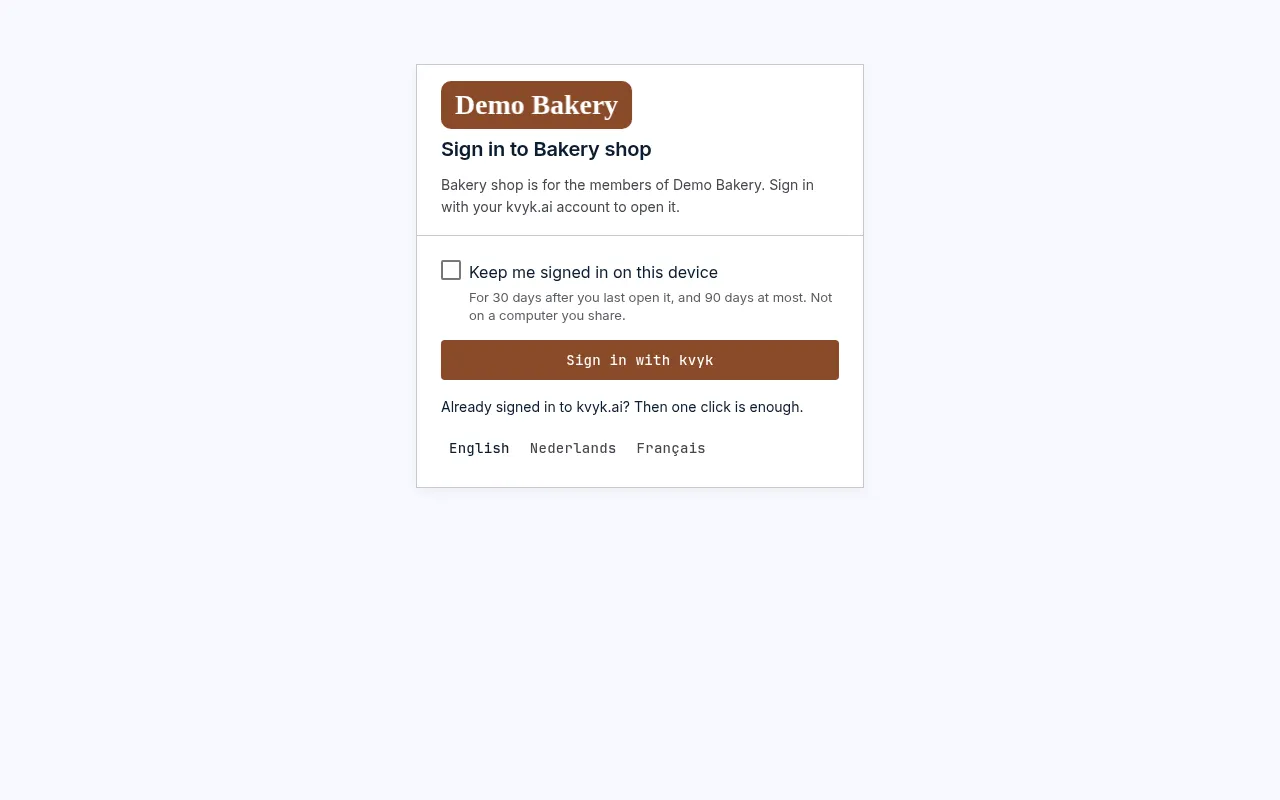
Section titled “Open the app”Open the app at its Live address, shown on its page. A new app is for your organisation’s members, and an Administrator can choose who can open it. The app asks them to Sign in with kvyk. Someone already signed in to kvyk.ai needs only that one click; anyone else signs in as usual first. People outside the app’s audience cannot open it.
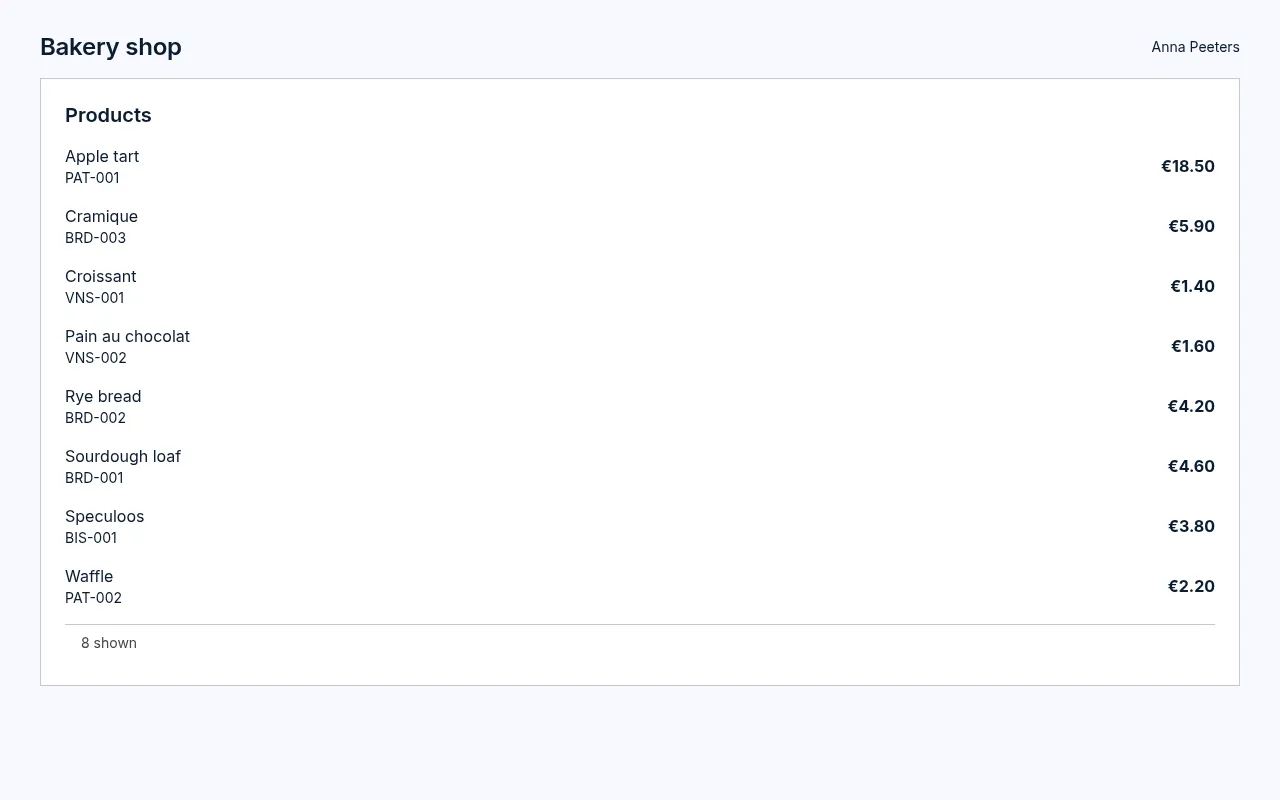
Once signed in, the app shows your Live records, with your own access: everyone sees in the app what they may see in kvyk.ai, and nothing more.
On your own domain
Section titled “On your own domain”To open the app on a domain of your own as well, such as shop.example.com, see Put an app on your own domain.