Choose who can open an app
Open an app to all members, to chosen data roles, departments or people, or to anyone with its address.
Each app has an audience: the people who can open it. A new app is for all members of your organisation. Administrators and Builders change who can open an app.
Beside Who can open it, the app’s page says Public when anyone with its address can open it, and Private when only members of your organisation can.
The change applies at once: you do not publish it. What each person sees in the app still depends on their data roles, as everywhere in kvyk.ai.
Change who can open it
Section titled “Change who can open it”- Open the app’s page from Apps in the sidebar.
- Under Who can open it, choose Change.
- Choose one of these:
- Members of your organisation, then All members, or Only those I choose: add data roles, departments and members by searching their names. A member who holds one of the data roles, is in one of the departments (or a department under it) or is named, can open the app.
- Anyone with its address (public), then whether signing in is Optional or Required, and under Who can create an account?: Only customers you add or invite (the default) or Anyone, on the app’s sign-in page. Letting anyone create an account needs a privacy statement under Settings.
- Choose Next, check who can open the app from then on, and confirm.
Administrators and Builders can always open an app They build and publish it, so they are never left out.
Invite someone to the app
Section titled “Invite someone to the app”Administrators can invite someone straight to a published app: under Who can open it, choose Invite someone to the app. The email names the app and opens it once they have joined. See Invite someone to an app.
Members who build nothing land on their apps when they sign in, not on the dashboard. See Where members land when they sign in.
The app’s Preview
Section titled “The app’s Preview”The members who can open the app can also open its Preview address, to try the next version before it is published. Visitors who have not signed in never see a Preview.
Make an app public
Section titled “Make an app public”When you open an app to anyone, kvyk.ai warns you first: anyone who has its address can open it from the moment you confirm, and you choose Make it public.
- Signing in optional: anyone can open the app. A visitor who has not signed in sees only what the data role Not signed in may read, which is nothing until you change it. See Show records to visitors who are not signed in.
- Signing in required: visitors sign in before the app opens.
Adding, changing and deleting records always needs someone signed in.
Your members sign in with kvyk, and your customers with a code mailed in your organisation’s name. With Only customers you add or invite, only customers on your People page can sign in; with Anyone, on the app’s sign-in page, visitors can create an account themselves. See How customers sign in to your apps.
When you have no privacy statement yet
Section titled “When you have no privacy statement yet”Visitors who create an account agree to your privacy statement, so an app cannot let anyone create one without it. When you confirm and your organisation has none, kvyk.ai says so above the choices. An Administrator can then use kvyk.ai’s privacy statement, written and hosted in your organisation’s name, in one click: tick This statement is in your name. Check that it fits what you do. and choose Use kvyk.ai’s privacy statement. The app is made public straight after. It needs your organisation’s address and email address under Settings first. A Builder asks an Administrator.
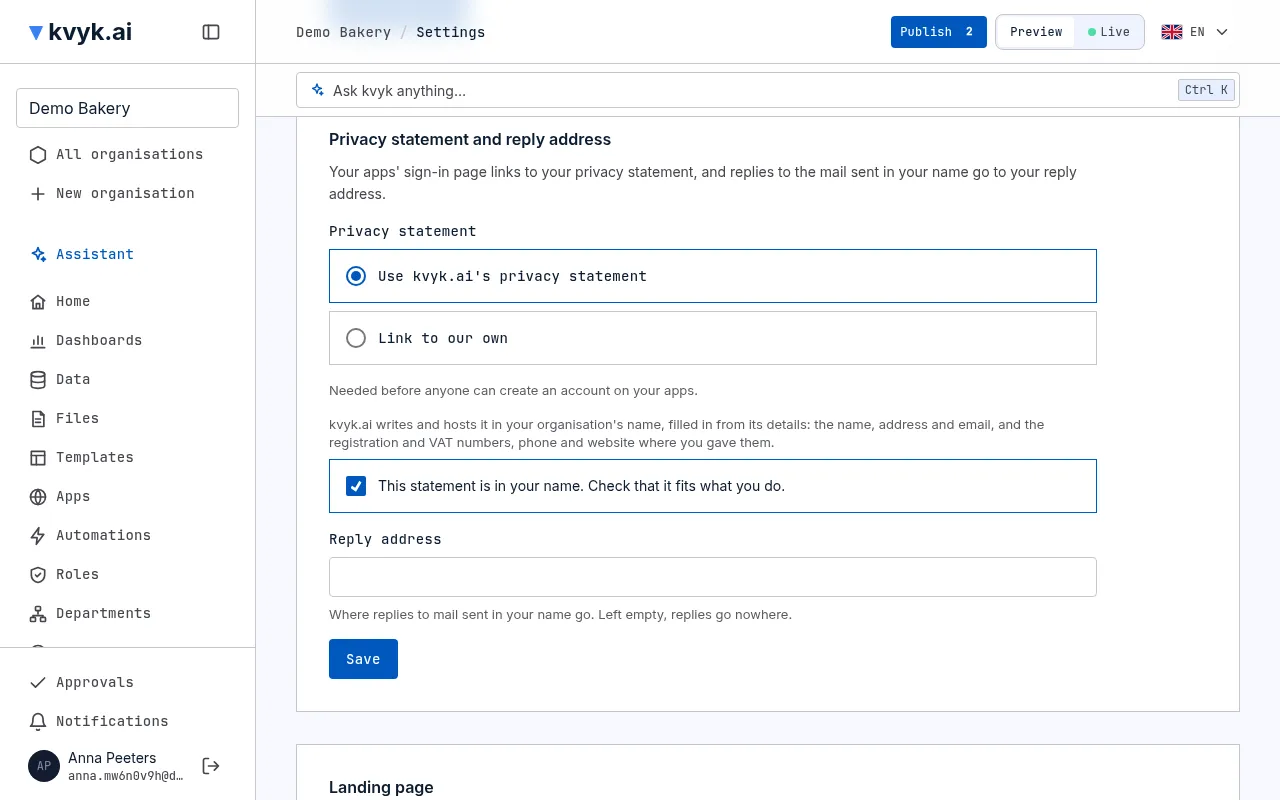
You can also choose it, or link to your own, under Settings.
Show records to visitors who are not signed in
Section titled “Show records to visitors who are not signed in”Every organisation has a built-in data role, Not signed in. Visitors of a public app who have not signed in read with it. At first it shows them nothing.
- Open Roles and choose Not signed in.
- For each entity visitors may see, set Read to All records.
- To keep some fields from them, choose the entity and set those fields to Hidden.
- Choose Save changes, then publish the change.
Not signed in only reads: it never adds, changes or deletes records, and nobody holds it.
Someone outside the audience
Section titled “Someone outside the audience”A member who is not in the app’s audience sees that the app is not open to them, and that an Administrator or Builder chooses who can open it. When you take someone out of the audience, they lose the app within seconds, even if they had it open.
See who changed it
Section titled “See who changed it”Every change shows on the event log as Who can open an app changed, with who did it and who can open the app since.
With the assistant
Section titled “With the assistant”Ask the assistant, for example “Let only the kitchen open the shift planner”. It shows the change on a card, and nothing changes until you confirm. Before it makes an app public, it asks you whether signing in is optional or required, and who can create an account. When anyone may create an account and your organisation has no privacy statement, it offers kvyk.ai’s, in your name, on a card you confirm.
When the app’s new audience cannot use all of it, the card says so, for example Visitors who are not signed in cannot see Conflicts, and the assistant proposes the data role change that lets them.