Sign in and your account
Sign in with a code or a link from your email, with no password, set your name, language and time zone, and change your email address.
kvyk.ai has no passwords. You sign in with your email address: kvyk.ai sends you a code and a link, and either one lets you in.
Sign in
Section titled “Sign in”- Open the dashboard and enter your email address.
- Choose Email me a sign-in link.
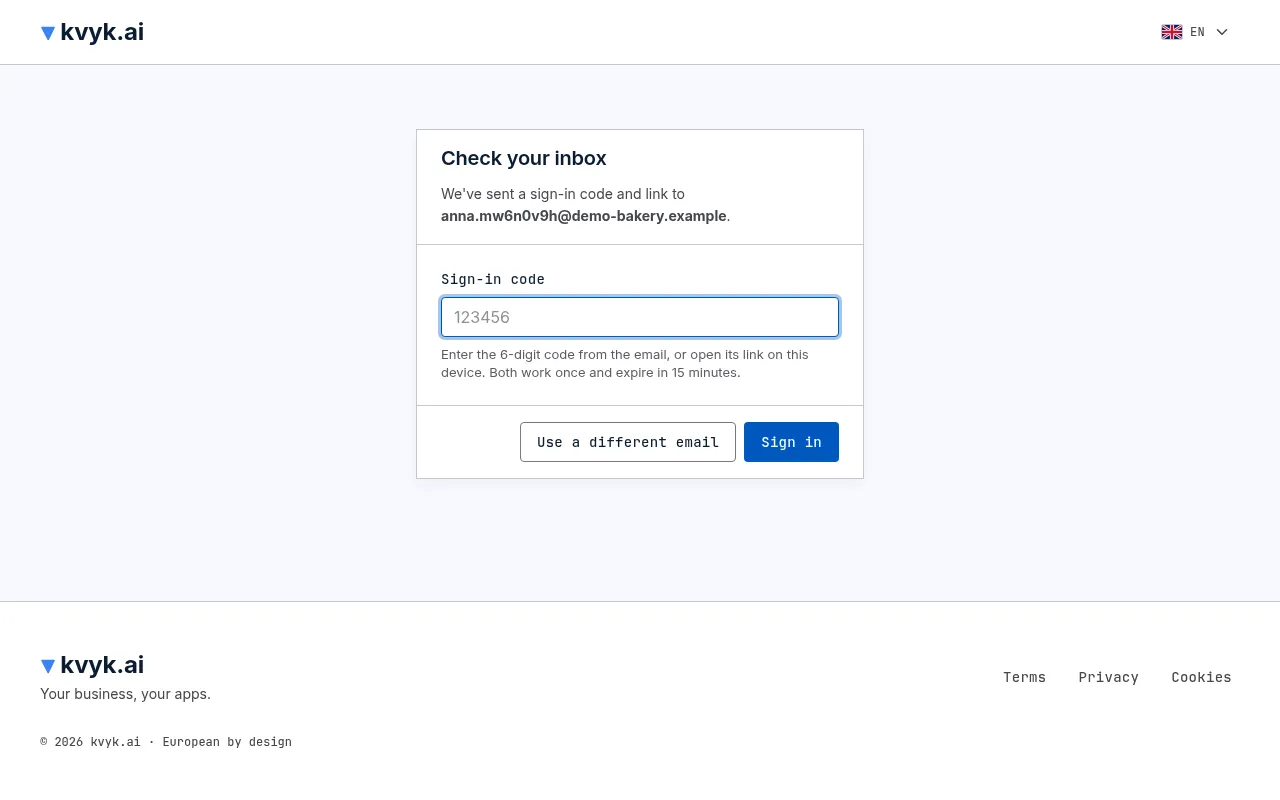
- Check your inbox. The email holds a 6-digit sign-in code and a sign-in link.
- Type the code on the Check your inbox page, or open the link on the same device.
Once you are in, kvyk.ai opens your organisation. If you are a Member who uses apps, it opens your app, or a list of your apps when there are several.
The code and the link work once and expire after 15 minutes. If you mistype the code too often, use the link, or go back and ask for a new code later.
If you ask for more than five sign-in emails in 15 minutes, ten in an hour or thirty in a day, kvyk.ai stops sending them for a while and tells you when you can try again. Any email you already got still works: use the newest code, or any of the links.
The acceptable use rules
Section titled “The acceptable use rules”The first time you open the dashboard, kvyk.ai asks you to read the acceptable use rules and choose I accept the rules. They are the same for everyone: nothing illegal, no spam or malware, no attempts to break the service or reach other organisations’ data. When the rules change, the dashboard asks again. The apps of your organisations never ask.
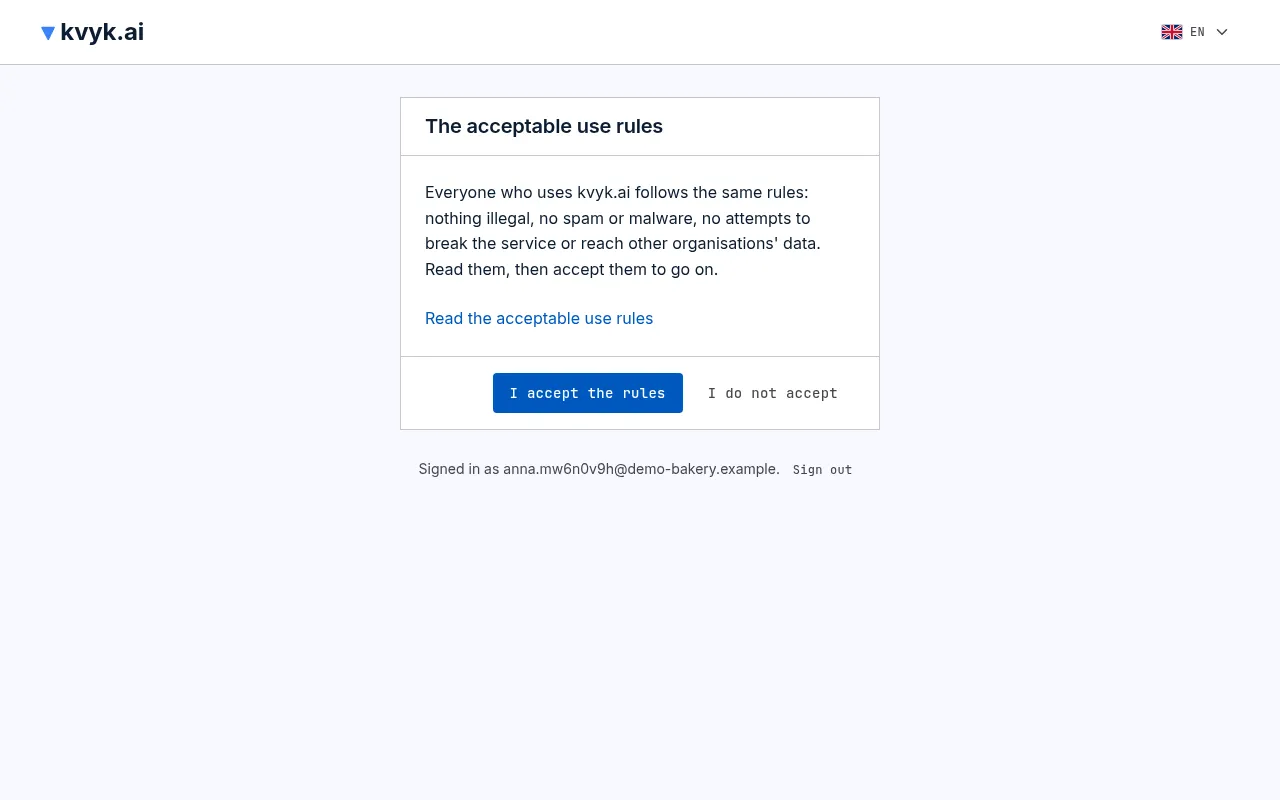
If you do not want to accept them, choose I do not accept. You then stay outside the dashboard, while your organisations’ apps keep working for you, or you choose one of two things, each after a confirmation:
- Leave my organisations: you leave every organisation you belong to. Records you own go to an Administrator of each. Your account is kept for 30 days, then deleted unless you join an organisation again.
- Delete my account: you leave every organisation, and your account is deleted at once.
Either way kvyk.ai emails you what happened. If you are the only Administrator of an organisation, you cannot leave it: make someone else Administrator, or end the organisation, first.
The dashboard also says once that it only uses the cookies and browser storage it needs to work. Choose OK and it does not say it again on that browser.
Before kvyk.ai opens
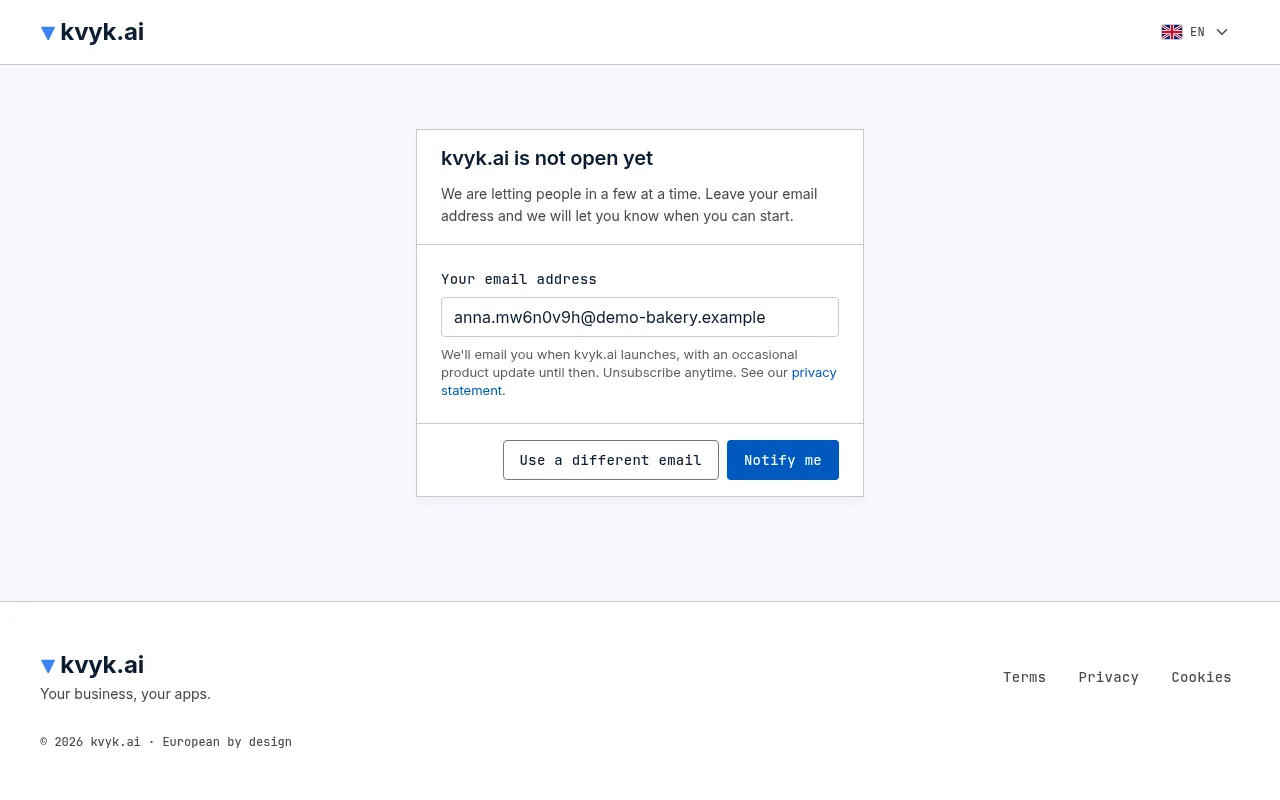
Section titled “Before kvyk.ai opens”Until kvyk.ai opens to everyone, only people who have been let in can sign up and sign in: those kvyk.ai added to its list, and anyone they invite into their organisation.
If you are not let in yet, kvyk.ai shows kvyk.ai is not open yet instead of sending a code. Choose Notify me to leave your email address: you get an email to confirm it, and once you have, kvyk.ai lets you know when it opens. Choose Use a different email if you meant to use another address.
Someone in an organisation on kvyk.ai can also invite you: follow the link in their invitation and you are in.
Your account
Section titled “Your account”Your name and email are at the bottom of the sidebar. Open Your account there to:
- change the name others see in kvyk.ai, such as on records you change and in the event log;
- choose your language: English, Nederlands or Français. The dashboard is shown in it and the emails kvyk.ai sends you are written in it, and the assistant answers in it when it cannot tell your language from what you write. It is saved on your account as soon as you choose it. The flag at the top of every page changes the same setting, so the two always show the same language;
- set the time zone you see dates and times in, which also decides what “today” and “this week” mean in filters. Choose This device’s to follow wherever you are, Each organisation’s own so you see the same days as everyone in an organisation, or one time zone of your own;
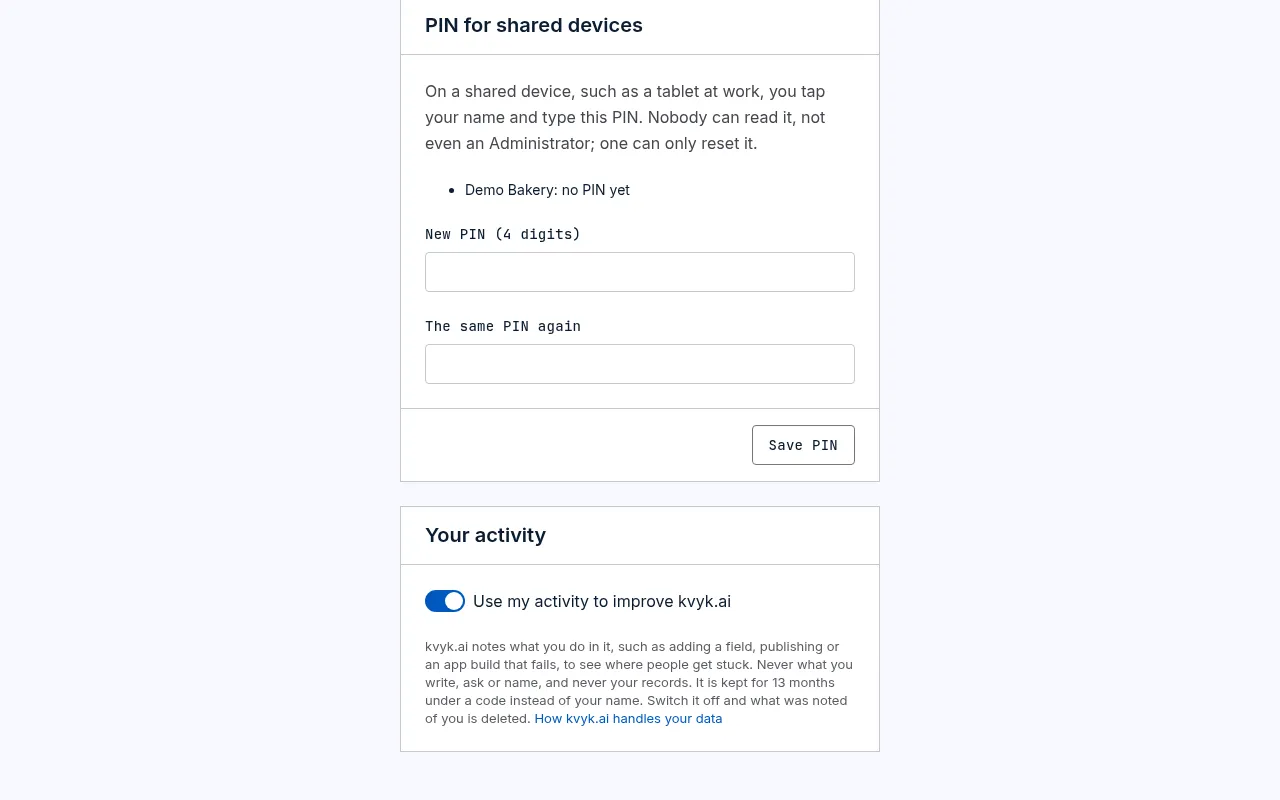
- switch Use my activity to improve kvyk.ai off or on. While it is on, kvyk.ai notes what you do in it, such as adding a field, publishing or an app build that fails, to see where people get stuck. It never notes what you write, ask or name, nor your records, and keeps it for 13 months under a code instead of your name. It is on until you switch it off, and switching it off deletes what was noted of you.
Change your email address
Section titled “Change your email address”- Open Your account and, under Change your email, enter the new address.
- Choose Send a confirmation link. kvyk.ai emails a link to the new address. It works for 7 days.
- Open the email in that inbox, follow the link and choose Confirm this address.
An Administrator of one of your organisations can also change it for you, for example when you can no longer read your old inbox: the link then goes to the new address the same way, and only you can confirm it there.
Until you confirm, you keep signing in with your current address. Your account shows New address waiting for verification, with Send again and Cancel the change. Once you confirm, you sign in with the new address, and your previous address gets a short email saying it changed. The change is recorded in the event log of each of your organisations.
An address that already belongs to another kvyk.ai account, or to a customer of one of your organisations, cannot be yours.
If kvyk.ai suspends an account or an organisation
Section titled “If kvyk.ai suspends an account or an organisation”kvyk.ai can suspend an account, or a whole organisation, that breaks the acceptable use rules. Nothing is deleted, and kvyk.ai emails the reason. kvyk.ai may first email a warning that asks you to put things right.
- A suspended account is signed out at once. Signing in shows that kvyk.ai suspended it, and asking for a sign-in email sends an email that says so instead of a code.
- A suspended organisation shows only a notice that kvyk.ai suspended it; its Administrators also see the reason. Nobody can work in it, its apps do not open and its customers cannot sign in.
To talk about a suspension or have it lifted, write to privacy@kvyk.eu. Once it is lifted, everything works as before, and you get an email.
Sign out
Section titled “Sign out”Choose Sign out at the bottom of the sidebar. On a shared computer, always sign out when you are done.