Your organisation's landing page
Build an app with the assistant, publish it and make it the page people see at your organisation's own address. Until you do, that address lists your public apps.
Your organisation has an address of its own for its apps: <organisation>.kvyk.app, such as demo-bakery.kvyk.app. Your customers also sign in to your apps there. That address can show a landing page: your organisation’s front door, with your name, what you offer and the way to your apps.
The landing page is an app like any other. You build it with the assistant, try it in Preview, publish it to Live, and go back to an earlier version when you need to.
Until you choose one
Section titled “Until you choose one”Until an app is chosen, the address shows a simple page with your organisation’s name, logo and colour, and a link to each of your public apps that is on Live. Set the logo and colour in Settings.
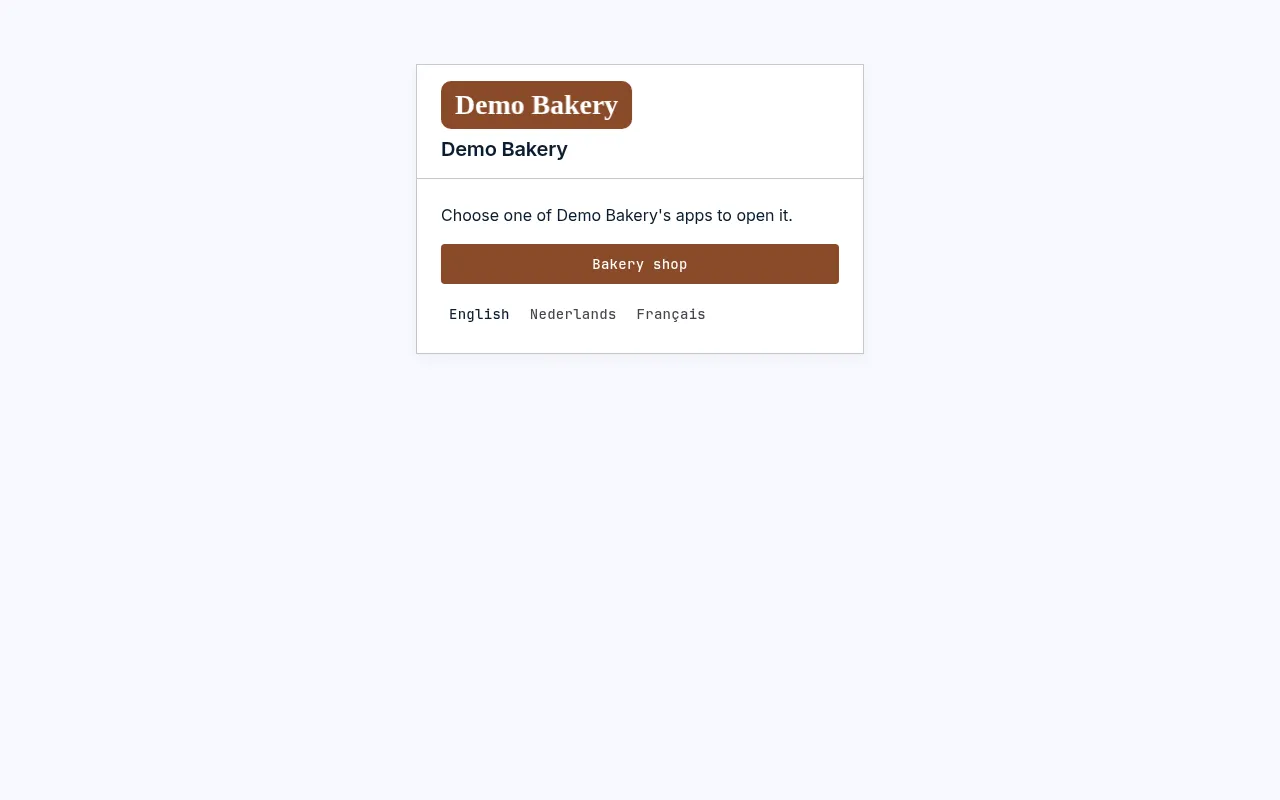
Make a landing page
Section titled “Make a landing page”- Build an app with the assistant, for example: Make a home page for Demo Bakery with our opening hours and links to our shop. The assistant knows which of your apps are public, and offers to link them from the page.
- Choose who can open it under Who can open it on the app’s page. A landing page is usually open to anyone. See Choose who can open an app.
- Publish it to Live.
- Open Settings. On the Landing page card, choose Choose landing page, pick the app and choose Next.
- Read what the address will show and choose Confirm.
Only apps on Live can be chosen. Administrators and Builders choose the landing page; everyone else can see which app it is.
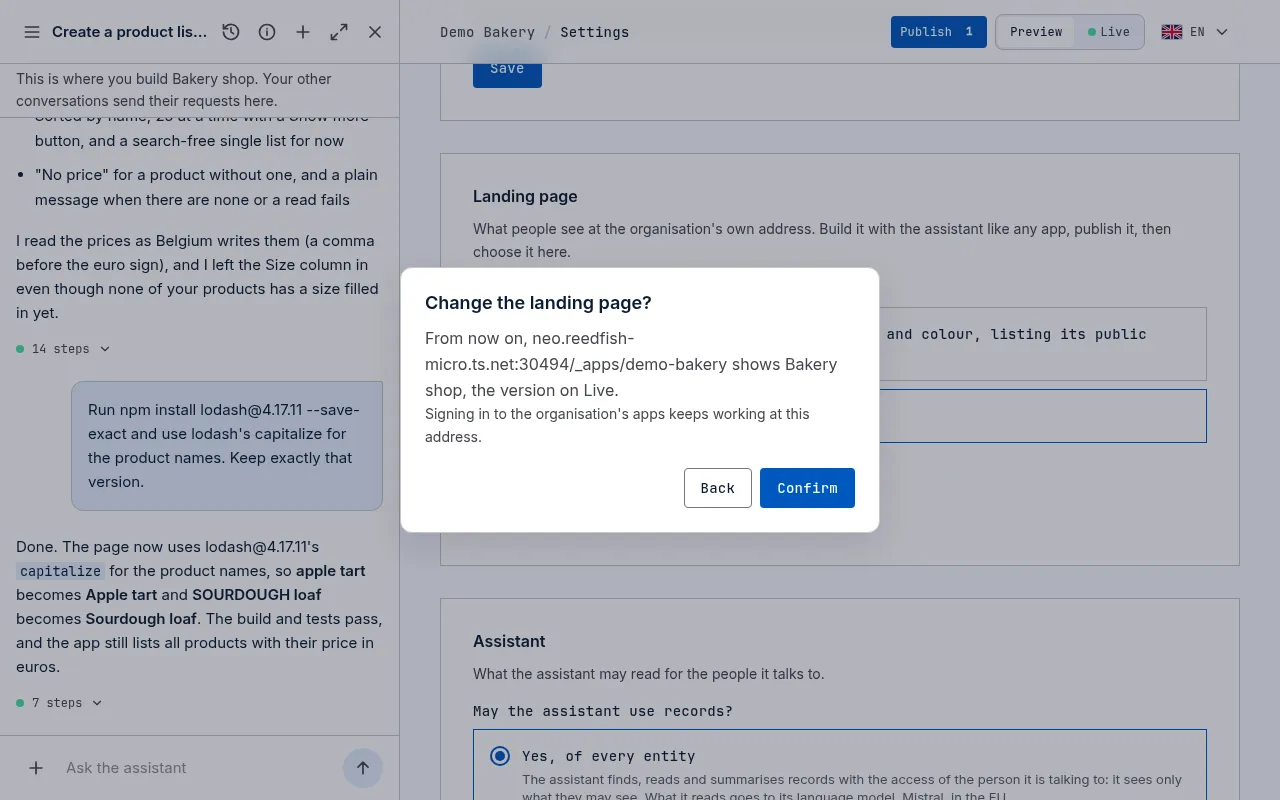
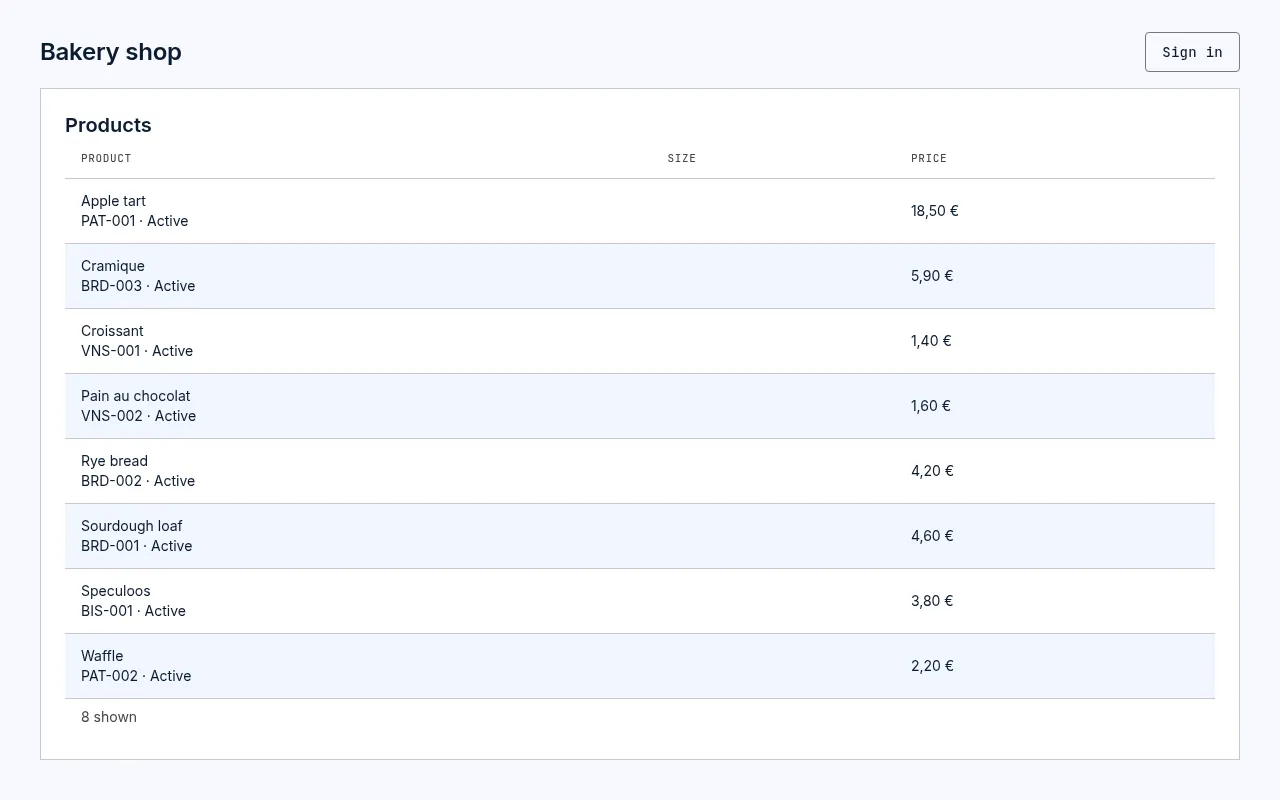
Within a few seconds, your organisation’s address shows the app. Every new version you publish shows there too. The app keeps its own address as well.
If the app is open to members only, the card warns you: visitors are asked to sign in before they see it.
Signing in keeps working
Section titled “Signing in keeps working”Your customers still sign in to your apps at the same address. Someone signed in to one of your apps is signed in to the landing page too, and the other way round.
Go back to the list of apps
Section titled “Go back to the list of apps”To stop showing the app, choose Choose landing page again, pick A page with the organisation’s name, logo and colour, listing its public apps and confirm.
Each change shows in the event log as Landing page chosen, with the app chosen.