Publish and discard changes
See what is waiting in Preview, choose what goes to Live, or take data model changes back before they are published.
What you build is made in Preview and waits there until a Builder or Administrator publishes it: changes to the data model and the data roles, new versions of your apps, automations, email and document templates, and Variables and secrets.
Preview is shared by the whole organisation: what waits there is everyone’s work, not only yours. When you publish, you choose what goes to Live; what you leave unticked keeps waiting. See Working together.
Publish in the top bar
Section titled “Publish in the top bar”Builders and Administrators see Publish in the top bar, with the number of changes waiting. It is not there when Preview matches Live. Members do not see it.
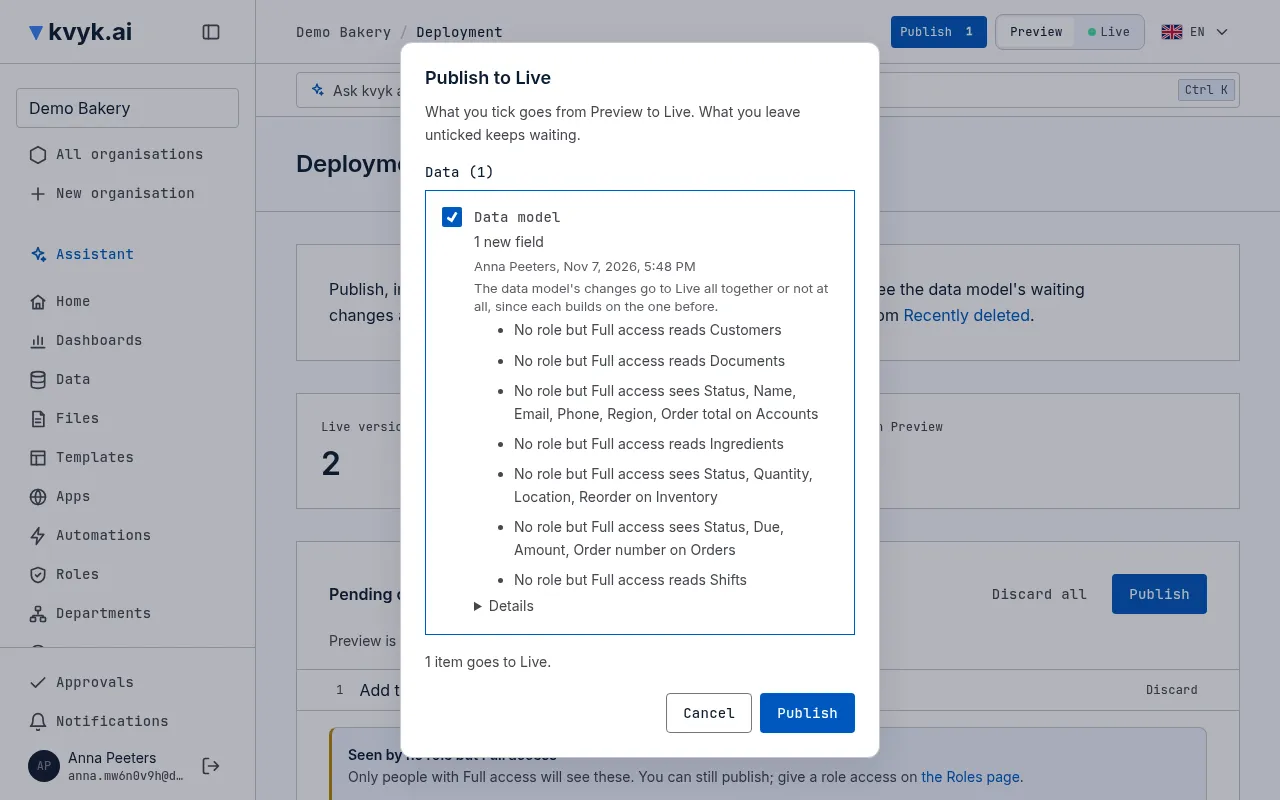
Choose it to open the publish panel with everything that waits ticked.
What the panel shows
Section titled “What the panel shows”The panel lists what waits, in groups: Apps, Automations, Templates, Variables and secrets and Data. Each item says in plain words what changed, such as 2 new fields, 1 field deleted, with who changed it last and when. Details shows the version numbers and, for the data model, each change in the order it was made. With many items waiting, search the list.
Warnings sit beside the item they belong to: a change that deletes something, or one an Administrator has to confirm.
Tick what should go to Live and choose Publish. Everything ticked goes to Live at once, never half of it.
Publish from a page
Section titled “Publish from a page”The pages of an app, an automation, a template, the data model and a data role have their own Publish while something on them waits. It opens the same panel with that page’s item ticked. Everything else that waits is listed under Also waiting, unticked, with who made it: tick what should go along.
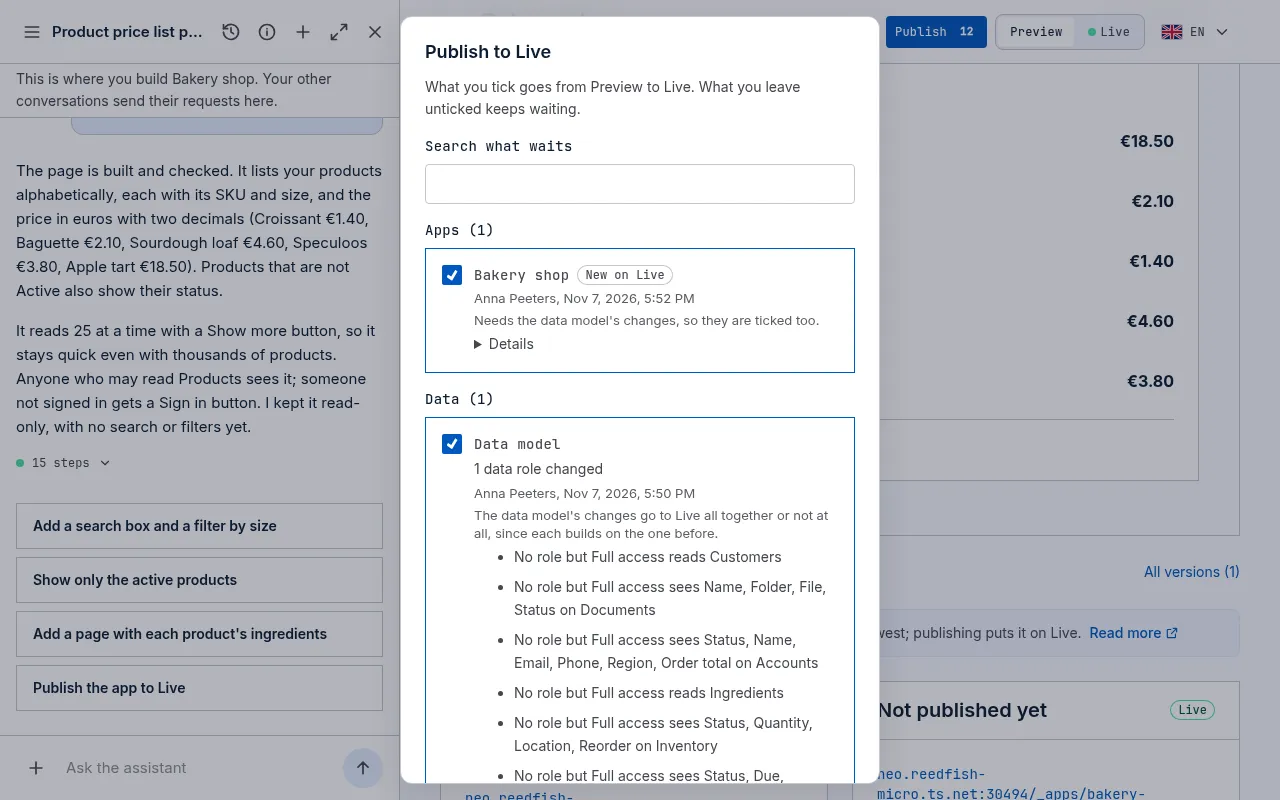
An app version that needs the data model’s waiting changes ticks them too, and says why. Unticking the data model’s changes unticks the apps that need them.
The data model’s changes go together
Section titled “The data model’s changes go together”The data model’s changes go to Live all together or not at all, since each builds on the one before. The panel says so.
Before anything changes, kvyk.ai checks the changes against Live’s records. A new required field without a default, for example, cannot go to an entity that already has records in Live. When a check fails, nothing is published and kvyk.ai says why, so you can adjust the change in Preview and try again.
When the changes delete something, the panel asks you to tick that you understand: the deleted entities, fields and links leave Live, and Live keeps their data for 30 days so you can still restore it.
When a colleague changes the data model while the panel is open, kvyk.ai does not publish and asks you to look again.
When a change would break what Live runs
Section titled “When a change would break what Live runs”An app or a template already on Live may use what the data model’s changes delete or rename. A change like that would break it on Live, for everyone, so kvyk.ai does not publish it. The panel says so before you publish, under These changes would break what Live runs: each app and template, and what of it would break, such as a field it reads that is deleted. Renaming a field breaks no template: templates follow the field under its new name.
There are two ways on:
- Take a fixed version along. Ask the assistant to build the app again in Preview, so it fits the changes, or fix the template there, and tick it in the panel. The warning goes away once it is ticked to go along.
- Leave the changes out. Untick the data model’s changes to publish the rest without them, or discard them.
When a change can break a system connected with an API key
Section titled “When a change can break a system connected with an API key”Other systems, such as your webshop or your accounting package, may read and write your data with an API key. They use the names of your entities, fields and links. kvyk.ai cannot see which names a system uses, so it cannot check them for you.
When the data model’s changes delete or rename an entity, a field or a link, and your organisation has API keys for Live that have not been revoked or expired, the panel says so under Systems connected with an API key may stop working: what is deleted or renamed, each key’s machine member, and when the key was last used. When you choose Publish, kvyk.ai asks once more, and Publish anyway publishes. It never stops you, since only you know what those systems use.
Before you publish, do one of these:
- Change the outside system first, so it uses the new names, or no longer uses what is deleted.
- Keep the old name for a while. Instead of renaming a field, add the new field next to the old one and publish that. Once every system uses the new field, delete the old one.
What an Administrator confirms
Section titled “What an Administrator confirms”Some changes need an Administrator: a data role that lets people do more than now, how long a template’s documents are kept, or an app calling an outside address. A Builder sees them in the panel but asks an Administrator to publish them. When an Administrator publishes, kvyk.ai asks first, with each change, before anything goes to Live.
The Deployment page
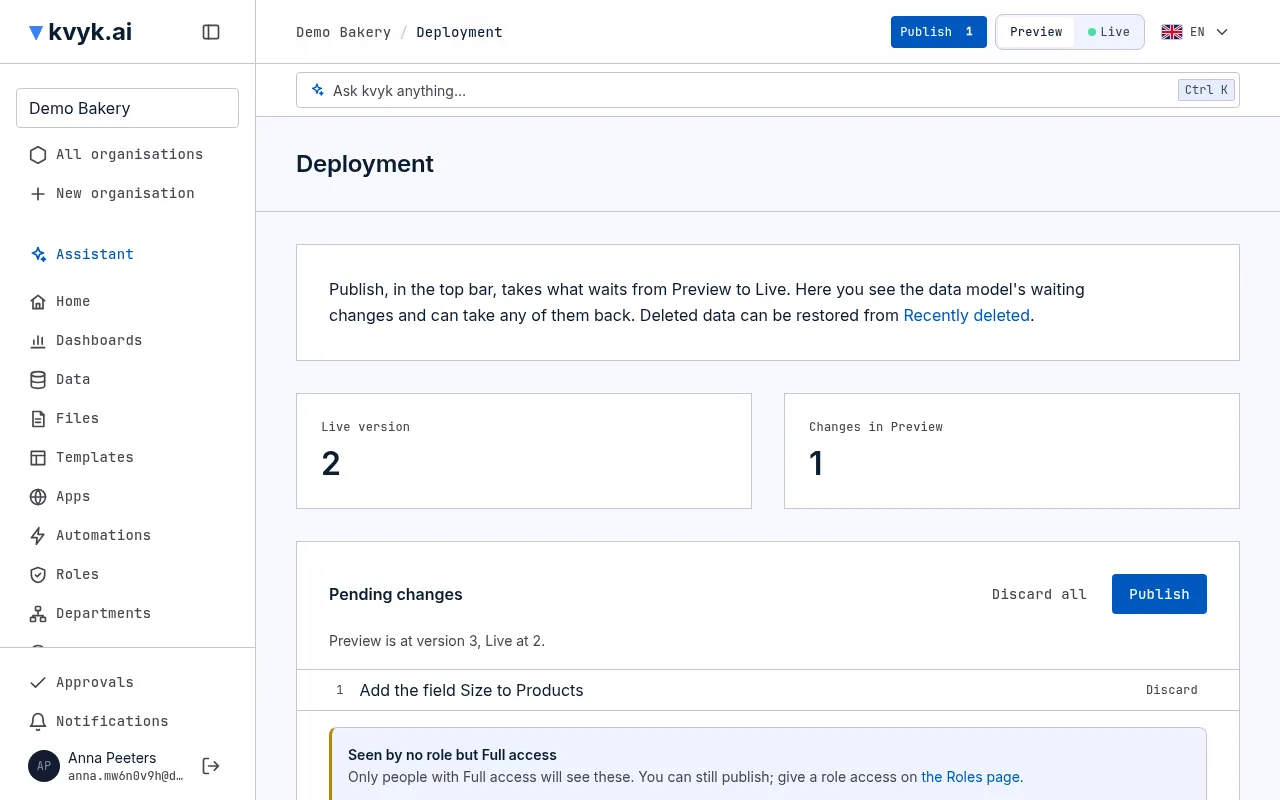
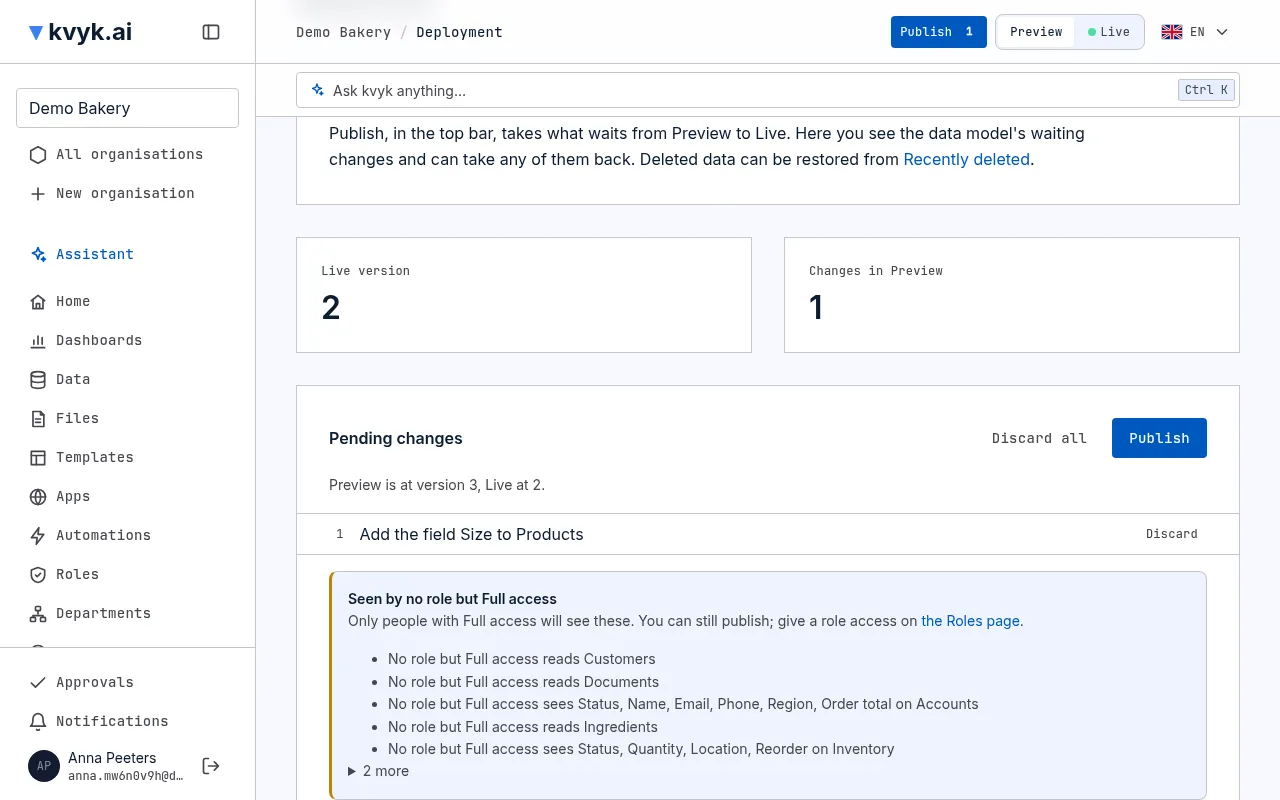
Section titled “The Deployment page”Technical → Deployment in the sidebar shows the data model’s waiting changes one by one, in plain words and in the order they were made, such as Add the field Email to Customers. A change that deletes something is marked Deletes. Its Publish opens the panel on the data model.
Seen by no role but Full access
Section titled “Seen by no role but Full access”When an entity or a field would be seen by nobody except people with Full access, Deployment says so under Seen by no role but Full access: an entity no data role reads, or a field every role that reads its entity hides. It links to the Roles page, where you can give a role access. This is a reminder, not a stop: you can still publish, for example when a margin is meant for Administrators only.
Discard changes
Section titled “Discard changes”The data model’s changes waiting in Preview can be taken back before they are published:
- Discard next to a change takes back that change and every change after it, the last first.
- Discard all takes back everything that is waiting.
kvyk.ai asks first; once you confirm, Preview goes back to how it was before them. Live is not touched.
Keep in mind:
- Preview’s test records in what the discarded changes added are lost.
- A field the changes deleted comes back empty in Preview.
- A discarded change cannot be brought back: make it again if you need it.
Saved, waits for Publish or live now
Section titled “Saved, waits for Publish or live now”Each save says what happens next. Saved, waits for Publish. means it is in Preview and reaches Live when someone publishes it. Saved, live now. means it changed Live at once: your own views and settings, and the controls that stop or start something on Live, such as turning an automation off.
With the assistant
Section titled “With the assistant”Ask the assistant to publish, and it shows the waiting changes on a card. The card also lists what no role but Full access would see. Nothing goes to Live until you choose Yes.